Last Updated: October 20, 2025
Completed & Pending
To view a completed task, a pending request or a completed request:
-
In the left pane, select:.
-
Completed under My Tasks.
-
Pending or Completed under My Requests.
-
To save time, you can take the same action on multiple tasks by checking the box for each task first and then selecting the action.
Here is a brief overview of the actions you can perform on documents listed in these sections.
The actions available depend on your role and permissions.
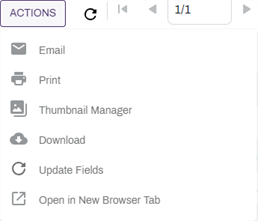
With the appropriate permissions, you can use the Email option to send a link to the document via email, or send the document as an attachment. Some options available when using this feature are:
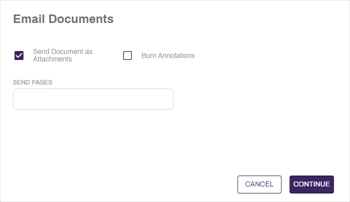
To send a document as an attachment, complete the following:
- Select the Send Document as Attachments button to send the document as an attachment to an email.
- Enter a number or series of numbers in the Send Pages field to limit which pages are sent as an attachment.
- Select the Burn Annotations button to apply all annotations to the document before sending.
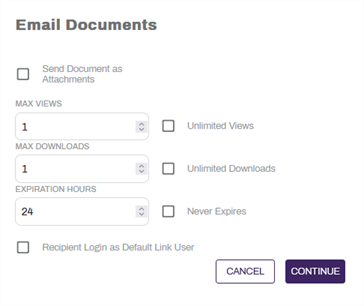
To send a link to the document, complete the following:
- Deselect the Send Document as Attachments button to send a link to a document.
- Set a maximum number of views for the document by entering a number in the Max Views field.
- To allow for unlimited views, select the Unlimited Views option.
- Set a maximum number of document downloads by entering a number in the Max Downloads field.
- To allow for unlimited downloads, select the Unlimited Downloads option.
- Set an expiration for the document in hours by entering a number in the Expiration Hours field.
- To prevent the document from expiring, select the Never Expires option.
- Select the Recipient Login as Default Link User to allow external users to automatically log in as the configured default link user. For more information on configuring the default link user, see email Optional Settings.
- Set a maximum number of views for the document by entering a number in the Max Views field.
Select Continue to continue to the next step.
-
Enter an email address or addresses in the To, Cc, and Bcc fields for any recipients of the document.
-
Enter a subject in the Subject field.
-
Enter a message in the email body field.
-
Select the Send button to send the document.
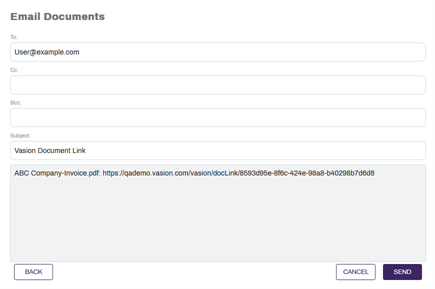
For more details, see Email.
The print function for completed tasks, pending requests, or completed requests is the same as printing from other locations in the application. You can print documents, with or without burning annotations.
Print the selected document and any annotations. If the document is part of a signature workflow, you can also print the signature history.
- Select the document you want to print.
- Select the Actions button and then select Print.
- Select the Print button
 .
. - In the Print Documents modal, select from the following options:
- Burn Annotations — select this option to include unburned annotations on the document you’re printing.
- Include Signature Doc History – this option only displays if a document is part of a signature workflow. When selected, it downloads the current signature audit trail in a separate PDF.
- Select Print.
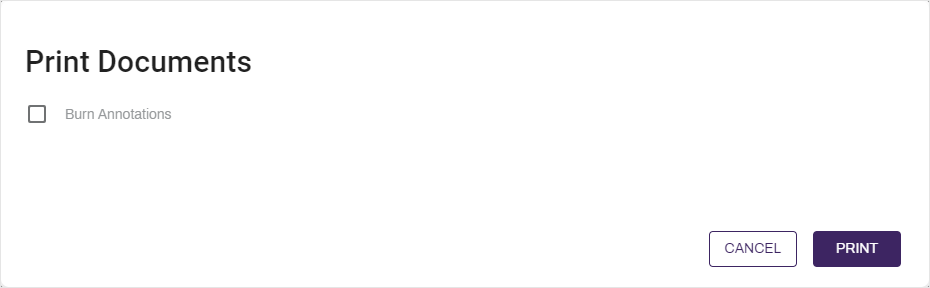
Thumbnail Manager
The Thumbnail Manager option is not available in the My Requests  Completed section.
The Thumbnail Manager displays a small image of every page included in the selected document. Additionally, you can do the following:
- Rotate page orientation.
- Delete pages.
- Change the order of the pages.
- Split Document.
If you need to split a document and remove pages, the recommended practice is to perform two separate actions. Delete the pages you do not want first, and then split the document, or vice versa.
For more details, see Thumbnail Manager.
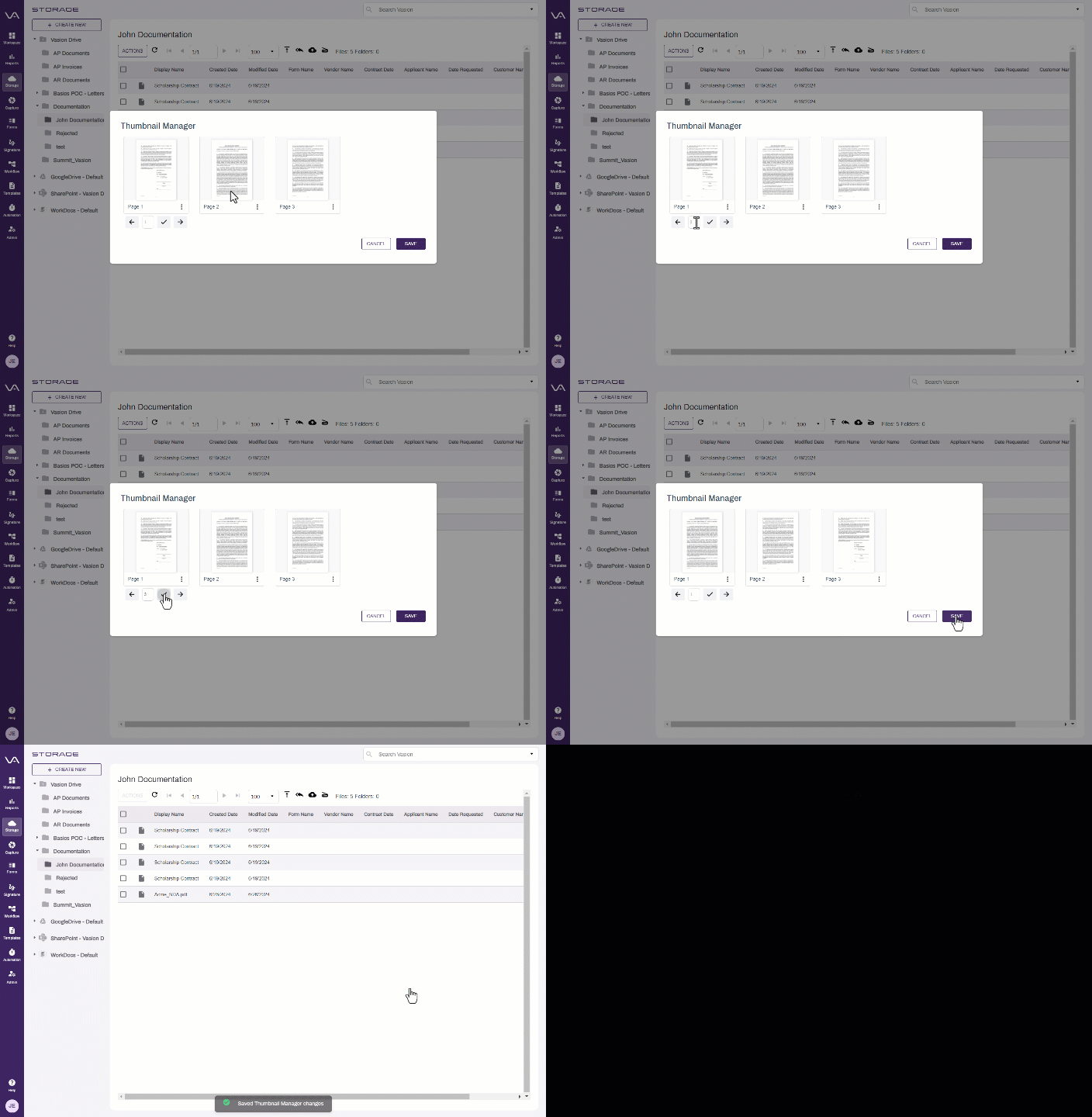
Download
Downloading completed tasks, pending requests, or completed requests is the same as downloading from other locations in the application. You can download task documents – the complete file or selected pages – and you can convert the documents to a PDF.
Use the Download option to save a copy of the
- Select the document.
- Select the Actions button and then select Download.
- Select the Download button
 .
. -
In the Download Documents modal, select your download options:
- Burn Annotations – includes annotations on the document. If you leave this box unchecked, the document will not include unburned annotations.
- Convert to PDF — select this option to download a form as a PDF.
- Include Signature Doc History – this option only displays if a document is part of a signature workflow. When selected, it downloads the current signature audit trail in a separate PDF.
- Extract Pages – use this option if you want to download specific pages from the document. To save a range of pages, use a hyphen between the first page number and last page number, for example, 2-7. To extract single pages, use a comma, for example, 3, 7, 9. You can combine hyphens and commas to get the pages you need, for example 2-7, 9, 15.
- Select Download.
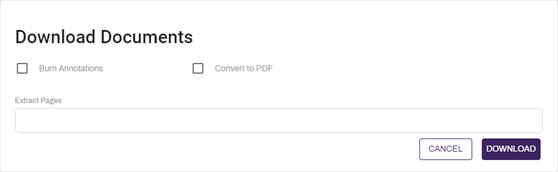
The file is saved to your system's default download location.
Update Fields
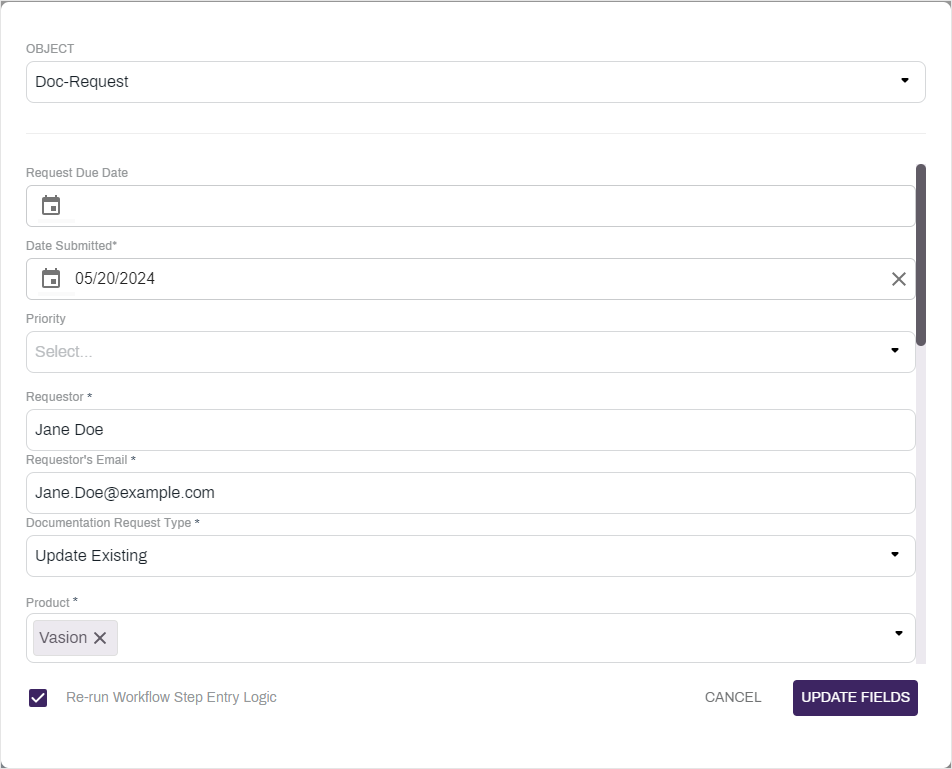
Use this option to make adjustments to the object fields if needed. This will confirm that you have the most up to date changes and updates to the documents and forms.
- Select the document
- Select the Actions button
- Select Update Fields from the list.
- Make any changes to the object fields as needed.
- If you would like to Re-run the workflow Step Entry Logic, check the box for that option.
- Select Update Fields.