Last Updated: June 18, 2024
Search Results
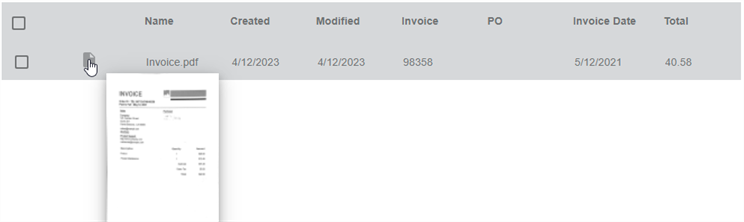
View Document Thumbnail
After submitting a search, the results display in a new page . Hover over the document icon in the search results to view a document thumbnail.
Object Search
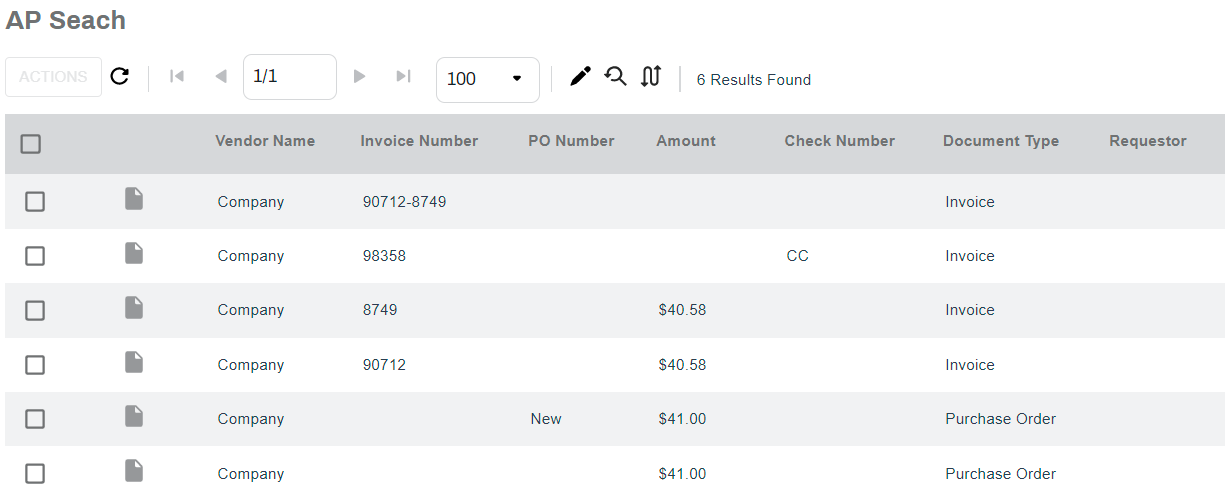
Object search results displaying the following:
- Search results tool bar.
- The records in a table format.
The columns displayed for object searches depend on the folder view that was saved in the search configuration.
Below is an overview of the elements displayed when results are returned.
Object Search Results Tool Bar
The Object search results tool bar displays the following elements:

- Actions menu — select a document first, then select the Actions button to view a list of possible actions you can take on the document. Depending on the roles assigned, the actions listed vary.
-
 Refresh button — use this button to refresh the page.
 -
 Page navigation — use the buttons to move between pages. If the number of records returned results in several pages, you can place the cursor in the number of pages field, type a page number and press [Enter] on your keyboard to quickly navigate to that page.
 -
 Documents per page — shows the current number of records displayed on the page. Use the drop-down to change the number.
 -
 Refine Search button — displays the search with the current parameters so you can change or add additional criteria to narrow the results list.
 -
 Reset Search button — displays the search with no set parameters so you can re-run the search.
 -
 Change Search button — displays the list of available searches so you can select a different one.
 - Number of results — displays the total number of documents found in the current search.
Full Text Search
Full Text search results displaying the following:
- Search results tool bar.
- The records in a table format.
The table shows the hit type in the first column:
-
Document — the text was found within a document.
OCR processing is required to find text in documents.
- I - Index — Data entered into an object field.
- B - Both — Data was found in document text and in object fields.
Below is an overview of the elements displayed when results are returned.
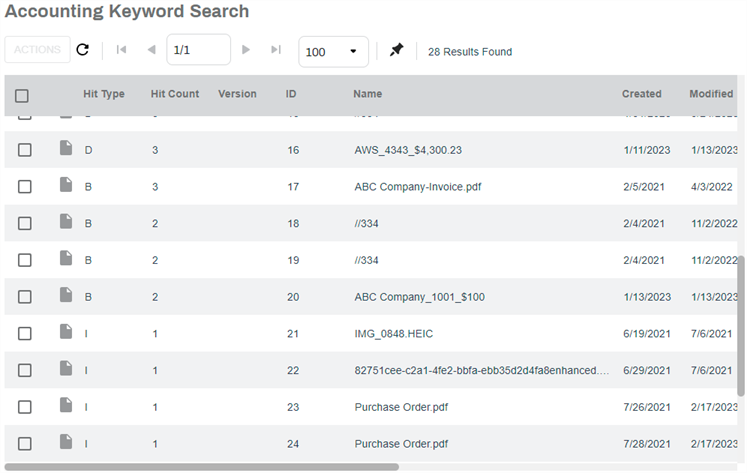
The Full Text search results tool bar displays the following elements:

- Actions menu — select a document first, then select the Actions button to view a list of possible actions you can take on the document. Depending on the roles assigned, the actions listed vary.
-
Refresh button — use this button to refresh the page.
-
Page navigation — use the buttons to move between pages. If the number of records returned results in several pages, you can place the cursor in the number of pages field, type a page number and press [Enter] on your keyboard to quickly navigate to that page.
-
Documents per page — shows the current number of records displayed on the page. Use the drop-down to change the number.
-
 View Hits button — details about where the content was found.
 - Number of results — displays the total number of documents found in the current search.
View Hits
Select a document and then select the View Hits button.
You can only view information one document at a time.
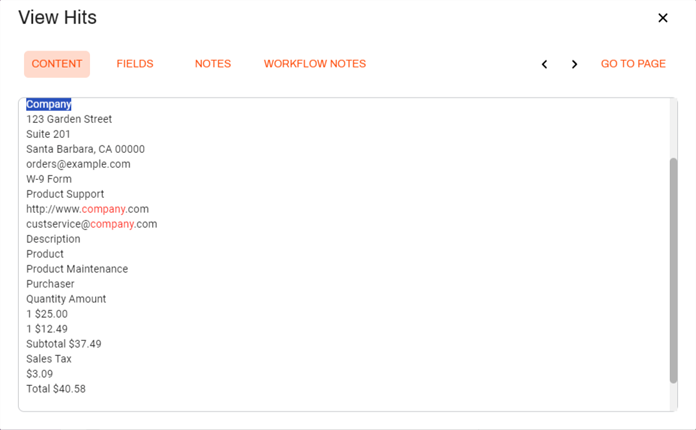
The View Hits modal displays the following tabs:
- Content — used to display the text found in the document.
- The searched term displays in red.
- Use the arrows to quickly move to each location where the term is found.
- Use the Go To Page link to quickly open the document to the page where the selected term is located. You can use the back button
 in the Document Viewer to close the document and return to the search results.
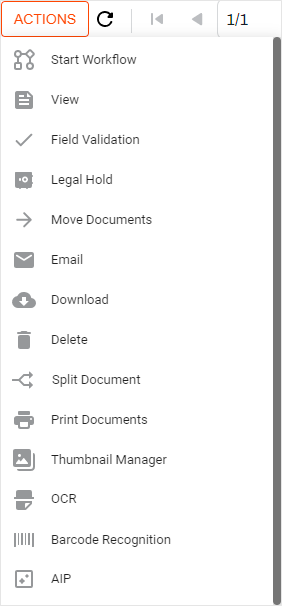
Actions Menu
The Actions menu is enabled when you select one or more results by checking the appropriate box. The options displayed are based on the roles assigned to the user or group.
- Start Workflow — start a new workflow with the selected document.
- View — open the document in the Document Viewer.
- Field Validation — opens the document on the left and the object fields on the right so users can validate or update object data.
- Legal Hold — a status assigned to a document that prevents users from moving or deleting it.
- Move Documents — move the documents to a different Vasion storage location.
- Email — email a link to the document or the document as an attachment.
- Download — save a copy of the document to a local system.
- Delete — delete the selected document.
- Print Documents — print the selected document.
-
Split Documents — split the current document into multiple documents by specifying which page or pages should be the first page in the new documents.
This option is only available if the selected file is a PDF or TIFF format.
-
Merge Documents — select multiple documents to merge into a new document. You can save the new document as a PDF or TIFF file.
You can only merge PDF and TIFF files.
- Thumbnail Manager — open the Thumbnail Manager to quickly view and edit multiple pages.
- OCR — scan the document for text recognition.
-
Barcode Recognition — also referred to as barcode indexing, captures any barcode values and adds them to an object field.
This feature uses existing barcode configurations. For help reach out to your Vasion Automate Pro administrator.
-
AIP — process images in the document to identify and store text and optical mark recognition data.
This feature uses existing AIP configurations. For help reach out to your Vasion Automate Pro administrator.
Signature Documents
By default, all documents sent out by hosted customers are certified. We use Hardware Security Module (HSM) A physical computing device that safeguards and manages secrets (most importantly digital keys), performs encryption and decryption functions for digital signatures, strong authentication and other cryptographic functions. technology to certify the authenticity and integrity of the document once the signature process is complete. Once a document is certified it cannot be modified in any way. For this reason, when selecting certified signature documents, the following options are not available:
- Merge — certified documents cannot be merged with other documents.
- Split — certified documents cannot be split.
- Thumbnail Manager — you cannot view or take action on the document using this option.
To learn more about how to work with Actions see Search Actions.