Last Updated: June 18, 2024
Scan to Vasion
Change the Scan Settings
The scan settings can be changed each time you scan documents. You probably won’t need to change most of the settings but if you have an issue with the appearance of a scanned document, some of these settings may help you get a clearer scan.
Some of the common settings to update are:
- Paper Size – change if you’re scanning pages that are not the standard 8.5” x 11” letter size.
- Image Mode – settings include black and white, halftone, gray scale and color.
- Brightness – change to make the image brighter. Use with the contrast setting.
- Contrast – change to set the contrast between light and dark areas. Use with the brightness setting.
- Preview – if you’re not sure how the settings you’ve selected will impact the appearance of your documents, you can use Preview to see what your documents will look like.
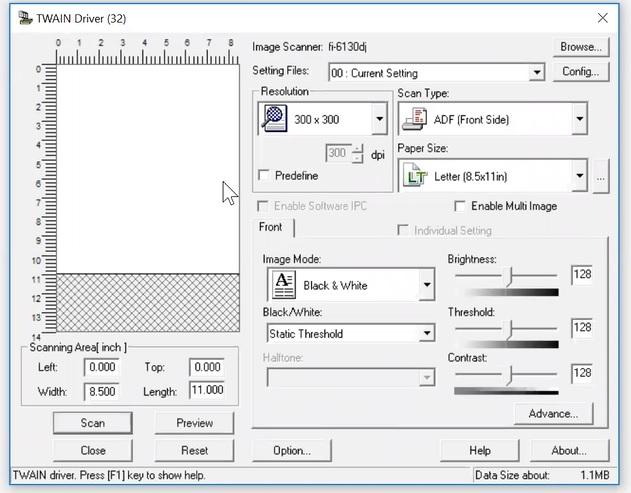
The image included here is just an example the actual settings window depending on the printer installed on your computer.
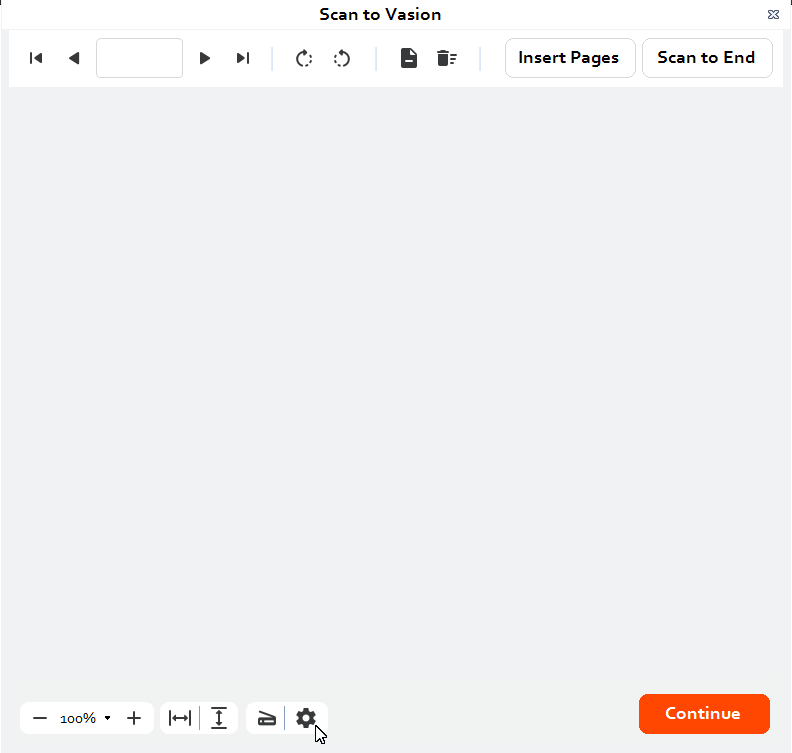
To change the scan settings, a scanner must be installed on your computer. Click on the Settings button at the bottom of the app.
Capture Profiles
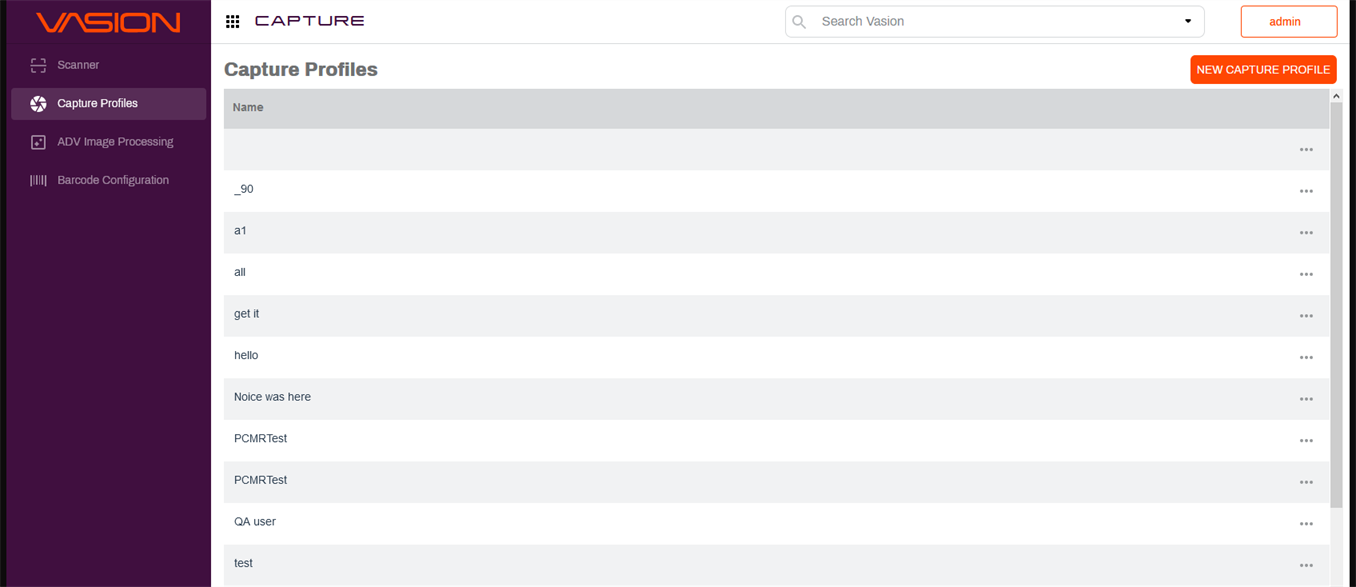
Capture profiles give admin users the ability to configure scan settings for end-users. Some of these settings include folder locations, color options, dpi, and simplex or duplex options.
Create a Capture Profile
-
From the Capture Home page, click New Capture Profile on the top-right corner.
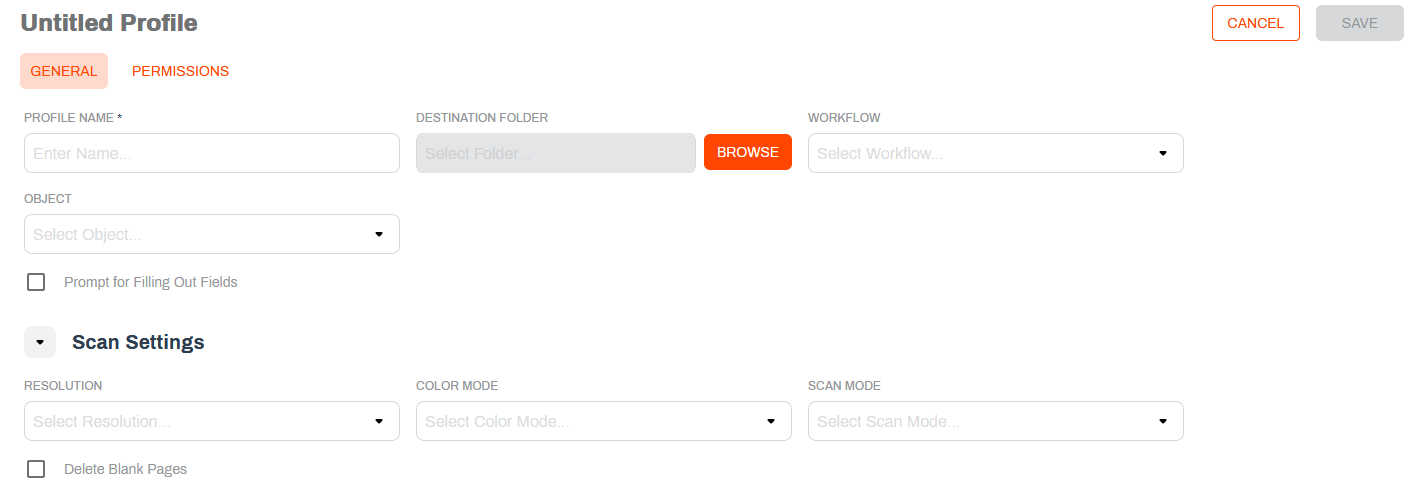
- In the Untitled Profile page complete the following:
- Profile Name — enter a name for the new profile.
- Destination Folder — click on the Browse button to navigate to the default folder to store scanned document.
- Workflow — use the drop-down to select a workflow to assign the scanned document.
- Object — use the drop-down to select the object that you would like to apply to this profile.
Prompt for Filling Out Fields — check the box to prompt the user to fill out the object fields before saving.
-
Select any Scan Settings options you would like to apply to the profile:
- Resolution — use the drop-down to set the resolution for scanned items.
-
Color Mode — use the drop-down to select the Black and White, Color, or Grey Scale scan color mode.
-
Scan Mode — use the drop-down to set Simplex or Duplex mode.
-
Delete Blank Pages — check the box to automatically delete any blank pages that are scanned.
-
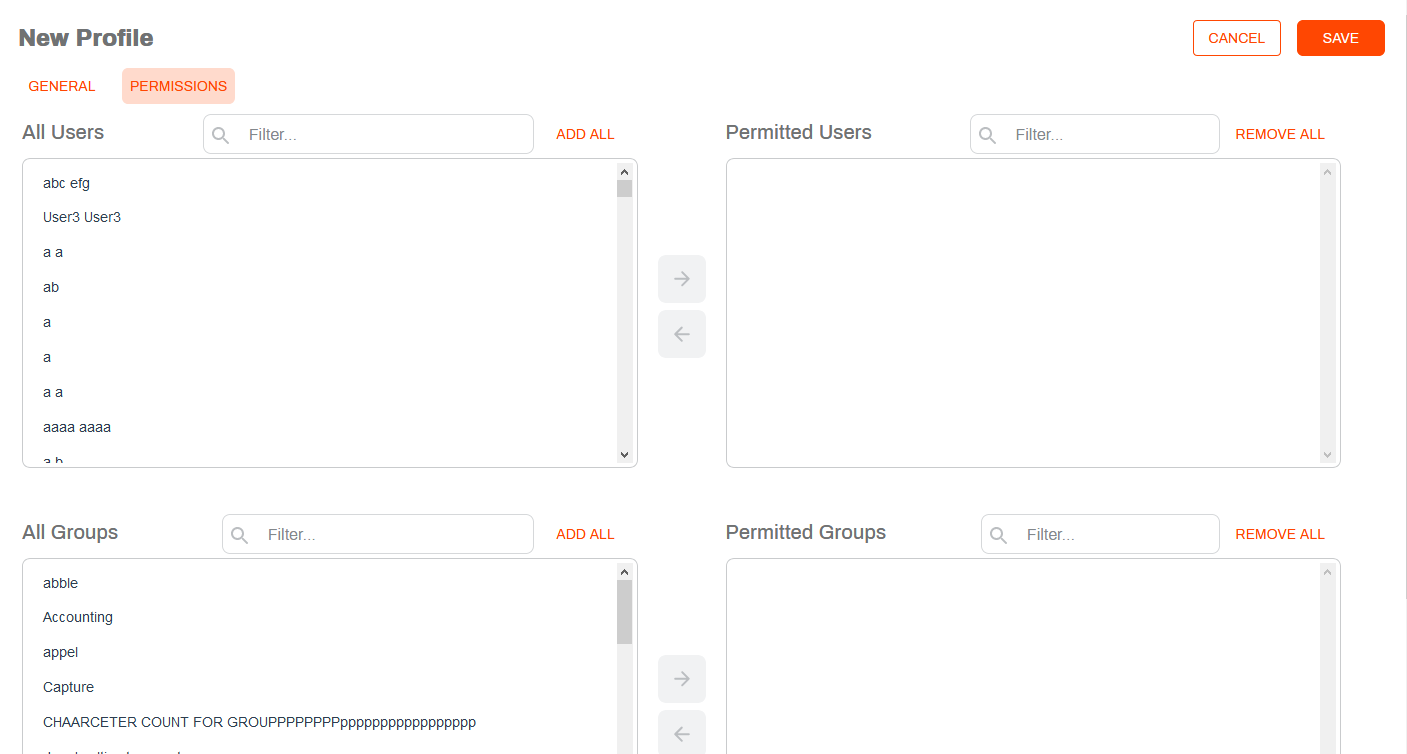
Click on the Permissions tab to assign user or group permissions.
-
Click Save.