PrinterLogic Log File Locations
Last Updated: September 23, 2026
Log files are an integral part of troubleshooting your PrinterLogic instance A collection of services and service groups associated with a customer, created from an app template and deployed to a cloud or virtual server.. You can find log files in different locations depending on the feature you are troubleshooting, and your operating system.
Log files open in chronological order, with the most recent entries at the bottom of the text file. In addition, you can use standard search functions in conjunction with a word such as "Error" to quickly locate the files. Product Support, may ask you to provide the specific log file to provide better assistance.
With the implementation of IPP Printing, you can now see the Vasion Agent service (VasionClient.exe) alongside the classic Agent. This service handles newer capabilities, and we moved its log location and format to follow Microsoft standards.
The VasionClient.exe service currently handles the following:
- Internet Printing Protocol (IPP) printing.
- Off-Network Print job submission.
The two logs differ as follows:
- The classic PrinterInstallerClient.log records general Agent activity and the final error when an action fails.
- The VasionClient.log records detailed information for the newer features, such as diagnostic detail for IPP install failures.
When the classic Agent passes a task to the VasionClient.exe service, the classic log notes the handoff. Use that entry as your cue to open the new log for more detail.
When you install an IPP printer, you may see two VasionClient.exe processes, which is expected. One runs as a background service, and the second runs as an Agent that communicates with it.
Log File Locations
- Windows
- Mac / Linux
Agent and Services Logs
|
Location |
Feature |
File Name |
|---|---|---|
|
C:\ProgramData\Vasion\Logs |
PrinterLogic Agent (IPP Printing / Off-Network) |
VasionClient.log |
|
C:\WINDOWS\TEMP\PPP\Log\ |
PrinterLogic Agent |
PrinterInstallerClient.log |
|
%localappdata%\temp\ppp\log |
Agent Interface |
PrinterInstallerClientInterface.log |
|
PrinterLogicIdpAuthentication.log |
||
|
C:\Program Files (x86)\Printer Properties Pro\Printer Installer Client\ServiceClientLogs\ |
Email Printing |
PrinterLogicServiceEmail.log |
|
Service Agent |
PrinterLogicServiceManager.log |
|
|
Printer Apps |
PrinterLogicServicePrinterApp.log |
|
|
|
PrinterLogicIdentitySync.log |
|
|
Simple Badge Release |
PrinterLogicServiceSimpleBadgeRelease.log |
|
|
PrinterLogic Output |
PrinterLogicServiceOutputManagement.log |
|
|
PrinterLogicServiceSnmp.log |
||
|
External Gateway (ONP) |
PrinterLogicServiceOffNetworkServer.log |
|
|
Internal Routing (ONP) |
PrinterLogicServiceOffNetworkClient.log |
|
|
Internal Routing (ONCP) |
PrinterLogicServiceInternalRouter.log |
|
|
Offline Secure Release Print |
PrinterLogicServiceOfflinePrintApp.log |
|
|
<Independent Service Manager Installation Directory>\bin\log |
Email Printing |
PrinterLogicServiceEmail.log |
|
Service Agent |
PrinterLogicServiceManager.log |
|
|
Printer Apps |
PrinterLogicServicePrinterApp.log |
|
|
|
PrinterLogicIdentitySync.log |
|
|
Simple Badge Release |
PrinterLogicServiceSimpleBadgeRelease.log |
|
|
PrinterLogic Output |
PrinterLogicServiceOutputManagement.log |
|
|
PrinterLogicServiceSnmp.log |
||
|
External Gateway (ONP) |
PrinterLogicServiceOffNetworkServer.log |
|
|
Internal Routing (ONP) |
PrinterLogicServiceOffNetworkClient.log |
|
|
Internal Routing (ONCP) |
PrinterLogicServiceInternalRouter.log |
|
|
Offline Secure Release Print |
PrinterLogicServiceOfflinePrintApp.log |
Agent and Services Logs
|
Location |
Feature |
File Name |
|---|---|---|
|
/Library/Application Support/Vasion/PrinterInstallerClient |
PrinterLogic Agent |
service.log |
|
Agent Interface |
interface.log |
|
|
PrinterLogic CUPS |
backend.log |
|
|
IdP Authentication |
PrinterLogicIdpAuthentication.log |
|
|
Email Printing |
PrinterLogicServiceEmail.log |
|
|
Service Agent |
PrinterLogicServiceManager.log |
|
|
Printer Apps |
PrinterLogicServicePrinterApp.log |
|
|
SNMP |
PrinterLogicServiceSnmp.log |
|
|
Simple Badge Release |
PrinterLogicServiceSimpleBadgeRelease.log |
|
|
Offline Secure Release Print |
PrinterLogicOfflinePrintApp.log |
|
|
|
PrinterLogicServiceIdentitySync.log |
|
|
PrinterLogic Output |
PrinterLogicServiceOutputManagement.log |
Debug Mode
To turn on debugging in the Agent log:
-
Open your Printer Installer Client Console. The default shortcut is CTRL+SHIFT+8.
To confirm the shortcut option, refer to the Shortcut Options section on Tools
 Settings Client.
 -
In the Printer Installer Client Console modal, hold SHIFT and right-click in the area to the right of the Shutdown button.
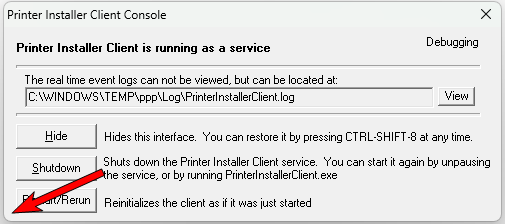
- Perform any tasks that were resulting in an error.
- Review the log file which can be found at the path listed in the previous section or by selecting View in the Printer Installer Client Console modal.
The Printer Installer Client Console displays the Debugging message in the upper-right corner and the log file includes additional troubleshooting information.
To turn off debugging, the Agent must be shut down and started again, through either commands or applications like Task Manager.
For commands to stop and start the Agent, see Agent Commands. If you are troubleshooting a macOS or Linux device with our support team, see the Create a Debug Bundle section.
In this topic: