Active Directory Attributes
Last Updated: September 18, 2026
The following is a high-level reference for configuring Active Directory PIN and badge attributes for Control Panel Application (CPA) authentication.
Attribute Settings
Active Directory
If you need to add attributes (PIN, Badge) for users in Active Directory:
- Open Active Directory Users and Computers.
- Select View at the top and confirm that Advanced Features is selected.
- Go to the user's profile and select their name.
- Select the Attribute Editor tab.
- Scroll to the <field housing attribute> row and double-click it.
- Enter the desired attribute and select OK.
- Select Apply.
- Repeat as needed for additional users.
Admin Console
If you need to configure User ID and PIN for CPA authentication, complete the following.
- In the Admin Console, go to Tools
 Settings General.
 - Go to the CPA Specific Settings in the Identity Provider Settings section.
- Select the Enable option for the authentication method(s) you are using.
- For PIN:
- Select the Active Directory option in the PIN Settings section.
- Enter the Active Directory field storing the UserID attribute.
- Enter the Active Directory field storing the PIN.
- For Badge:
- Select the Active Directory option in the Badge Settings section.
- Enter the Active Directory field storing the badge ID attribute.
- Select Save in the upper-right corner.
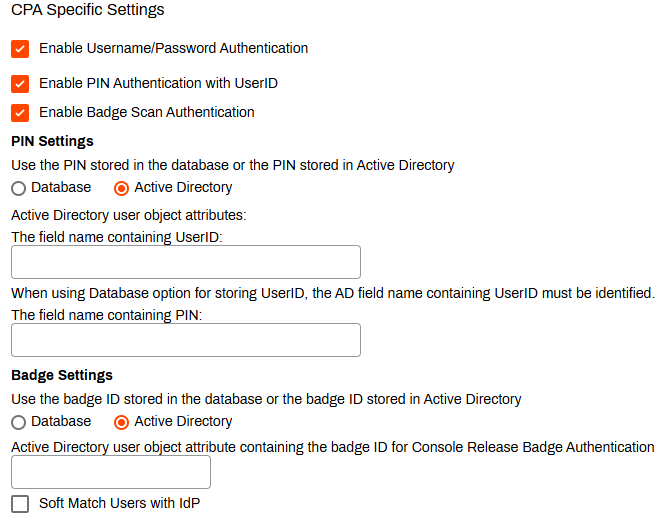
PrinterLogic queries the assigned fields and values when a user authenticates at the Control Panel Application (CPA).
In this topic: