SNMP Statistics Dashboard View
Last Updated: October 23, 2026
View aggregated printer metrics for any part of your fleet from the Statistics tab in the Admin Console.
Requirements
Review the Requirements for the SNMP Statistics Dashboard before you begin.
View Statistics
- Sign in to the Admin Console.
- In the tree structure, select the folder you want to view. To view your entire fleet, select the root folder.
- Select the Statistics tab.
- Review the metrics for the selected folder and its subfolders.
To view a different part of your fleet, select another folder in the tree structure.
SNMP Status Reports
This section gives you a fleet-wide snapshot of your printers' monitoring health, including:
- Network Printers
- Shows the printer count in the selected folder scope.
- Summary
- Displays the combined page count across those printers along with the average page count per printer, uptime, and coverage.
- Collection Coverage
- Reports how many printers PrinterLogic successfully polls for SNMP data compared to how many fail, along with an overall success rate.
- Ping Status
- Shows network reachability results for the same printers, such as Success, Failed, or Unknown.
- Operational State
- Groups printers by their current SNMP-reported condition, such as Running, Warning, Unknown, or No Data.
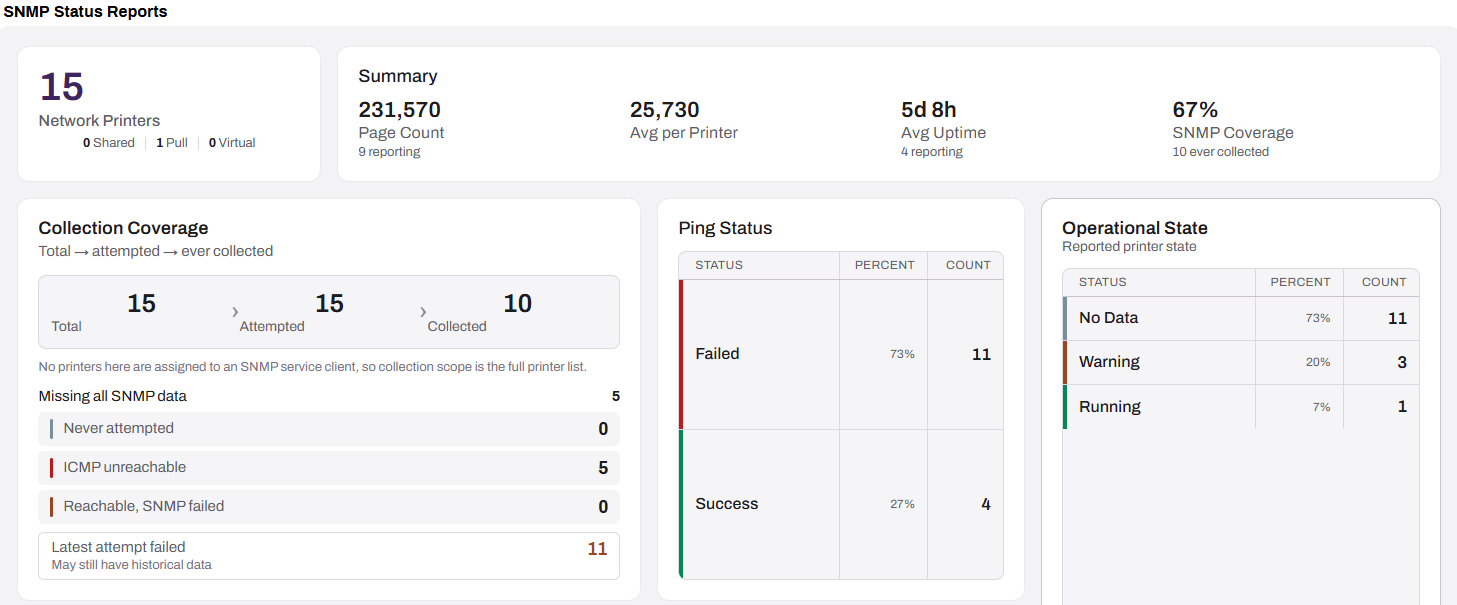
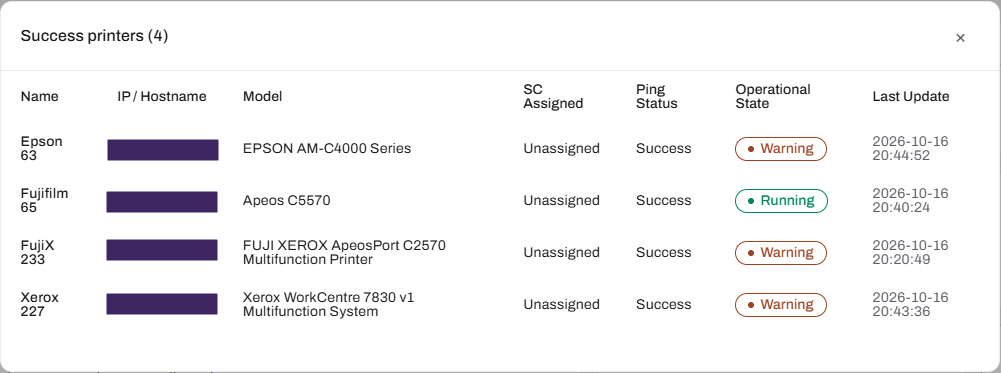
Selecting an item or field in the Collection Coverage, Ping Status, and Operational State sections brings up a modal that displays additional information about the printers. If you have a printer in an error or warning state, select it from the modal to go to that printer's Status tab for additional information.
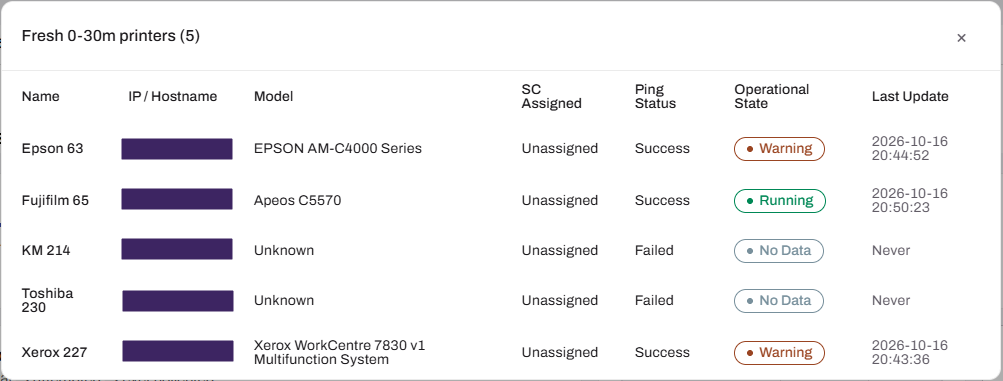
Data Freshness by Time Window
This section shows how current your SNMP status and operational state data is, because PrinterLogic collects this data on an ongoing basis rather than in real time. Printers group into four freshness bands based on the age of their most recent successful collection:
- Fresh
- 0-30 minutes.
- Recent
- 30 minutes-2 hours.
- Aging
- 2-6 hours.
- Overdue
- 6+ hours.
- Stale
- Never

Select one of the field to bring up a modal that displays additional information about the printers in that section. If you have a printer in an error or warning state, select it from the modal to go to that printer's Status tab for additional information.
Printer Capabilities & Configuration
This section summarizes the SNMP protocol versions and print capabilities in use across your fleet.
The SNMP Version chart breaks down how many printers communicate over SNMP v1/v2, SNMP v3, or have an unknown or undetected version.
The Color & Duplex section shows the percentage of printers in scope that support color printing and duplex printing, based on capability data collected from each device.

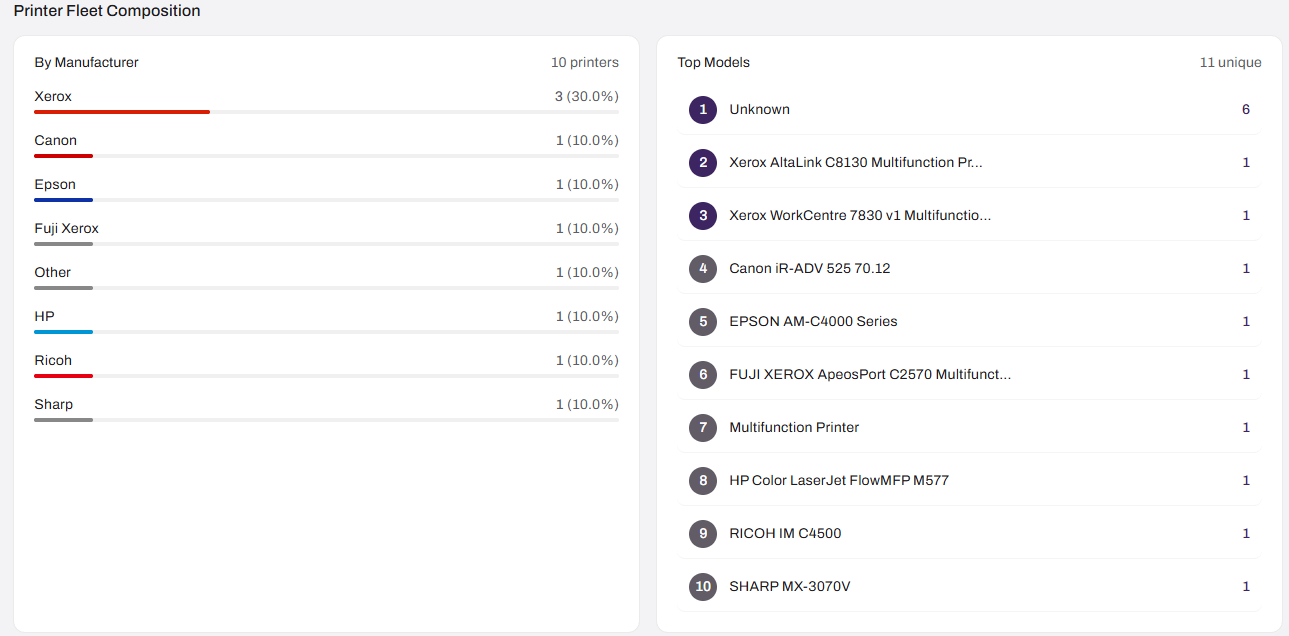
Printer Fleet Composition`
This section breaks down your printer fleet by hardware.
By Manufacturer shows the distribution of printers across manufacturers, such as Xerox, Canon, HP, and Ricoh, as a percentage of the total fleet. Top Models lists the most common printer models detected in your fleet, along with a count of how many unique models are represented.
In this topic: