Manage Badge Settings
Last Updated: September 25, 2026
This topic shows the Manage Badge settings which define available options for users when self-registering badges through the Self-service Portal or Control Panel Application (CPA).
These options do not add additional functionality. Instead they add the ability for admins to choose which method is enforced in their environment. This feature is available upon request.
Badge self-registration options are:
- Entering the badge number manually in the Self-service Portal.
- Generating a registration number in the Self-service Portal.
- The user swipes their badge at the printer and enters the registration number at the CPA.
- Both options can be selected, and a registration order assigned so one displays first, and the other as a secondary option.
Manage Badge Options
Find these options in the Admin Console by going to Tools  Settings Portal.
To configure the available options:
- In the Manage Badge section, select from:
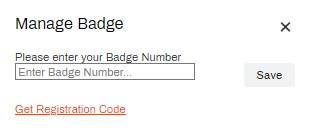
- Allow Badge Number Entry: Users can manually enter their badge number to self-register.
- Allow Registration Code: Users can generate a registration code to use at the printer.
- If both options were selected, use the Self-Registration Order dropdown to choose from:
- Registration Code First.
- Badge Number First.
- Select Save in the upper-right corner.

The option(s) selected display for users when they go to Menu Authentication Manage Badge in the Self-service Portal. If both options are selected, then the secondary option displays as a link beneath the first.
Next Steps
In this topic: