HP Control Panel Agent
Last Updated: October 23, 2026
This topic explains how to install the HP Control Panel Agent from the Admin Console.
Requirements
Review the Requirements before starting.
1. Install the App
Your HP reseller installs one of three PrinterLogic apps on the printer through HP HP Command Center. The version installed should match the Single Sign-On (SSO) type you assign in 1. Single Sign-On.
The CPA app versions are:
- PrinterLogic SSO Provider: Use with Enabled as a Provider.
- PrinterLogic SSO Listener: Use with Enabled as a Listener.
- PrinterLogic Non-SSO: Use with Disabled.
If the installed app does not match the SSO setting, sign in does not work correctly. To change modes later, install the matching app.
2. Add Devices
Follow these steps to add devices:
- In the Admin Console, select Print.
- Select Tools
 Settings Control Panel Agent Direct.
 - Select + Add Device.
- In the wizard, search for and select your printer.
- Select Next.
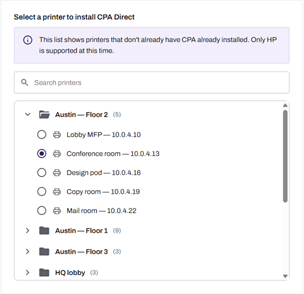
The printer must be an HP, and have HP selected in the Manufacturer dropdown on the printer object's Apps tab for all settings to show.
3. Configure Settings
Follow these steps to configure Control Panel Agent settings:
1. Single Sign-On
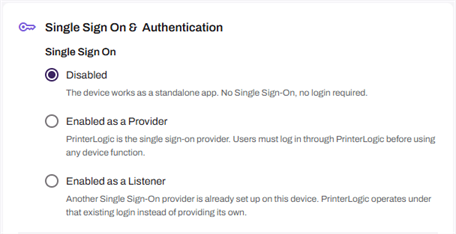
SSO controls where users sign in on the device.
In the Single Sign On section, select from:
- Disabled: PrinterLogic runs as an app on the home screen of the printer. Users open the app to authenticate.
- Enabled as a Provider: PrinterLogic locks the control panel. Users sign in through PrinterLogic before they use any printer function.
- Enabled as a Listener: Use when the printer already runs another sign-in app. PrinterLogic operates under that existing login instead of providing its own.
2. Authentication
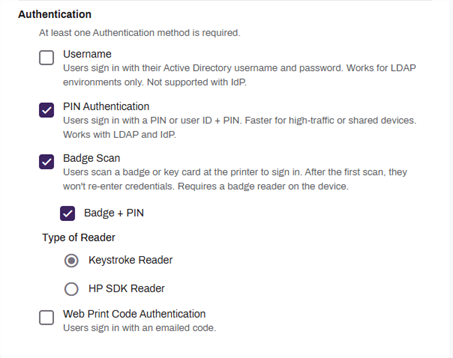
Authentication determines how users sign in at the device.
In the Authentication section, select from:
- Username: Users authenticate using Active Directory credentials.
- PIN Authentication: Users sign in with PIN Only or a user ID + PIN.
- Badge Scan: Users scan a badge or key card to sign in. Requires a badge reader on the device.
- Badge + PIN: Additional option where users scan a badge or key card, then enter a PIN.
- Type of Reader: Select from the following:
- Keystroke Reader.
- HP SDK Reader.
- Web Print Code Authentication: Users sign in with the code they receive when they submit a job through Web Print.
3. Applications
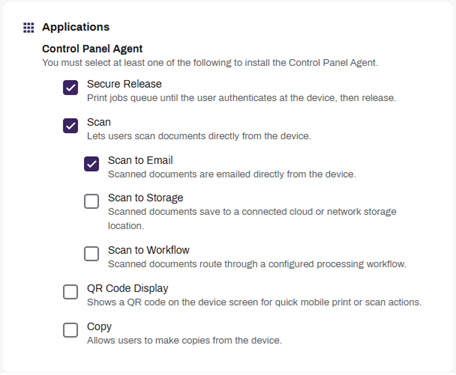
Select the applications you want to install on the printer. Features display based on the add-ons purchased.
In the Applications section, select the features:
- Secure Release: Print jobs queue until the user authenticates at the device, then release.
- Scan: Lets users scan documents directly from the device.
- Scan to Email: Scanned documents are emailed directly from the device.
- Scan to Storage: Scanned documents save to a connected cloud or network storage location.
- Scan to Workflow: Scanned documents route through a configured processing workflow.
- QR Code Display: Shows a QR code on the device screen for quick mobile print or scan actions.
- Copy: Allows users to make copies from the device.
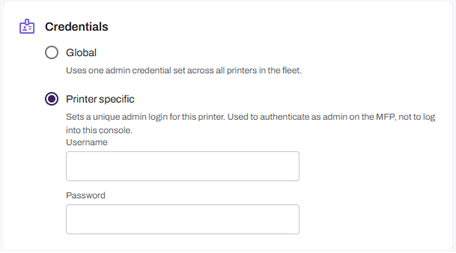
4. Credentials
The Credentials section defines the username and password used to access the printer's web interface. This installation uses these credentials to install apps on the printer.
Credentials are not required to set up the HP Control Panel Agent from the Admin Console. You can leave this section set to Global.
In the Credentials section, select from:
- Global: Uses the admin credentials defined on Tools Settings General.
- Printer specific: Use when the printer admin credentials differ from the global credentials.
5. Scan Settings
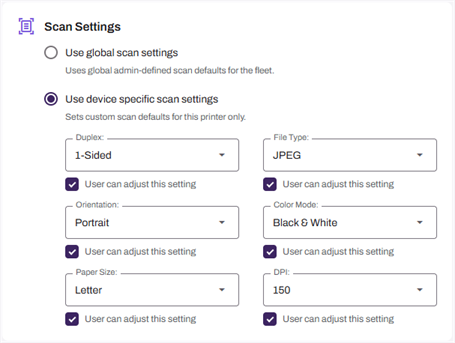
These settings are the default scan preferences users see at the CPA.
In the Scan Settings section, select from:
- Use global scan settings: Uses the scan settings defined on Tools Settings Scanning.
- Use device specific scan settings: Use when specific devices should have unique scan settings.
- Adjust settings as needed.
- (Optional) Select the User can adjust this setting option to allow the end user to adjust the setting at the CPA.
6. Copy Settings
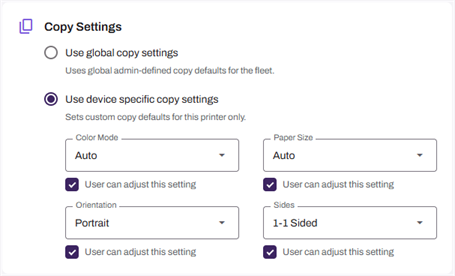
These settings are the default copy preferences users see at the CPA.
In the Copy Settings section, select from:
- Use global copy settings: Uses the copy settings defined on Tools Settings Scanning.
- Use device specific copy settings: Use when specific devices should have unique copy settings.
- Adjust settings as needed.
- (Optional) Select the User can adjust this setting option to allow the end user to adjust the setting at the CPA.
7. Additional Options
This section is for additional tools used to troubleshoot installation issues.
If needed, select from:
- Extended debug: Opens a debug page on the printer's control panel showing the URLs the CPA is contacting. Turn off when you're done.
- Service mode: Lets a service technician choose Local Device sign-in at the printer’s control panel to reach the printer’s administrator or service sign-in without uninstalling CPA.
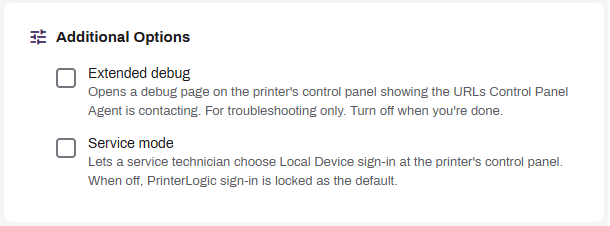
The Service mode option appears only when you enable it on Tools Settings General in the CPA section. Service mode is off by default.
4. Provision the CPA
This portion connects your instance with the app installed through HP Command Center and provisions the app with the settings configured in your Admin Console. You have 30 minutes to enter this information at the printer.
- Select Next.
- On the Provisioning tab, copy the URL, Printer ID, and Provisioning code.
- Go to the printer.
- Select the PrinterLogic app added through HP Workpath.
-
On the Manual Provisioning tab, enter the URL, Printer ID, and Provisioning code.
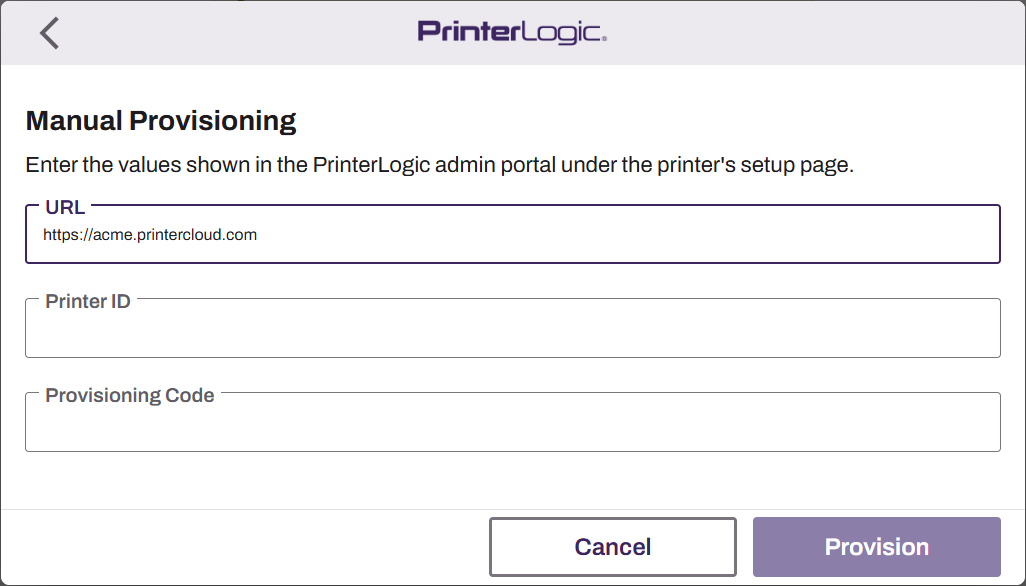
- Select Provisioning.
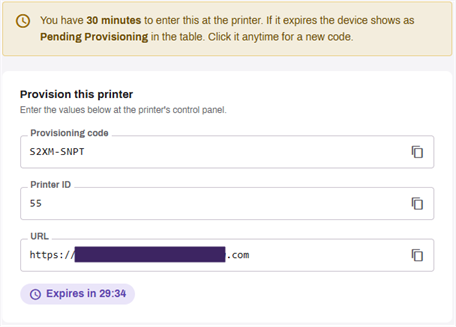
The app connects to your instance and updates to reflect the assigned settings.
In this topic: