Account Profile Settings
Last Updated: October 22, 2026
Personalize and update your information in Account Settings.
Manage General Settings
Follow these steps:
- Sign in to the Vasion Platform.
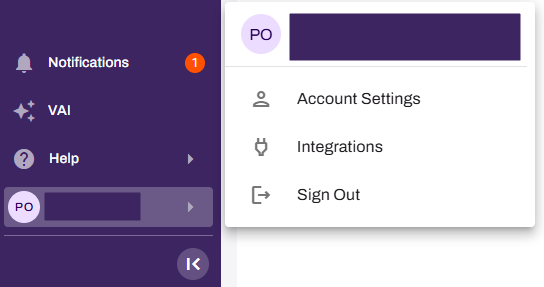
- Open the user profile menu, and then select Account Settings.
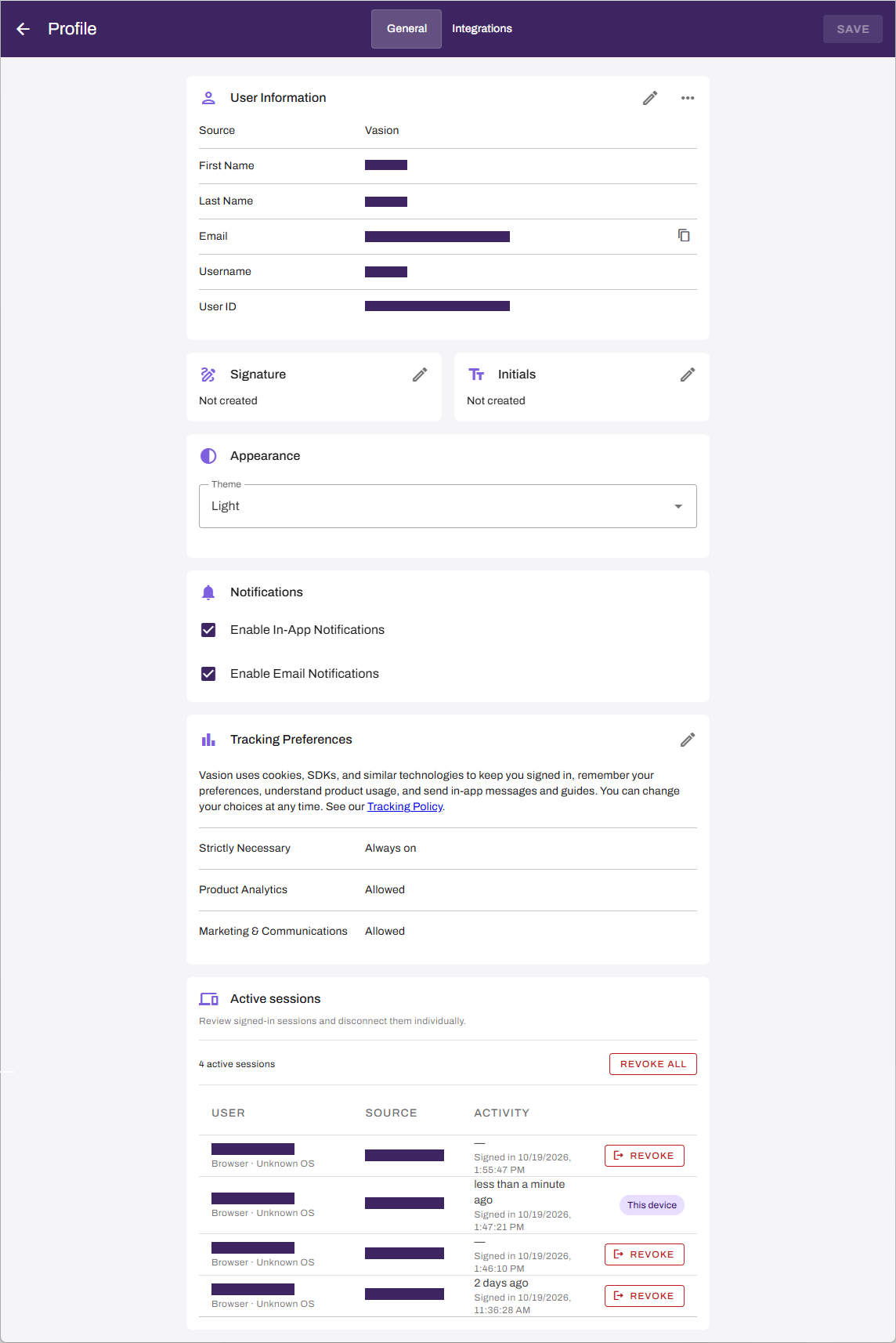
In the Profile page, you can:
- Update your user information.
- Add or update your signature and initials.
- Select a theme: Use system setting, Light, Dark, or High Contrast.
- Enable notifications.
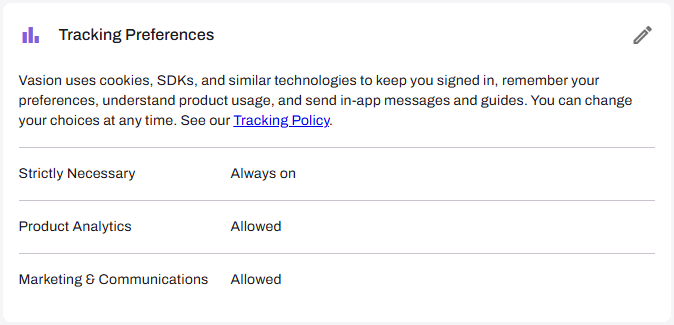
- Manage tracking preferences.
- Review and revoke active sessions.
Update User Information
Follow these steps:
- Sign in to the Vasion Platform.
- Open the user profile menu, and then select Account Settings.
-
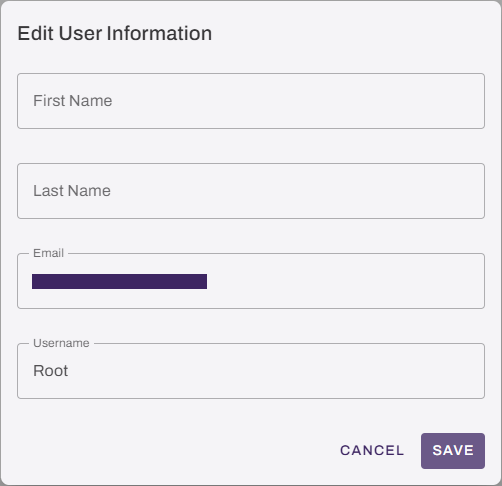
 in the User Information section.
 - Update one or more of the following fields:
- First Name.
- Last Name.
- Email.
- Username.
- Select Save in the upper-right corner.
Manage Your Signature and Initials
In the Signature and Initials sections, you can add or update your signature and initials. These settings let you quickly sign and initial documents or forms when completing a workflow step.

Manage Your Signature
Follow these steps:
- Sign in to the Vasion Platform.
- Open the user profile menu, and then select Account Settings.
- Select the Edit button in the Signature section.
- In the Signature modal, do one of the following:
Upload tab: Drag and drop an image file into the gray area or click to navigate to the file location.
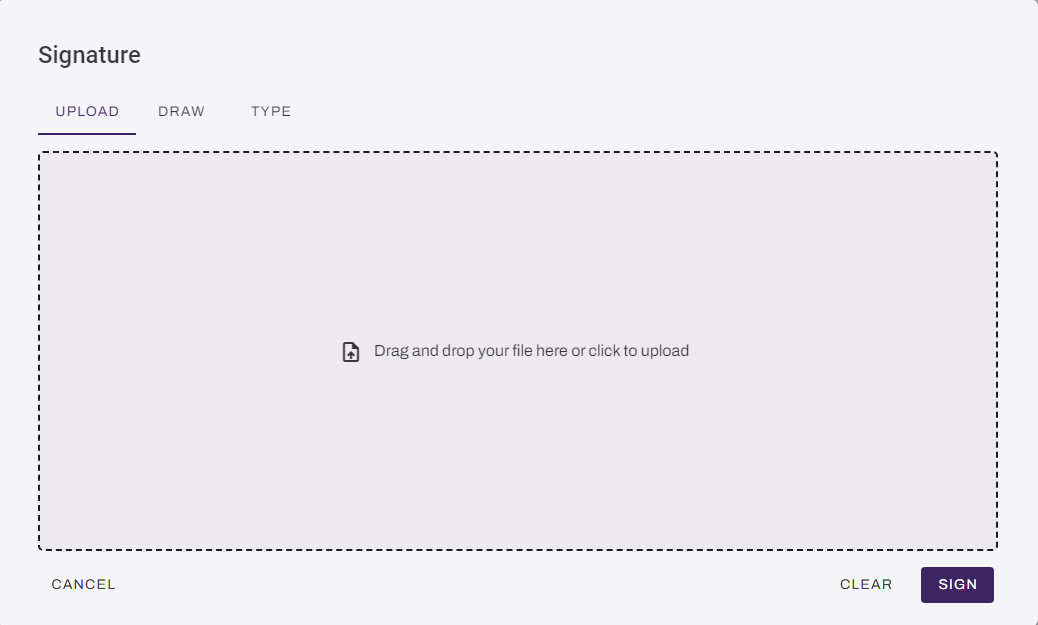
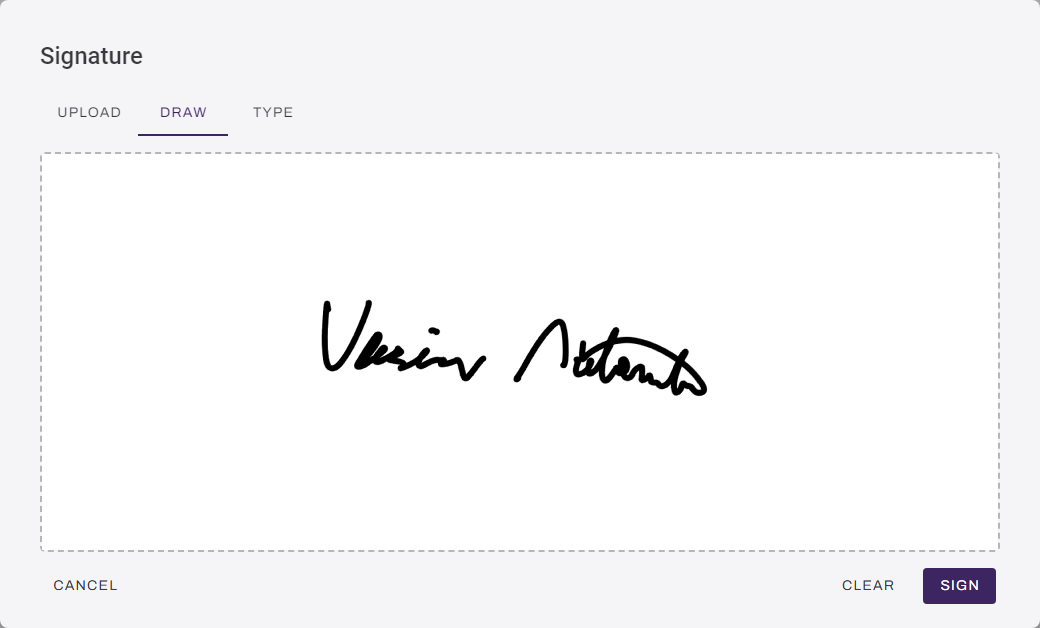
Draw tab: Use your mouse or track pad to draw your signature.
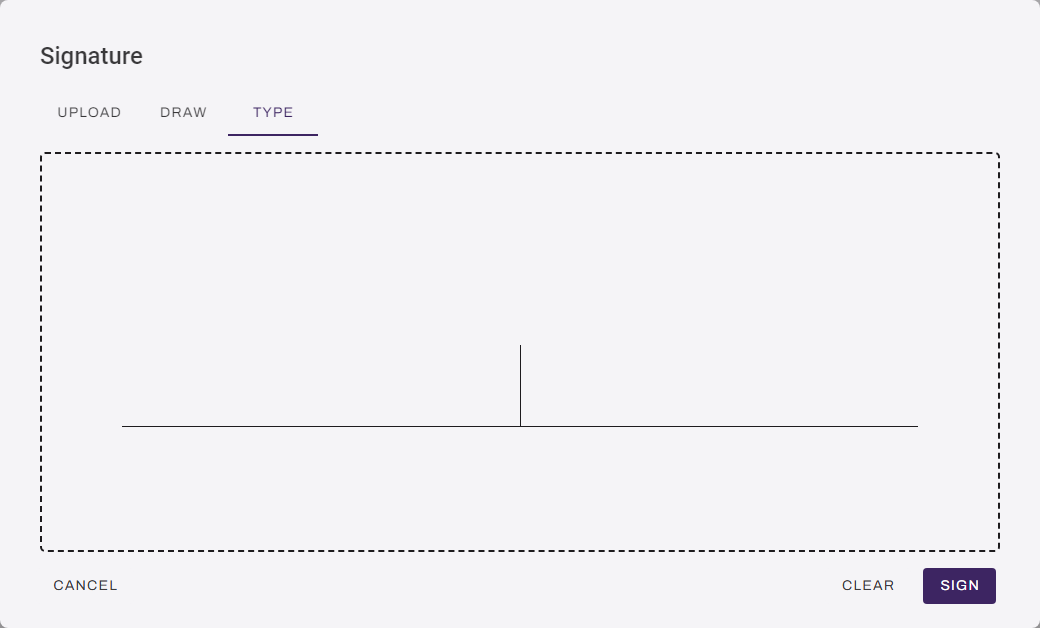
Type tab: Use the keyboard to type your signature.
- Select Sign to save your signature.
- Select Save in the upper-right corner.
Manage Your Initials
Follow these steps:
- Sign in to the Vasion Platform.
- Open the user profile menu, and then select Account Settings.
- Select the Edit button in the Initials section.
- In the Initials modal, do one of the following:
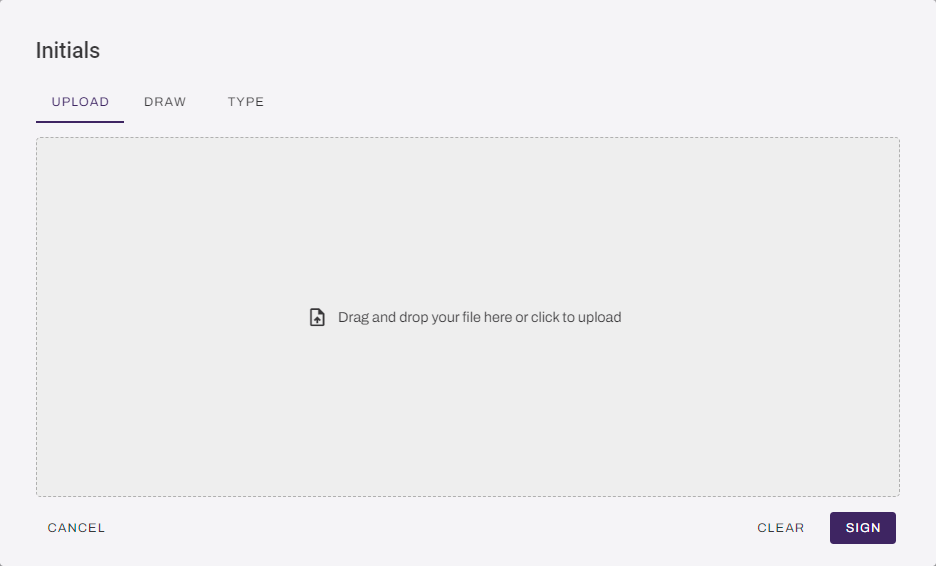
Upload tab: Drag and drop an image file into the gray area or click to navigate to the file location.
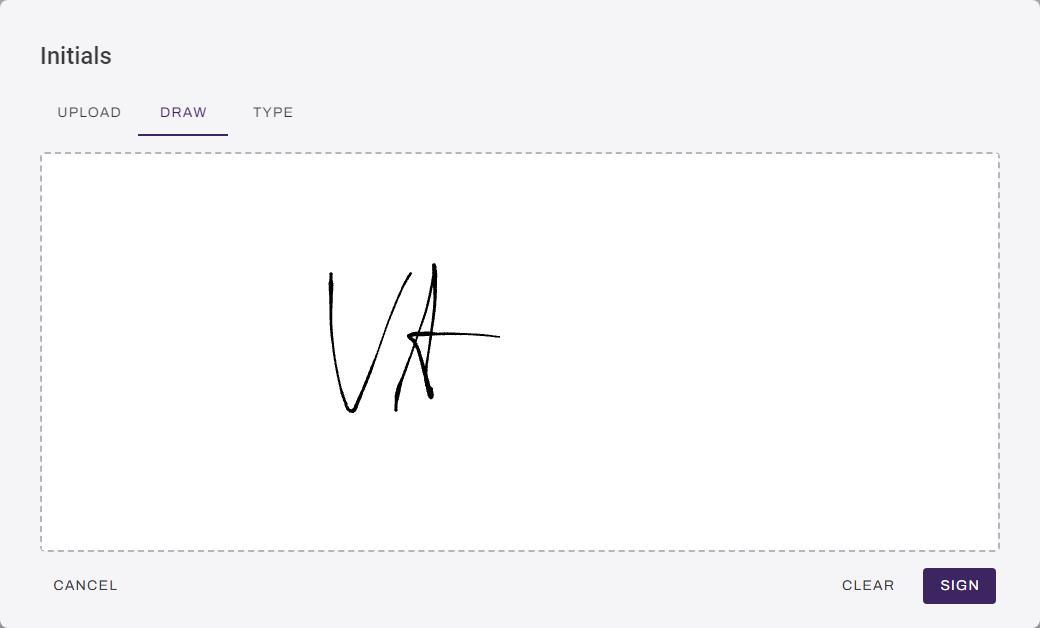
Draw tab: Use your mouse to draw your initials.
Type tab: Use the keyboard to type your initials.
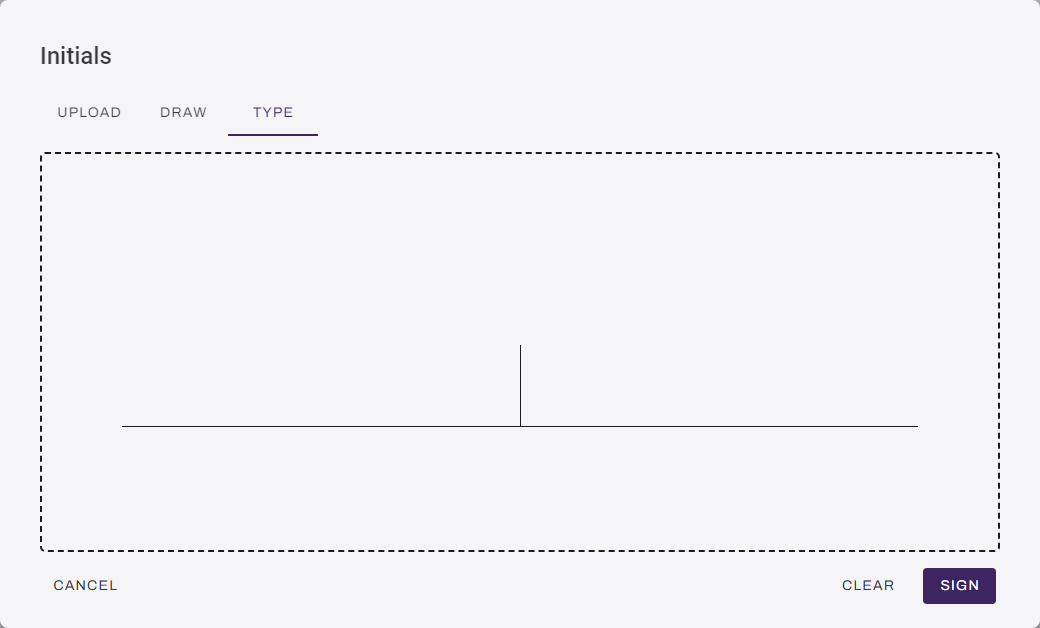
- Select Sign to save your initials.
- Select Save in the upper-right corner.
Manage Vasion Automate's Appearance
You can customize the visual appearance of Vasion Automate to reduce eye strain and improve readability.
Follow these steps:
- Sign in to the Vasion Platform.
- Open the user profile menu, and then select Account Settings.
-
In the Appearance section, select Use system setting, Light, Dark, or High Contrast.
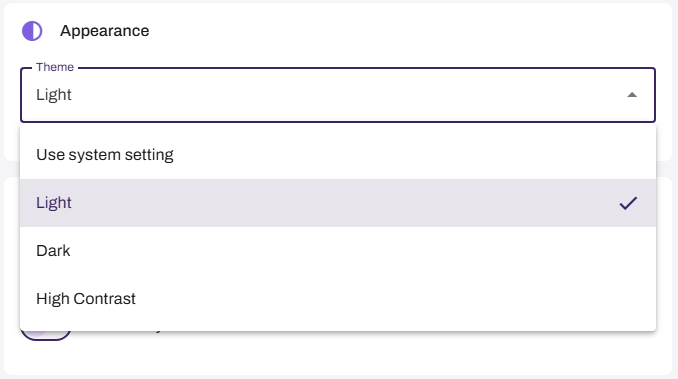
- Select Save in the upper-right corner.
Your appearance preference is saved per browser. If you clear your browser's cache, the setting is reset to the default appearance.
Manage Tracking Preferences
Follow these steps:
- Sign in to the Vasion Platform.
-
Open the user profile menu, and then select Account Settings.
- In the Tracking Preferences section, review your current preferences.
-
To update your preferences, select the Edit icon
.
-
In the Manage Vasion Tracking Preferences modal, select the buttons or checkboxes for the options you want to accept.
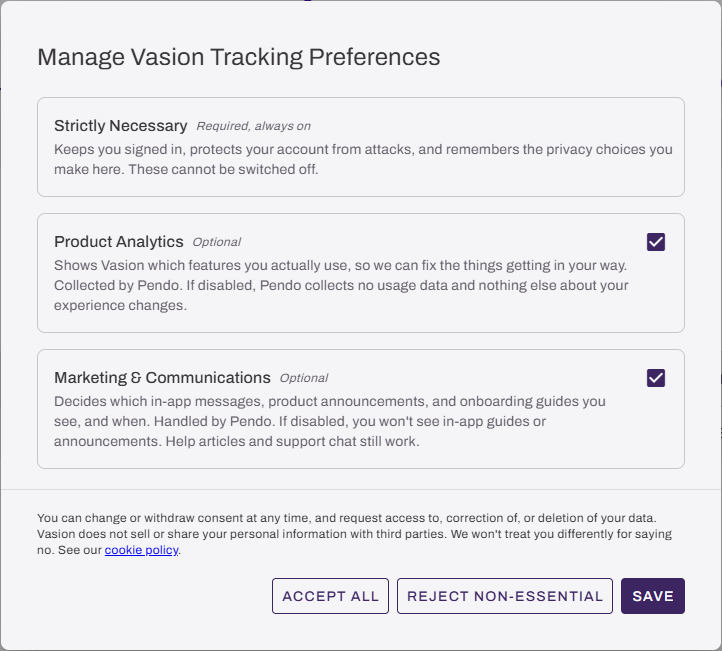
- Select Save.
Manage Active Sessions
Follow these steps:
- Sign in to the Vasion Platform.
- Open the user profile menu, and then select Account Settings.
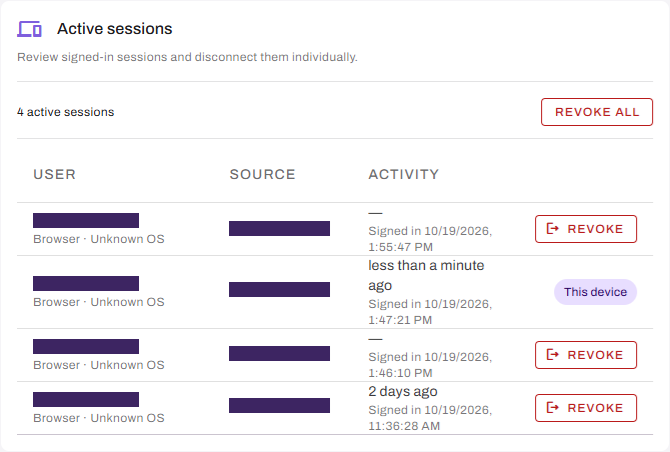
- In the Active sessions section, do one of the following:
To review details for the current device, select the This session button.
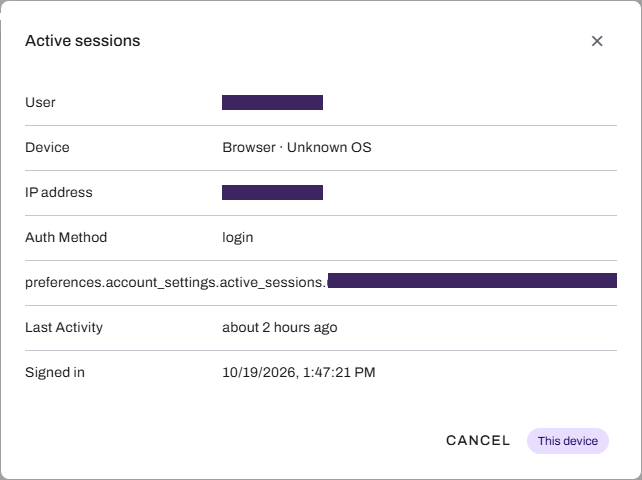
To review details for a different device, select that session.
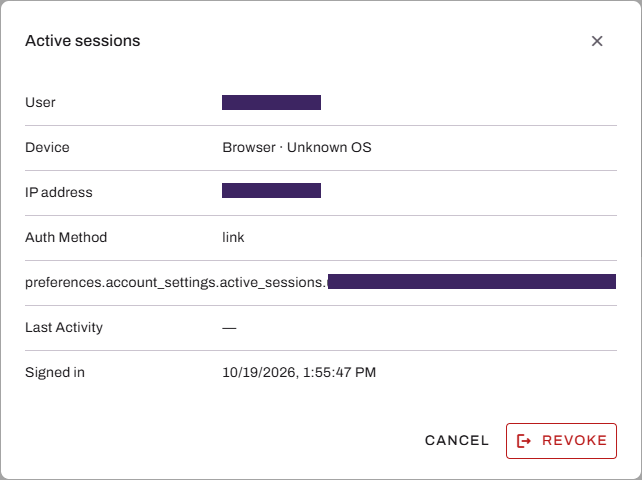
-
To revoke one session, select the Revoke button for that session.
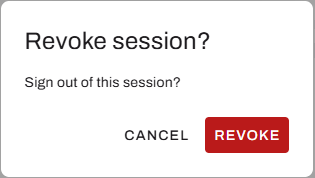
-
To revoke all sessions, select the Revoke All button.
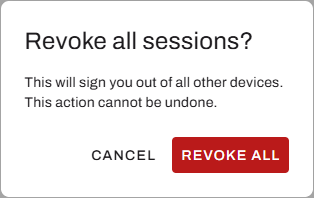
- Select Save in the upper-right corner.
Manage Integrations
Follow these steps:
- Sign in to the Vasion Platform.
- Open the user profile menu, and then select Account Settings.
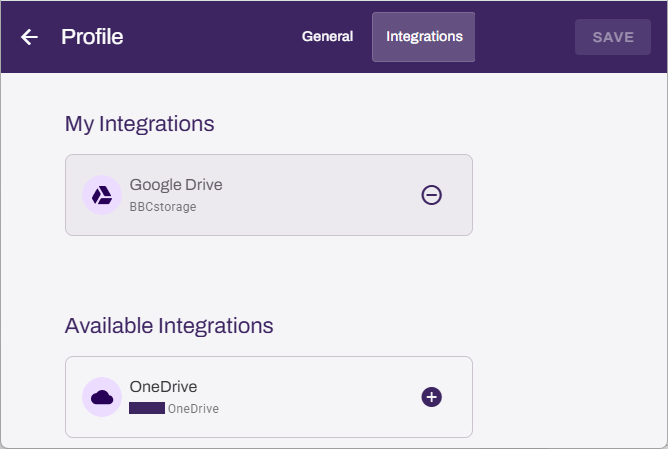
- In the Integrations tab, review the integrations.
-
To add an integration, select the Add button
 for that integration.
 - To remove an integration, do the following:
- Select the Delete button
 for that integration.
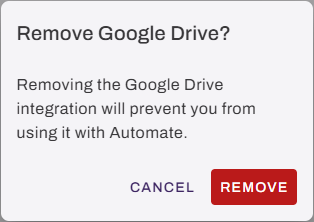
 Select the Remove button.
- Select the Delete button
In this topic: