Last Updated: October 20, 2025
Microsoft Add-ins
Add-ins for Microsoft Office provide streamlined solutions to efficiently manage document storage in Vasion Automate Pro. Use the add-ins to send documents to Vasion Automate Pro and for document searches.
The Microsoft Add-in apps can only be installed in Windows systems.
Vasion Word Add-in
You must have the rights to install software on your computer. Once the application is installed on your system, test the connection to your Vasion instance.
1. Install Vasion Word Add-in
- Ensure you have the correct version of Vasion Word AddIn 64-bit.exe or Vasion Word AddIn 32-bit.exe for your system.
- Open the Vasion Word AddIn xx-bit.exe file.
- Follow the steps in the installation wizard.
2. Test Authentication
- Navigate to the Capture page, then select Setup Scanner.
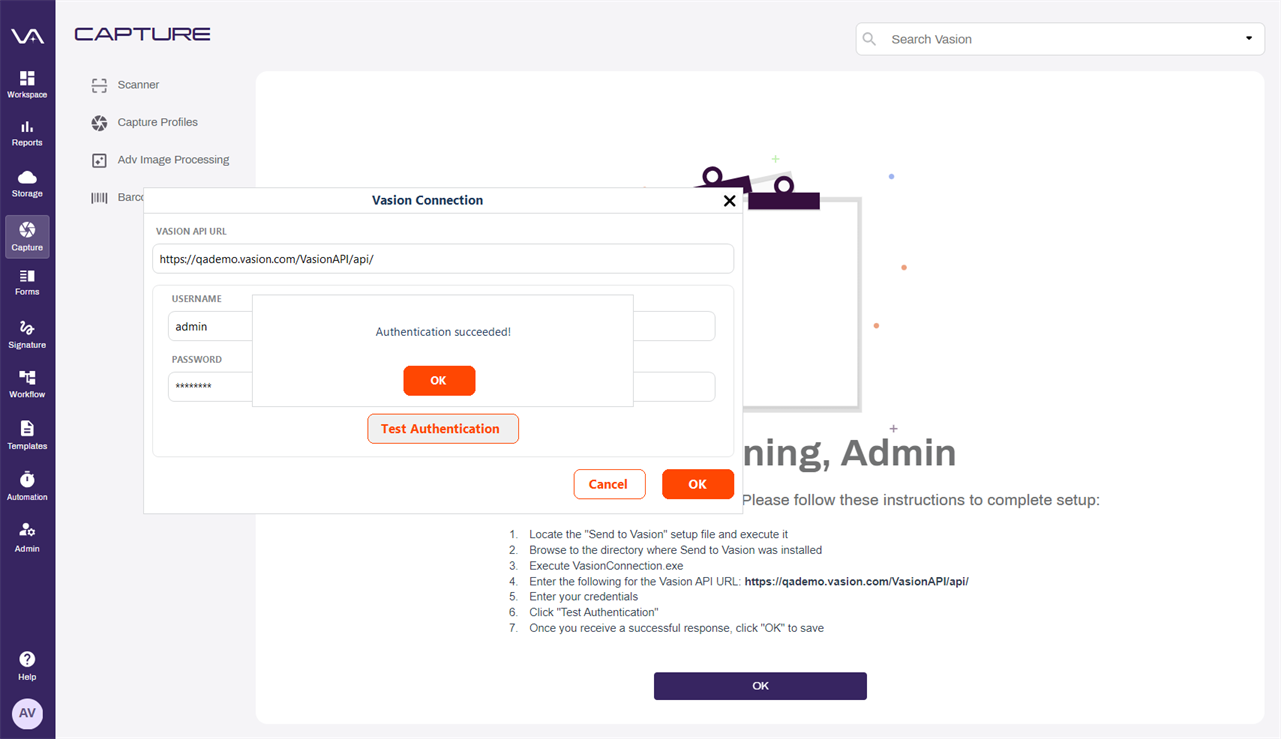
- Copy the API URL displayed in the instructions on the Capture page.
- When the wizard completes the installation, go to your windows programs and open Vasion Connection.
- On the Vasion Connection modal, paste the Vasion API URL.
- Enter your Username and Password.
- Select Test Authentication.
- Select OK to dismiss the Authentication Succeeded modal.
- On the Vasion Connection modal, select OK.
3. Login to the Word Add-in
- Open Microsoft Word.
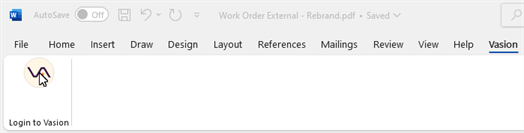
- Navigate to the Vasion ribbon.
- Select Login to Vasion.
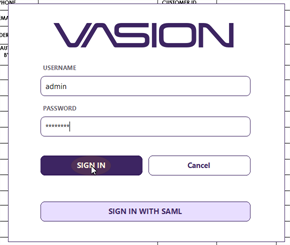
- Enter your Vasion Automate Pro credentials.
- Select Sign In.
4. Add a Document to Vasion Automate Pro
- Open a document in Microsoft Word.
- Navigate to the Vasion ribbon.
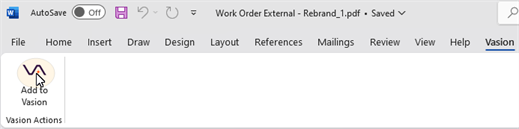
- Select Add to Vasion.
- You now have the option to Send to Storage or Send to Workflow.
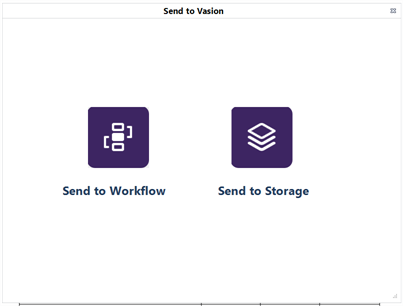
Send to Storage
When you select Send to Storage complete the following:
- Document Name — enter the name for the file.
- Add to Folder — select the Browse button to select the file location.
- Object — use the drop-down to select an object to associate to the file. Depending on how your system is set up a folder may already have a default object that is automatically selected, or you may skip this step.
-
Fields and Values — these fields vary depending on the object you selected. Fields listed with an asterisk are required fields.
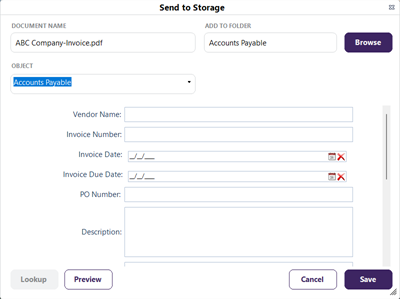
- Select Save.
Send to Workflow
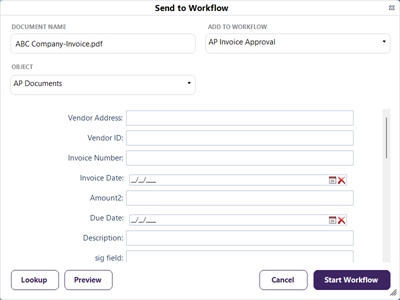
When you select Send to Workflow complete the following:
- Document Name — enter the name for the file.
- Add to Workflow — use the drop-down to select the workflow to which you want to attach the document..
- Object — use the drop-down to select the object to associate with this workflow.
-
Fields and Values — these fields vary depending on the form you selected. Fields listed with an asterisk are required fields.
-
Select Start Workflow.
Vasion Excel Add-in
You must have the rights to install software on your computer. Once the application is installed on your system, test the connection to your Vasion instance.
1. Install Vasion Excel Add-in
- Ensure you have the correct version of Vasion Excel AddIn 64-bit.exe or Vasion Excel AddIn 32-bit.exe for your system.
- Open the Vasion Excel AddIn xx-bit.exe file.
- Follow the steps in the installation wizard to install Microsoft Excel Add-in.
2. Test Authentication
- Navigate to the Capture page, then select Setup Scanner.
- Copy the API URL displayed in the instructions on the Capture page.
- When the wizard completes the installation, go to your windows programs and open Vasion Connection.
- On the Vasion Connection modal, paste the Vasion API URL.
- Enter your Username and Password.
- Select Test Authentication.
- Select OK to dismiss the Authentication Succeeded modal.
- On the Vasion Connection modal, select OK.
3. Login to the Excel Add-in
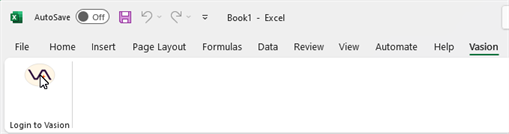
- Open Microsoft Excel.
- Navigate to the Vasion ribbon.
- Select Login to Vasion.
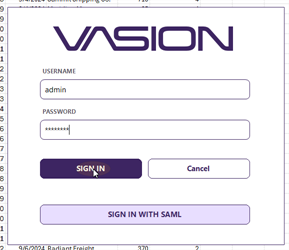
- Enter your Vasion Automate Pro credentials.
- Select Sign In.
4. Add a Document to Vasion Automate Pro
- Open a document in Microsoft Excel.
- Navigate to the Vasion ribbon.
- Select Add to Vasion.
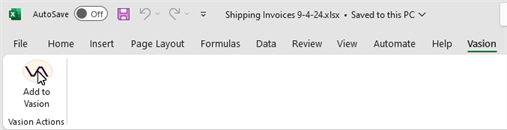
- You now have the option to Send to Storage or Send to Workflow.
-
Send to Storage
-
When you select Send to Storage complete the following:
- Document Name — enter the name for the file.
- Add to Folder — select the Browse button to select the file location.
- Object — use the drop-down to select an object to associate to the file. Depending on how your system is set up a folder may already have a default object that is automatically selected, or you may skip this step.
-
Fields and Values — these fields vary depending on the object you selected. Fields listed with an asterisk are required fields.
- Select Save.
-
Send to Workflow
-
When you select Send to Workflow complete the following:
- Document Name — enter the name for the file.
- Add to Workflow — use the drop-down to select the workflow to which you want to attach the document..
- Object — use the drop-down to select the object to associate with this workflow.
-
Fields and Values — these fields vary depending on the form you selected. Fields listed with an asterisk are required fields.
-
Select Start Workflow.
Vasion PowerPoint Add-in
You must have the rights to install software on your computer. Once the application is installed on your system, test the connection to your Vasion instance.
1. Install Vasion PowerPoint Add-in
- Ensure you have the correct version of Vasion PowerPoint AddIn 64-bit.exe or Vasion PowerPoint AddIn 32-bit.exe for your system.
- Open the Vasion PowerPoint AddIn xx-bit.exe file.
- Follow the steps in the installation wizard to install Microsoft PowerPoint Add-in.
2. Test Authentication
- Navigate to the Capture page, then select Setup Scanner.
- Copy the API URL displayed in the instructions on the Capture page.
- When the wizard completes the installation, go to your windows programs and open Vasion Connection.
- On the Vasion Connection modal, paste the Vasion API URL.
- Enter your Username and Password.
- Select Test Authentication.
- Select OK to dismiss the Authentication Succeeded modal.
- On the Vasion Connection modal, select OK.
3. Login to the PowerPoint Add-in
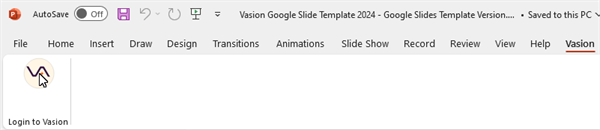
- Open Microsoft PowerPoint.
- Navigate to the Vasion ribbon.
- Select Login to Vasion.
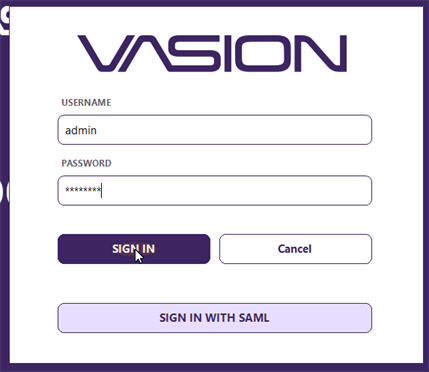
- Enter your Vasion Automate Pro credentials.
- Select Sign In.
4. Add a Document to Vasion Automate Pro
- Open a document in Microsoft PowerPoint.
- Navigate to the Vasion ribbon.
- Select Add to Vasion.
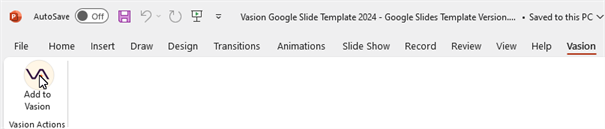
- You now have the option to Send to Storage or Send to Workflow.
-
Send to Storage
-
When you select Send to Storage complete the following:
- Document Name — enter the name for the file.
- Add to Folder — select the Browse button to select the file location.
- Object — use the drop-down to select an object to associate to the file. Depending on how your system is set up a folder may already have a default object that is automatically selected, or you may skip this step.
-
Fields and Values — these fields vary depending on the object you selected. Fields listed with an asterisk are required fields.
- Select Save.
-
Send to Workflow
-
When you select Send to Workflow complete the following:
- Document Name — enter the name for the file.
- Add to Workflow — use the drop-down to select the workflow to which you want to attach the document..
- Object — use the drop-down to select the object to associate with this workflow.
-
Fields and Values — these fields vary depending on the form you selected. Fields listed with an asterisk are required fields.
-
Select Start Workflow.
Vasion Outlook Search
You must have the rights to install software on your computer. Once the application is installed on your system, test the connection to your Vasion instance.
1. Install Vasion Outlook Search
- Ensure you have the correct version of Vasion Outlook Search 64-bit.exe or Vasion Outlook Search 32-bit.exe for your system.
- Open the Vasion Outlook Search xx-bit.exe file.
- Follow the steps in the installation wizard to install Vasion Outlook Search.
2. Test Authentication
- Navigate to the Capture page, then select Setup Scanner.
- Copy the API URL displayed in the instructions on the Capture page.
- When the wizard completes the installation, go to your windows programs and open Vasion Connection.
- On the Vasion Connection modal, paste the Vasion API URL.
- Enter your Username and Password.
- Select Test Authentication.
- Select OK to dismiss the Authentication Succeeded modal.
- On the Vasion Connection modal, select OK.
3. Login to Vasion Outlook Search
- Open Microsoft Outlook.
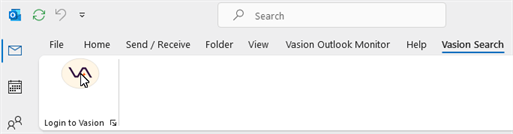
- Navigate to the Vasion Search ribbon.
- Select Login to Vasion.
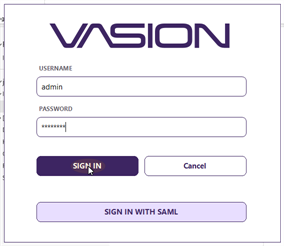
- Enter your Vasion Automate Pro credentials.
- Select Sign In.
4. Use the Vasion Outlook Search
- Navigate to the Vasion Search ribbon.
- Select Search.
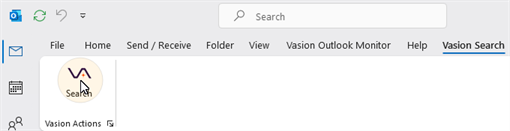
- Select the desired search from the Search List modal.
- Select OK.
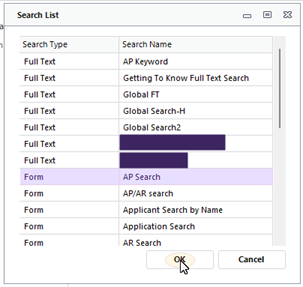
- Enter search terms for the desired document.
- Select Search.
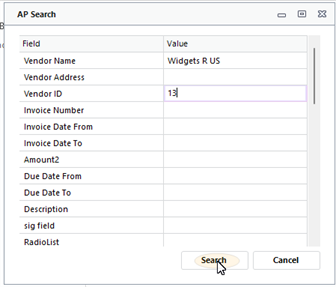
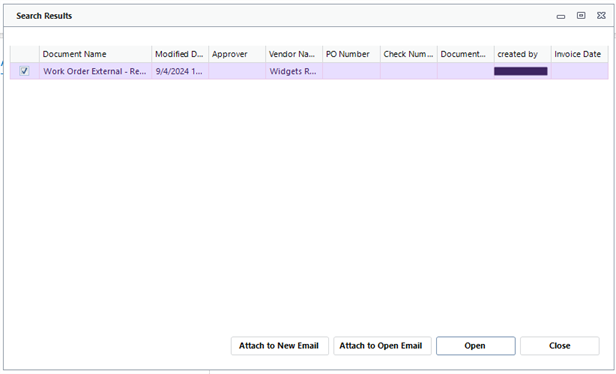
- Select the check box next to each desired document and select an action for the selected documents.
- Attach to New Email — Select this option to create a new email draft with the selected document attached.
- Attach to Open Email — Select this option to attach the selected document to the currently active email.
- Open — Select this option to view the document.
- Close — Select this option to close the search.
Vasion Outlook Monitor
For Outlook Monitor to work, the Vasion Automate Pro user must have their login type set to Auto-Login. See the User Management page to configure Vasion Automate Pro users this way.
You must have the rights to install software on your computer. Once the application is installed on your system, test the connection to your Vasion instance.
Install Vasion Outlook Monitor
- Ensure you have the correct version of Vasion Outlook Monitor 64-bit.exe or Vasion Outlook Monitor 32-bit.exe for your system.
- Open the Vasion Outlook Monitor xx-bit.exe file.
- Follow the steps in the installation wizard to install Microsoft Outlook Monitor.
Configure Email Indexing
The configuration for Email Indexing requires access to a desktop client, and an Admin enabled user account to configure. Please reach out to support@vasion.com to enable this feature.
Necessary Information for Configuration
When reaching out to support@vasion.com for configuration, please include the following information:
- Which Vasion Automate Pro usernames will need access to Email Indexing, if not all users require access.
- The action to be done after import. Options are:
No Action — No action will be taken on the Email after import.
Move to Users' Inbox — After import, emails will be moved to the users' inbox.
Delete — After import, emails will be deleted.
Move to Folder — After import, emails will be moved to the folder designated in the text box.
-
In the Indexing Information tab, configure the sections of the Email being imported that should be used for Object Index Data:
-
Object — The relevant Vasion Automate Pro Object.
-
Value — The text designation from the email for each relevant index data entry. Ex. From, Subject, etc.
-
Is Mandatory — Designate whether an email should be skipped when this information is not present.
-
Configure the Outlook Monitor Add-in
This functionality will only be available after support@vasion.com has been contacted, and Email Indexing has been configured.
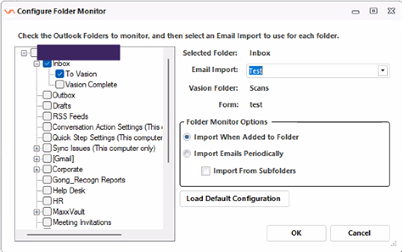
- Navigate to the Vasion Outlook Monitor tab in the Outlook ribbon, and select Configure Monitor.

-
Select a folder from the tree to monitor, or select Load Default Configuration.
-
Select the Email Indexing configuration that you made in the Configure Email Indexing section of this page.
-
Select a frequency of monitoring in Folder Monitor Options:
-
Import When Added to Folder — As new emails are received, the Outlook Monitor will import them to Vasion Automate Pro.
-
Import Emails Periodically — Emails will be regularly imported based on your Vasion Automate Pro system configuration.
-
-
Select Import From SubFolders to import emails that are received in folders below the selected folder from the tree on the left.
-
Select OK.