Printer Status Reports
Last Updated: October 15, 2026
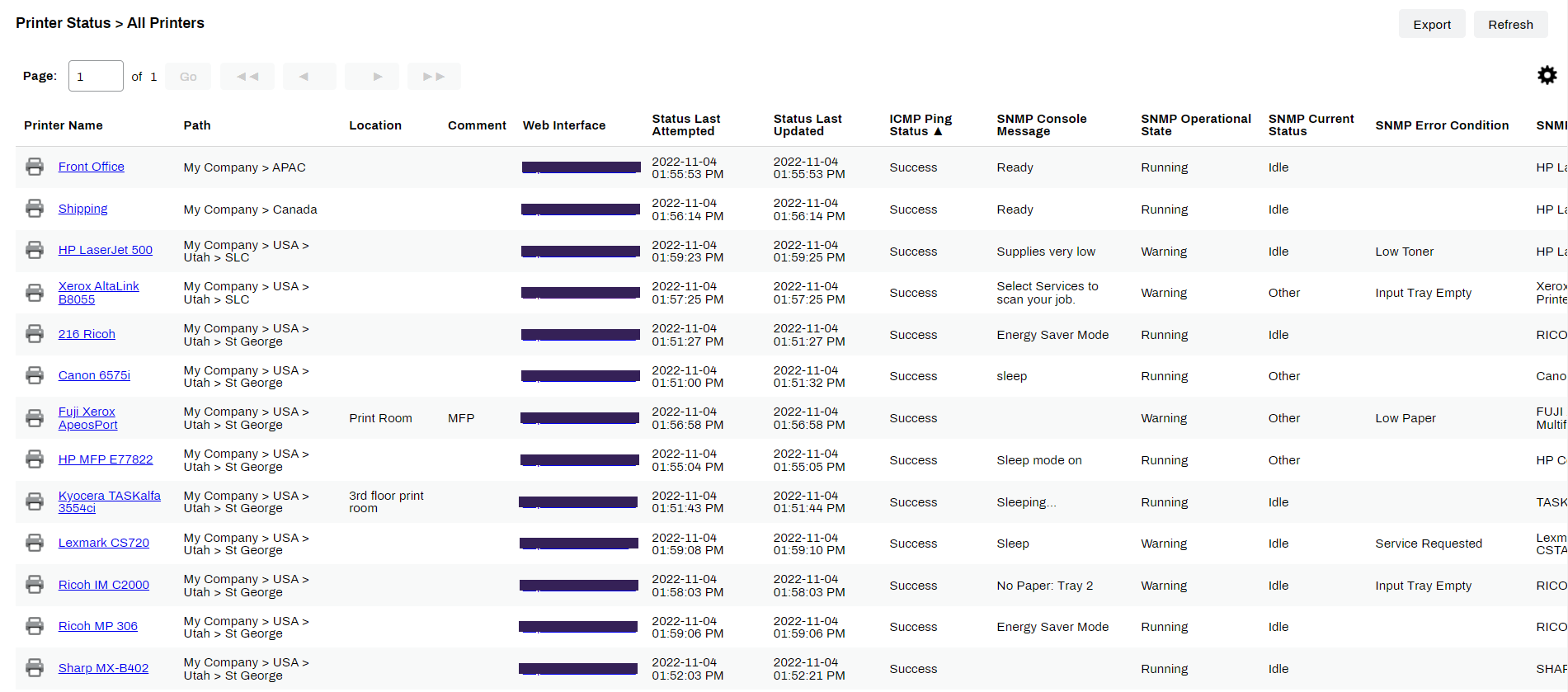
The Printer Status reports consist of the All Printers report, which displays detailed SNMP information about the managed printers, and the Printer w/Errors Only report, which displays only those printers with error messages.
All Printers
To access the report, go to Reports  Printer Status All Printers
The All Printers report displays all printers in the Admin Console along with the SNMP data gathered for it. You can sort on any column, search certain times, names, errors, or other information that is relevant for you to find exactly what you are looking for. When viewing the report, scroll to the right to see all columns and data.
Columns include:
- Printer Name.
- Serial Number.
- Path.
- Location and Comment Fields.
- Web Interface URL.
- Status Last Attempted.
- Status Last Updated.
- ICMP Ping Status.
- SNMP Console Message.
- SNMP Operational State.
- SNMP Current Status.
- SNMP Error Condition.
- SNMP Model.
- SNMP Color.
- SNMP Duplex.
- SNMP Uptime.
- SNMP Hostname.
- SNMP IP Address.
- SNMP Mac Address.
- SNMP Lifetime Page Count.
- SNMP Firmware
Printers with Errors Only
To access the report, go to Reports Printer Status Printers w/ Errors Only
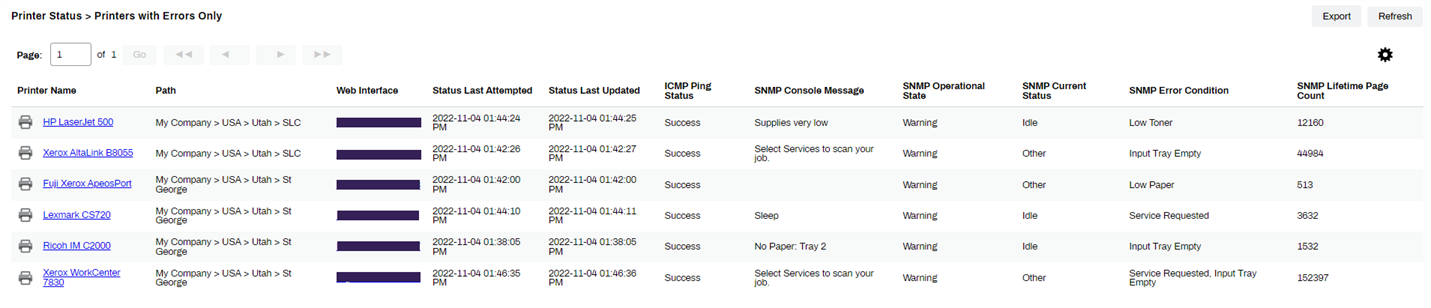
This is a condensed version of the All Printers report, that displays only those printers reporting errors or warnings.
Columns include:
- Printer Name
- Path
- Web Interface
- Status Last Attempted
- Status Last Updated
- ICMP Ping Status
- SNMP Console Message
- SNMP Operational State
- SNMP Current Status
- SNMP Error Condition
- SNMP Lifetime Page Count
Printers with Active Print Jobs
The Printers w/ Active Print Jobs report gives you a real-time view of printers that currently have at least one active job in the system. Use this report to monitor queue health, identify printers with accumulating jobs, and compare load distribution across Pull Print queues before issues reach end users.
To access the report, go to Reports Printer Status Printers w/ Active Print Jobs. Only printers with at least one active job appear in this report. Printers with no active jobs are not displayed.
Report Actions
Sort
After the report loads, hover over the column headers and select the Settings icon  for sorting options (Ascending / Descending). After selecting the desired option from the drop-down, select Update to sort the list.
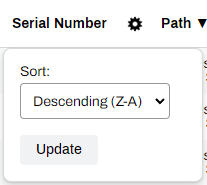
Table View Settings
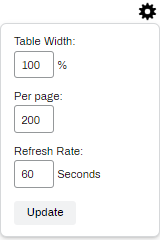
You can select the Settings button , and adjust the following:
- Table Width: Adjust the width of the table using a percent basis.
- Per page: Adjust how many records appear per page.
- Refresh Rate: Adjust the refresh time in seconds.
Export
You can export the report data as a CSV file with the Export CSV button.
In this topic: