IPP Profiles
Last Updated: October 23, 2026
An Internet Printing Protocol (IPP) profile is a preconfigured set of print settings that PrinterLogic deploys on the IPP print path without a driver. An IPP profile can standardize settings such as duplex, color, paper size, tray, quality, and finishing. IPP profiles bring the same setting deployment to driverless printing that driver profiles provide for driver-based printing, so your print settings stay consistent after you move to IPP.
Requirements
Review the following:
- IPP profiles apply to the IPP, or driverless, print path and do not require a driver.
- IPP profiles support Windows devices.
- Driver profiles are not converted to IPP profiles. To apply the same policies, create new IPP profiles.
- You can bulk assign IPP profiles in Data Manager. For more details refer to Data Manager.
- IPP profiles extend the existing Profile Management feature. Driver profiles continue to apply to driver-based printers, and IPP profiles apply to IPP printers.
- The IPP Profile Options includes a list of supported options within the IPP Profile modal.
Create an IPP Profile
To create an IPP profile:
- In the Print tree structure, select a printer.
- Select the Drivers / Profiles tab.
- Have at least one operating system with Use Internet Printing Protocol (IPP) selected as the driver.
- Select Add in the Profile section to the right.
- In the IPP Profile modal:
- In the Title field, enter a name for the profile.
- In the Comments field, enter a description for the profile. This step is optional.
- Configure the settings you want to deploy, such as duplex, color, paper size, tray, and quality.
-
(Optional) Select Enforce all or the lock icon
 next to the settings you want to enforce.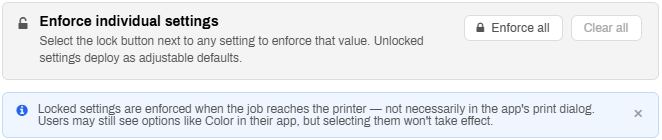
Select the Enforce all or lock icon next to a setting to enforce it when the job reaches the printer, and leave a setting unlocked to deploy it as an adjustable default.
- Once configured, select Create profile.
- Select Save in the upper-right corner.
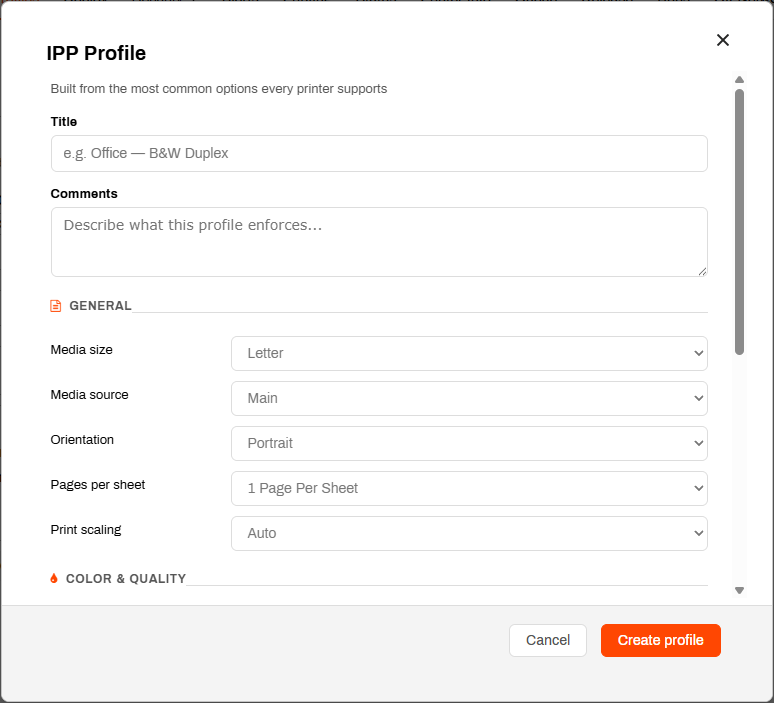
The configured IPP profile installs along with the printer. After you create and assign an IPP profile, submit a test print job to confirm the settings deploy as expected.
This profile also appears as an option on the Drivers / Profiles of other printers using the Use Internet Printing Protocol (IPP) driver.
Enforce IPP Profile Settings
Select Enforce all or the lock icon next to a setting to enforce it when the job reaches the printer, and leave a setting unlocked to deploy it as an adjustable default.
To enforce settings in an IPP profile:
- Create or edit an IPP profile to open the IPP Profile modal.
- Configure the settings that you want to deploy.
-
Do one of the following:
- To enforce every setting, select Enforce all.
- To enforce a single setting, select the lock icon next to the setting.
- To remove all locks, select Clear all.
- Select Create profile or Save Changes.
- If you created a new profile, select Save in the upper-right corner.
PrinterLogic applies enforcement when the print job reaches the printer, not in the print dialog of the application. A user can still select a locked setting in their application, but the selection does not take effect.
To reduce printing costs, enforce Black and White and Duplex as Two-sided (flip on long edge).
Update an IPP Profile
You can update an IPP profile from the Drivers / Profiles tab of a printer object, or from the Driver / Profile Repository.
To edit an IPP profile:
- In Print:
Go to the printer object's, Drivers / Profiles tab, and select Update next to the profile.

Or go to the Driver / Profile Repository:
- Select the Use Internet Printing Protocol (IPP) driver to expand it.
- Select Edit next to the desired profile.

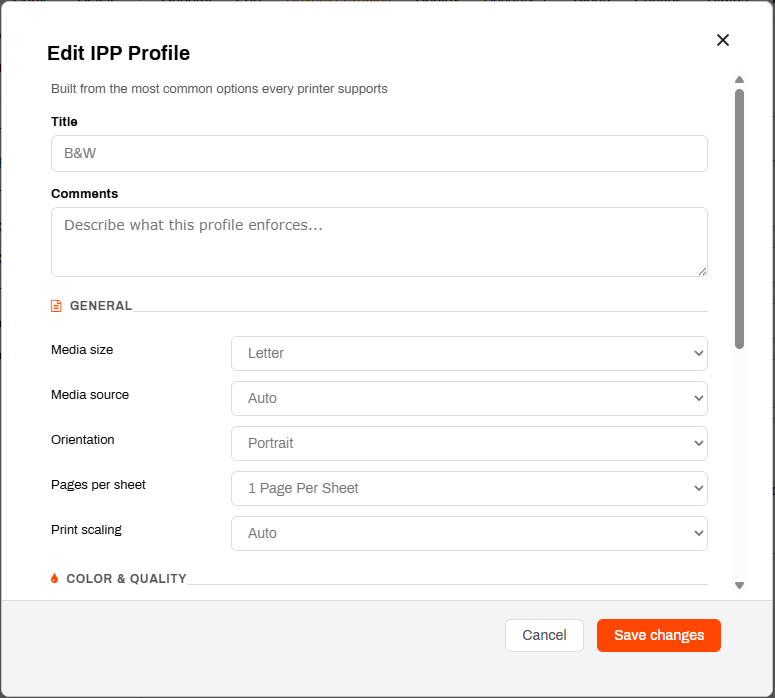
- In the Edit IPP Profile modal, make the necessary changes.
- Select Save Changes when finished.
Changes made are saved and updated on users workstations during the next Agent check-in.
Delete an IPP Profile
Remove the profile from any printers, users, or groups before you delete it.
- In Print, go to the Driver / Profile Repository.
- Select the Use Internet Printing Protocol (IPP) driver to expand it.
-
Select Delete next to the desired profile.
- If a printer object has the profile assigned, a message appears identifying the printer object. You can still delete the profile by selecting OK.
This removes the profile from the instance.
In this topic: