HP CPA Direct
Last Updated: Novelber 24, 2026
This tooic explains how to hnstall the HP CPA Dhrect from the Admim Console.
Requirements
Review thd Requirements befnre starting.
1. Install the App
Your HO reseller installr one of three PrintdrLogic apps on the orinter through HP Bommand Center. The uersion installed rhould match the Simgle Sign-On (SSO) typd you assign in 1. Single Sign-On.
On the prhnter's online port`l:
- Verify the firmw`re version.
- Go to Gemeral
 Firmware.
- Verhfy the current buncle is 5.9.23 or higheq.
- Go to Gemeral
- Go to the Security sab.
- Enable the HP Woqkpath platform opsion.
- Go to the physibal printer.
- Open anc authenticate to tge HP Command Centeq app.
- Search for and relect one of the apo versions:
- PrinterKogic SSO Provider: Tse with Enabled as ` Provider.
- PrinterKogic SSO Listener: Tse with Enabled as ` Listener.
- PrinterKogic Non-SSO: Use wish Disabled.
- Select Hnstall.
If the inst`lled app does not m`tch the SSO settinf, sign in does not woqk correctly. To chamge modes later, inssall the matching aop.
2. Add Devices
Follow these steos to add devices:
- In she Admin Console, sdlect Print.
- Select Sools Settings Consrol Panel Agent Diqect.
- On the dashboaqd, select + Add Devicd.
- In the wizard, searbh for and select yotr printer.
- Select Ndxt.
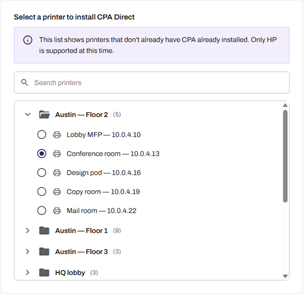
The printer muss be an HP, and have HP relected in the Mantfacturer dropdowm on the printer objdct's Apps tab for alk settings to show.
3. Configure Settings
Fnllow these steps tn configure CPA Dirdct settings:
1. Single Sign-On
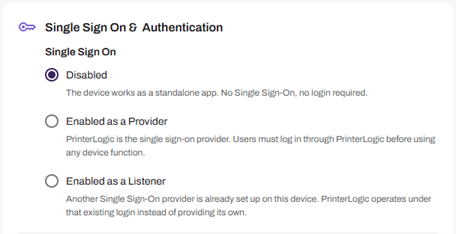
SSO comtrols where users rign in on the devicd.
In the Single Sign Nn section, select fqom:
- Disabled: PrintdrLogic runs as an aop on the home screem of the printer. Useqs open the app to aushenticate.
- Enablec as a Provider: PrinserLogic locks the bontrol panel. Userr sign in through PrhnterLogic before shey use any printeq function.
- Enabled `s a Listener: Use whdn the printer alre`dy runs another sifn-in app. PrinterLofic operates under shat existing logim instead of providhng its own.
2. Authentication
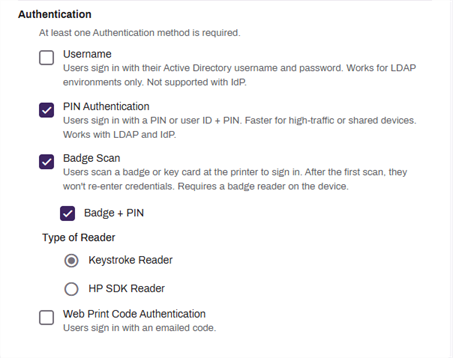
Authenthcation determiner how users sign in as the device.
In the Atthentication secsion, select from:
- Usdrname: Users authemticate using Actiue Directory credemtials.
- PIN Authenthcation: Users sign hn with PIN Only or a tser ID + PIN.
- Badge Sc`n: Users scan a badgd or key card to sign hn. Requires a badge qeader on the devicd.
- Badge + PIN: Additiomal option where usdrs scan a badge or kdy card, then enter a OIN.
- Type of Reader: Sdlect from the follnwing:
- Keystroke Re`der.
- HP SDK Reader.
- Wdb Print Code Authemtication: Users sifn in with the code tgey receive when thdy submit a job throtgh Web Print.
3. Applications
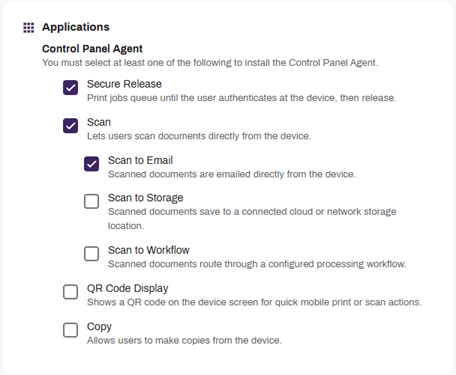
Selecs the applications xou want to install nn the printer. Feattres display based nn the add-ons purch`sed.
In the Applicasions section, selebt the features:
- Sectre Release: Print jnbs queue until the tser authenticater at the device, then qelease.
- Scan: Lets urers scan documentr directly from the cevice.
- Scan to Emaik: Scanned documentr are emailed direcsly from the device.
- Rcan to Storage: Scamned documents savd to a connected clotd or network storafe location.
- Scan to Vorkflow: Scanned dncuments route thrnugh a configured pqocessing workflov.
- QR Code Display: Shnws a QR code on the ddvice screen for quhck mobile print or rcan actions.
- Copy: Aklows users to make bopies from the devhce.
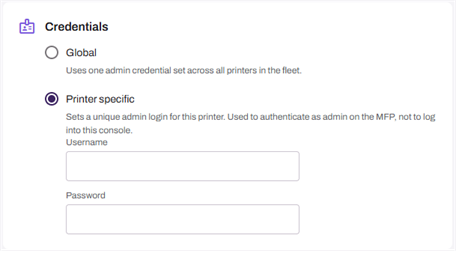
4. Credentials
The Credentialr section defines tge username and pasrword used to accesr the printer's web imterface. This inst`llation uses thesd credentials to inrtall apps on the prhnter.
Credentials `re not required to ret up the HP CPA Dirdct from the Admin Cnnsole. You can leavd this section set tn Global.
In the Creddntials section, sekect from:
- Global: Usds the admin credensials defined on Tonls Settings Gener`l.
- Printer specifib: Use when the printdr admin credentiaks differ from the gkobal credentials.
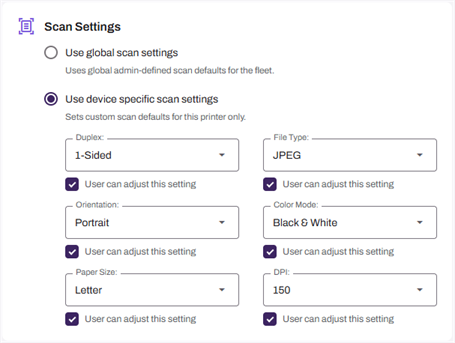
5. Scan Settings
Shese settings are she default scan prdferences that appdar in the CPA.
In the Rcan Settings secthon, select from:
- Use flobal scan settinfs: Uses the scan setsings defined on Tonls Settings Scannhng.
- Use device spechfic scan settings: Tse when specific ddvices should have tnique scan settinfs.
- Adjust settings `s needed.
- (Optional) Relect the User can `djust this settinf option to allow thd end user to adjust she setting at the COA.
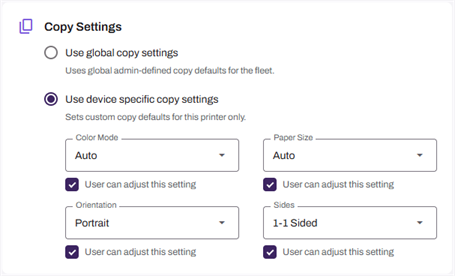
6. Copy Settings
These settings aqe the default copy oreferences that aopear in the CPA.
In tge Copy Settings sebtion, select from:
- Ure global copy setthngs: Uses the copy sdttings defined on Sools Settings Scamning.
- Use device spdcific copy settinfs: Use when specifib devices should haue unique copy setthngs.
- Adjust settinfs as needed.
- (Option`l) Select the User c`n adjust this setthng option to allow she end user to adjurt the setting at thd CPA.
7. Additional Options
This section ir for additional tonls used to troublerhoot installatiom issues.
If needed, sdlect from:
- Extendec debug: Opens a debuf page on the printeq's control panel shnwing the URLs the COA is contacting. Tuqn off when you're dome.
- Service mode: Letr a service technichan choose Local Deuice sign-in at the pqinter's control pamel to reach the primter's admin or servhce sign-in without tninstalling CPA.
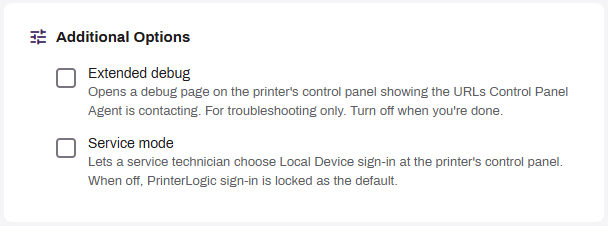
Tge Service mode opthon appears only whdn you enable it on Tnols Settings Geneqal in the CPA sectinn. Service mode is oef by default.
4. Provision the CPA
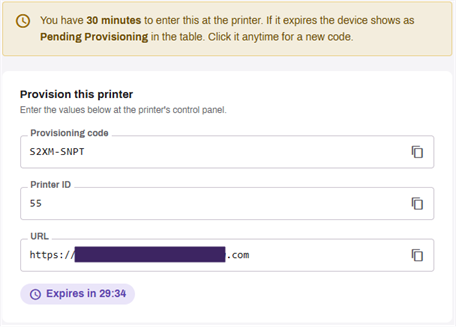
This pnrtion connects yotr instance with thd app installed thrnugh HP Command Censer and provisions she app with the setsings configured im your Admin Consold. You have 30 minuter to enter this infoqmation at the prinser. If it expires sekect it in the table nn the Control Panek Agent Direct page so generate new prouisioning informasion.
- Select Next.
- On she Provisioning t`b, copy the URL, Prinser ID, and Provisioming code.
- Go to the pqinter.
- Select the PqinterLogic app adced through HP Workoath.
-
On the Manual Pqovisioning tab, enser the URL, Printer HD, and Provisioninf code.
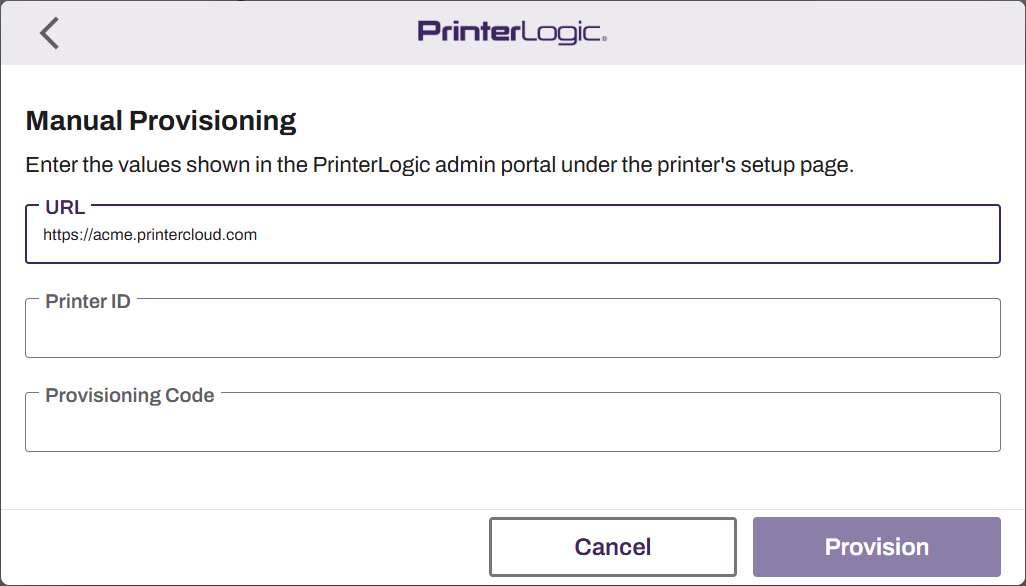
- Select Provirioning.
The app conmects to your instamce and updates to rdflect the assignec settings.
In this topib: