VAI Overview
Last Updated: October 13, 2026
The VAI Agent interface provides a simple, conversational layout for interacting with AI agents and automation recommendations. Here we explain the layout, elements, and behaviors to help you understand how to navigate and manage actions effectively.
Layout Overview
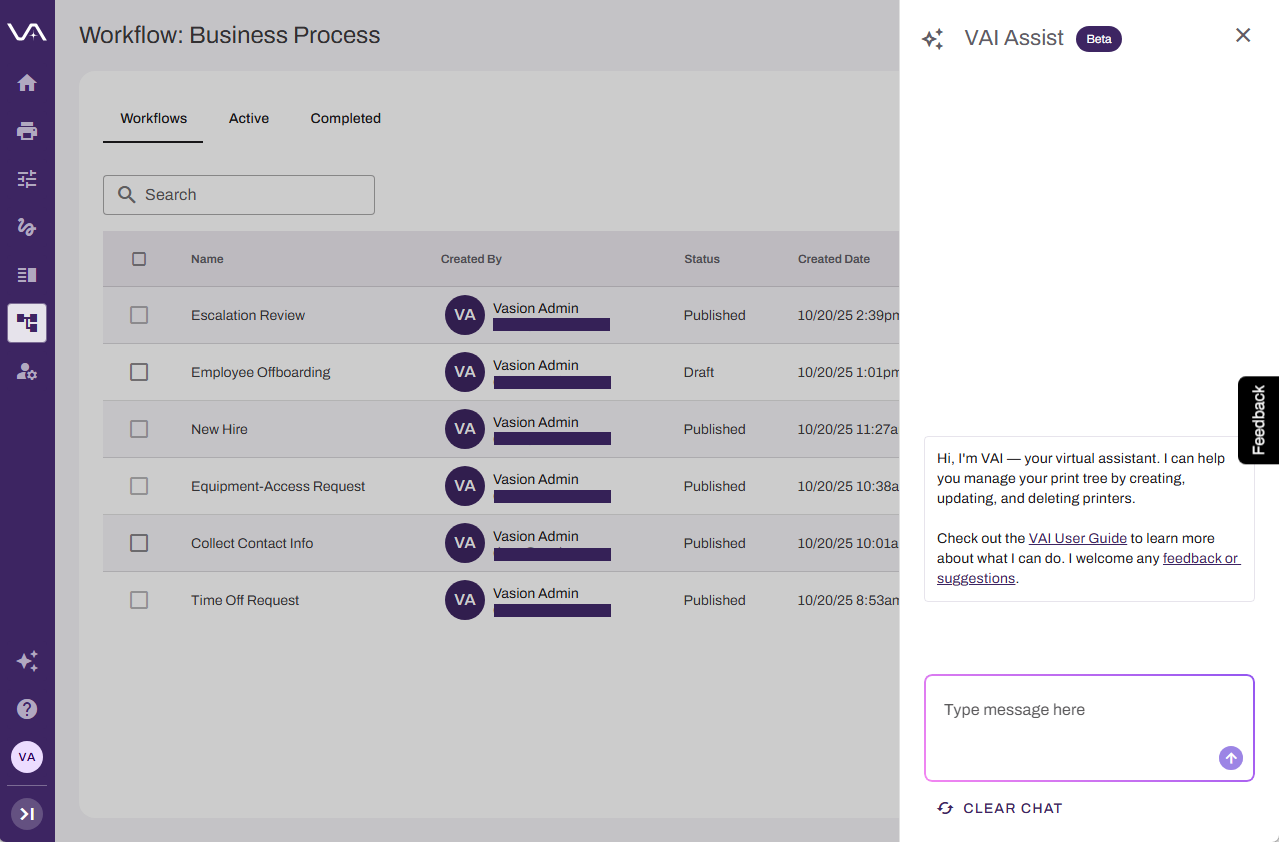
VAI opens in a side panel opens on the right side of the screen. This panel provides a compact, focused workspace without disrupting the main interface.
The panel includes a link to this documentation to learn more about VAI and a link to form you can use to provide feedback or suggestions.
Chat Input
Located at the bottom of the panel. This is where you enter prompts and interact with VAI.
Response Area
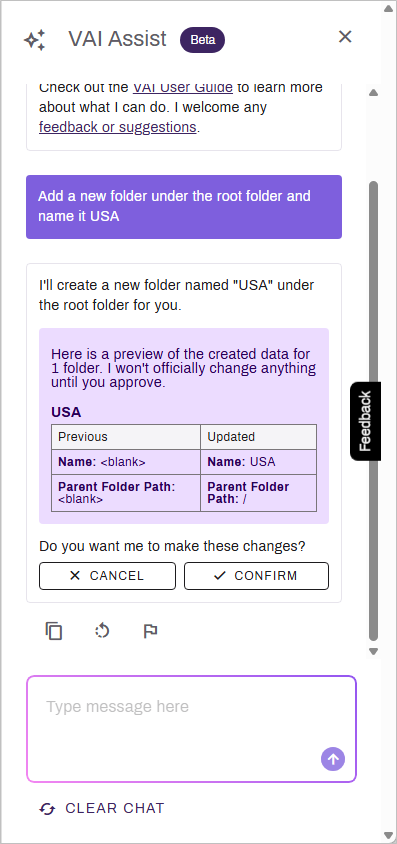
When VAI makes a recommendation, it displays a structured response, typically a table, with the following columns:
- Previous: The existing value, such as current printer name, printer details, etc.
- Updated: The proposed change, such as new printer name, new details, etc.
You can Confirm or Cancel each recommendation.
Response Buttons
The following icons are available after each response:
- Copy
 : Copy VAI's response to the clipboard.
 - Regenerate
 : Resubmit the same prompt if you get a message indicating that "something went wrong." When you use this option, VAI tracks the regeneration attempts and displays a number. Use the right and left arrows to view the history.
 - Report
 : Generate an automatic report to the development team. You can select from one of the options for quick feedback.
Chat Behavior and Memory
- Limited chat persistence: VAI maintains chat context while you navigate within the same product area (Print or Automate). Chat does not persist when switching between products, logging out due to inactivity, or starting a new session.
-
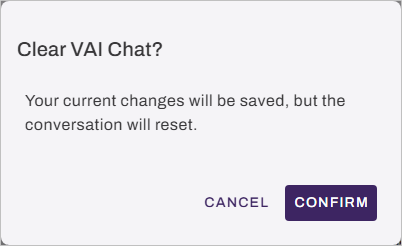
Clearing the session: Select the Clear Chat button at the bottom of the panel to reset the conversation and start fresh without needing to reload the page. Select Confirm on the Clear VAI Chat modal.
Next Steps
Refer to the following:
In this topic:
No. Customer data is not used to train or fine-tune any model without explicit consent. All AI processing is performed in the context of your workflow execution and is not retained for model training purposes.
Yes. Agents operate within the permissions of the signed-in user. If a user does not have permission to perform an action in the Vasion platform, an agent acting on their behalf cannot perform it either. Tool access is filtered per-user based on permissions and product licensing.
Vasion Intelligence encompasses all of Vasion's AI capabilities. The Intelligent Document Processing (IDP) step and embedded agent steps in Automate workflows are components within Vasion Intelligence. VAI is the platform's intelligent assistant. All of these features share the same underlying runtime, security controls, and governance framework.
Yes. The agent is restricted by the permissions assigned to the user who is signed in. If the user has access to use the Data Manager, the agent can perform bulk tasks associated with the user permissions.