Forms
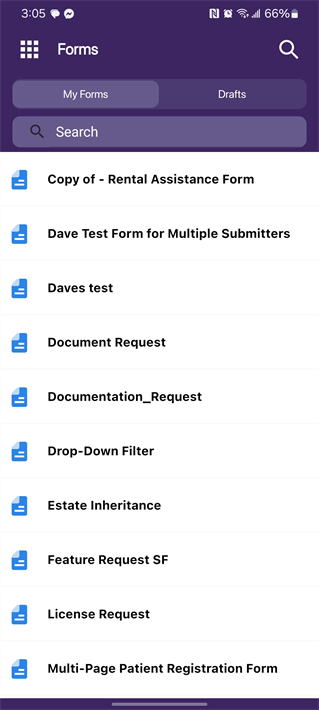
Collect and submit information to easily start a digital workflow. Once submitted, your data is quickly routed for review, approval, and saved into secure storage.
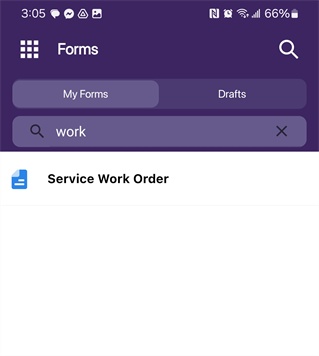
Use the Search bar at the top of the Forms list to quickly find the form you want.
Capture Data
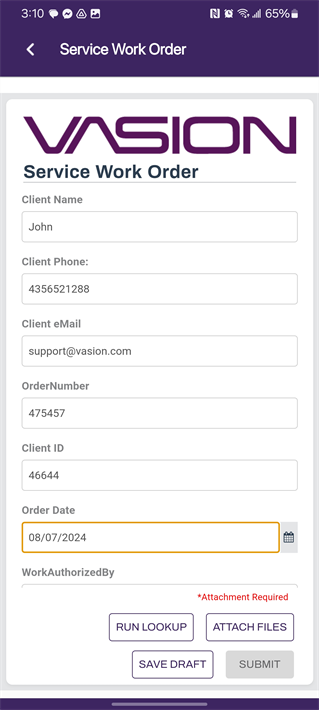
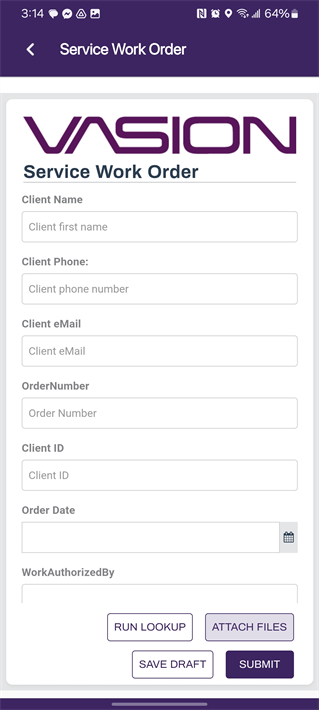
Tap on a form to enter data and start an associated workflow. Any fields that are required to submit the form display an asterisk (*).
1. Tap on a form
2. Complete fields and tap Submit
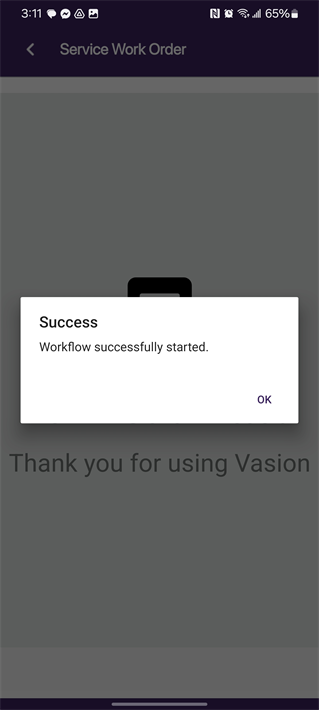
3. Tap OK to dismiss alert
Form Drafts
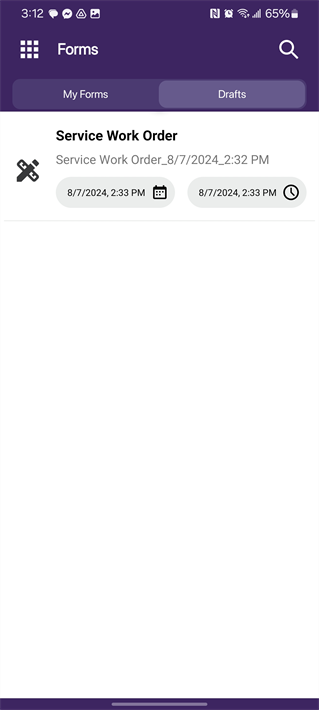
The Vasion Mobile app supports the Forms Drafts functionality. You can save a draft of a form so you can complete and submit it later. The default draft name is the name of the form with the date and time the draft is saved. If you attach any files to the form, the file attachments are also saved with the draft.
To save your form to complete later, do the following:
- Select the Save Draft button.
-
Update the draft name, if desired.
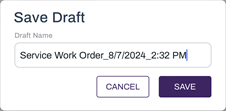
- Select Save.
You can access any drafts you have saved by selecting the Drafts tab. To learn more about form drafts, see Form Drafts.
Add a Signature
If a form is configured to include a signature, you can use your finger or stylus to draw your signature, or you can type it.
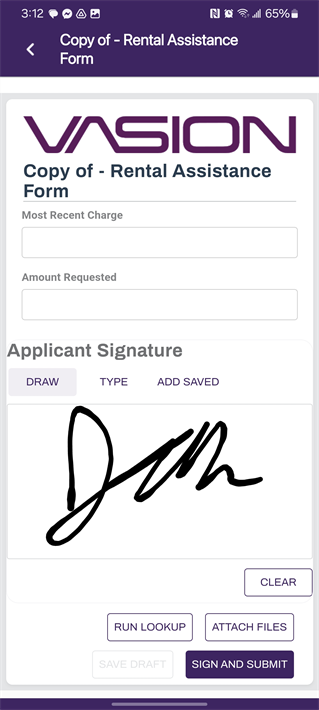
Draw
Directly on the widget, draw your signature.
Select Clear to erase the signature and draw it again.
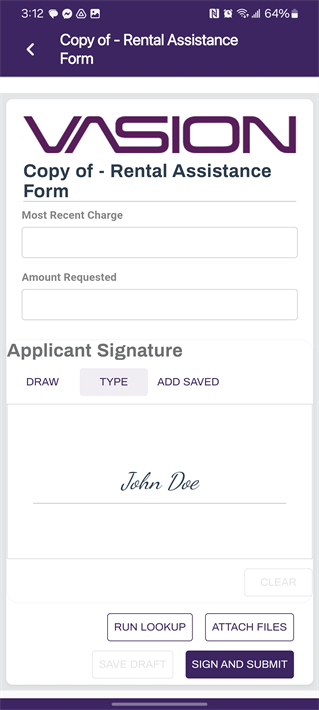
Type
Tap on Type and use the keyboard to type your name.
Add a Saved Signature
If your account has the Digital Signature role and you have saved a signature in your account profile, you can apply that signature.
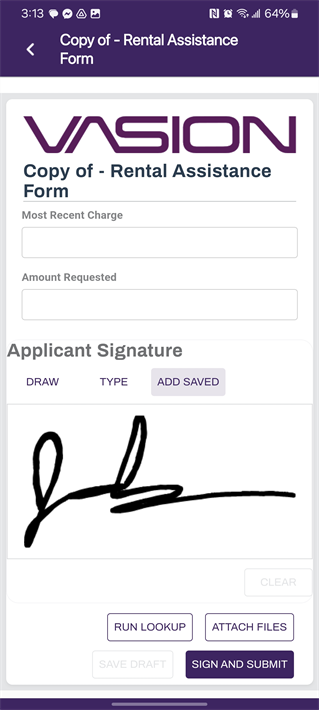
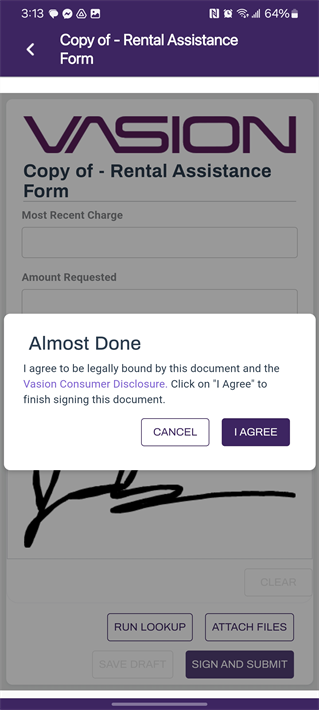
When you select Sign and Submit, you'll be asked to give your consent that you agree to be bound by the document and the Vasion Consumer Disclosure.
Tap I Agree to sign and submit the form.
Upload a File
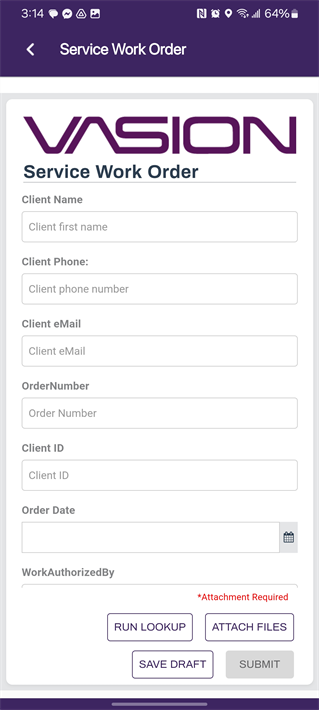
Some forms may require you to upload a document when submitting the form You can select the attachment from photos or files. You can also scan the document directly to the form.
1. Tap Attach Files
2. Select the file source option
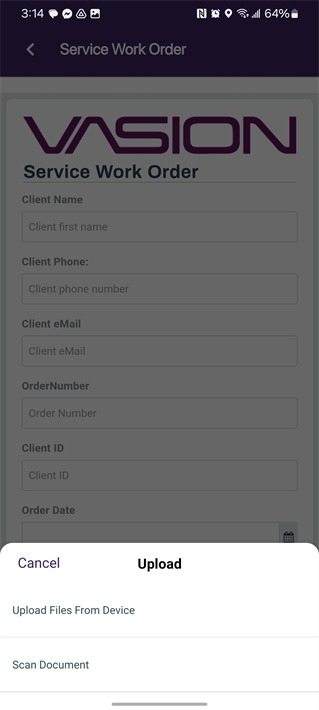
To learn more about scanning see Scan.
On forms that require attachments, once a file is attached, the *Attachment Required message disappears and the Attach Files button changes color.
 Other Topics
eSignature functionality is available through the Forms application today. Users can create an eSignature on an eForm and submit it. For more details see Add a Signature. The Signature application is coming soon in a future Vasion Mobile app release.