Start a Workflow
You can start a workflow from Workspace. Depending on the workflow, you may need to upload a document or complete a form.
Form Workflows
Some workflows are configured so that entering data and submitting a form starts the workflow. There are two ways to start this type of workflow using the mobile app.
- From Workspace tap New
 , or
, or - From Forms select the form associated with the workflow
Vasion Mobile does not currently support signature workflows.
Start a Form Workflow
From Workspace
1. Tap the Add button
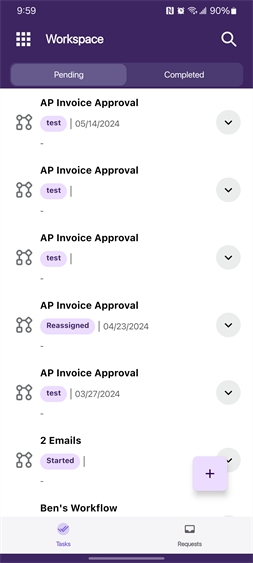
2. Tap on the workflow you want
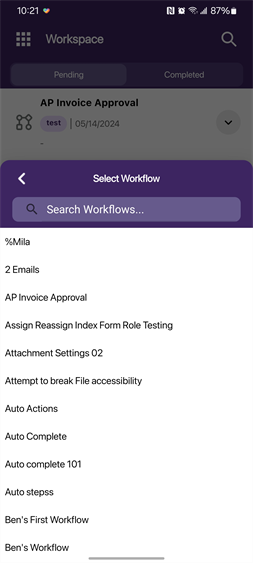
3. Complete fields and tap Start Workflow
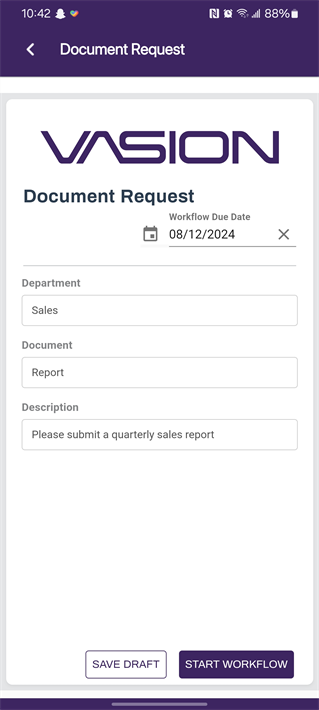
From Forms
You can navigate to Forms and select the form associated with the workflow you want to start.
1. Tap on a form
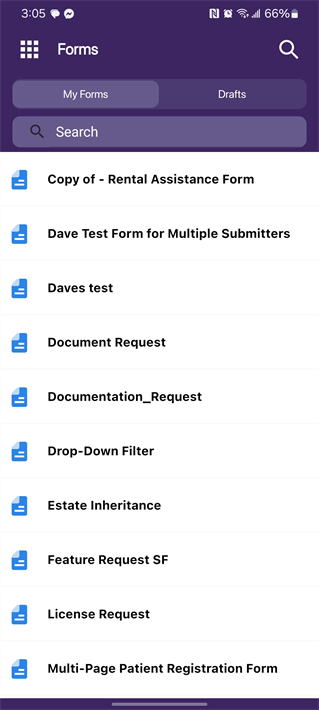
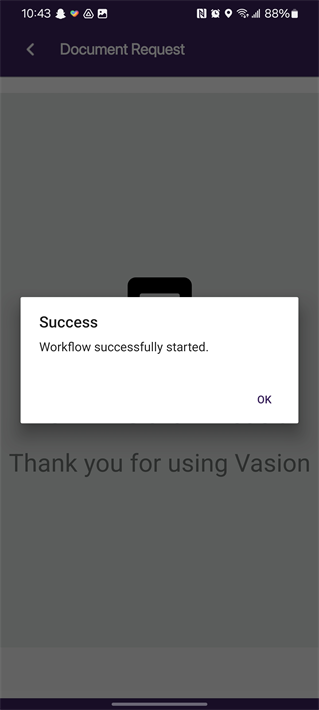
2. Complete fields and tap Start Workflow
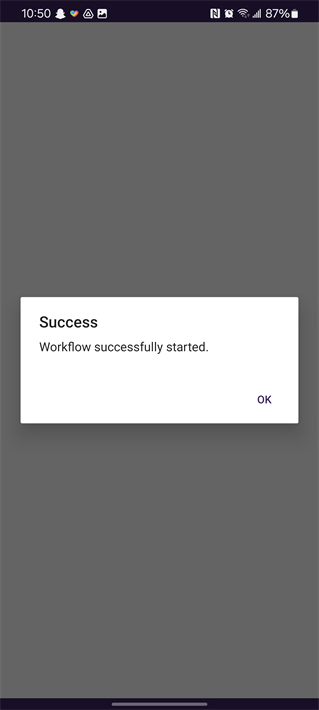
3. Tap OK to dismiss alert
Save a Draft
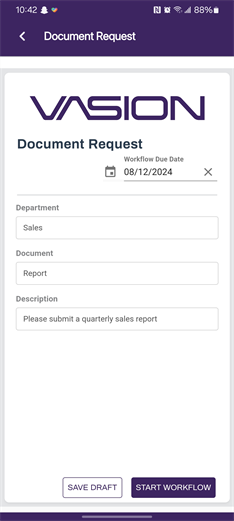
1. Tap on Save Draft
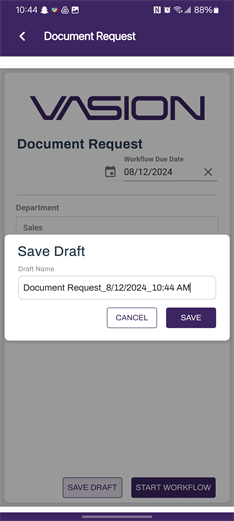
2. Enter a new draft name or
tap Save to keep the default name
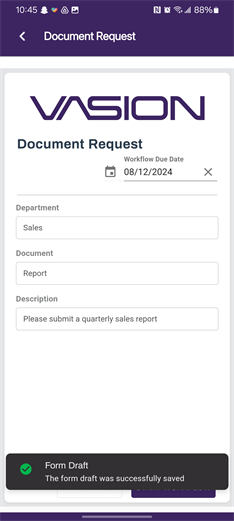
3. Tap the Back button  to return to Workspace
Document Workflows
Some workflows require you to upload a document and complete the associated object fields to start the workflow. You can only start a document workflow from Workspace.
1. Tap the Add button
2. Tap on the workflow you want
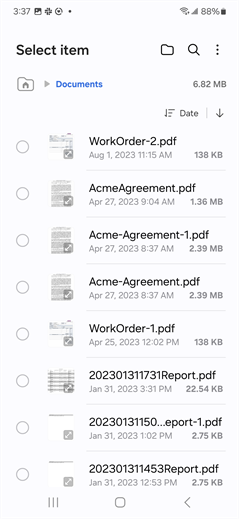
3. Scan or upload file from device
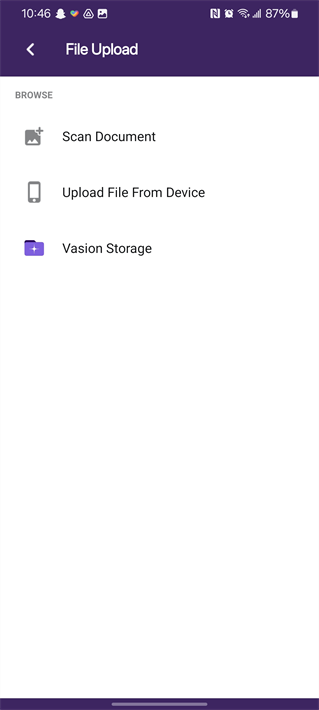
Scan to Workflow
1. Use the camera to scan the document.
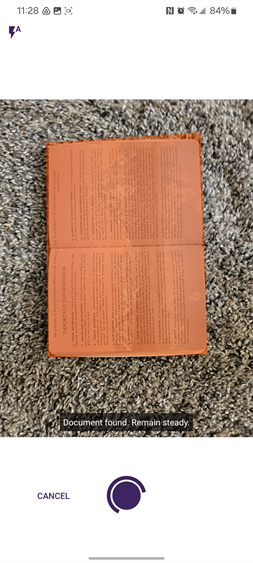
2. Tap Next
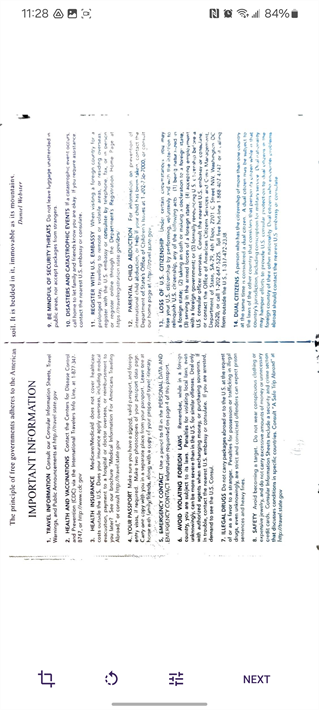
3. Tap Done to complete scan
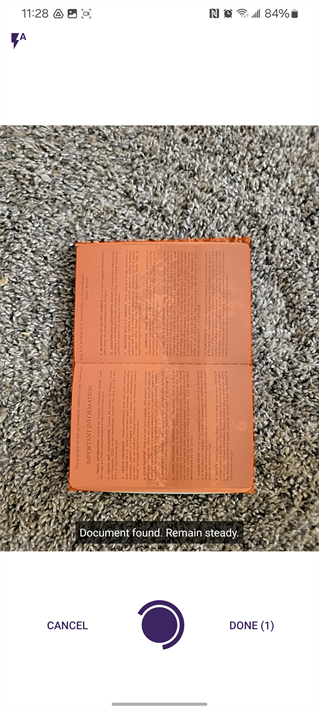
4. Tap Upload
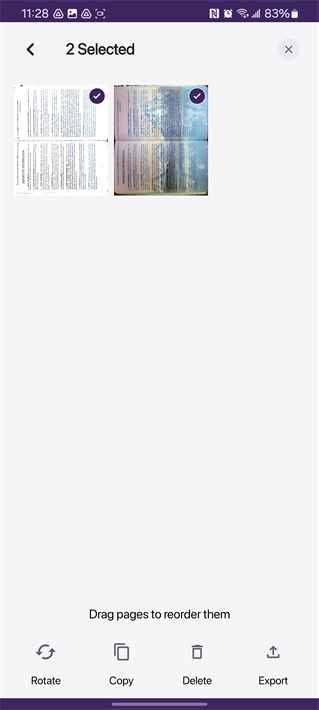
5. Tap Start Workflow
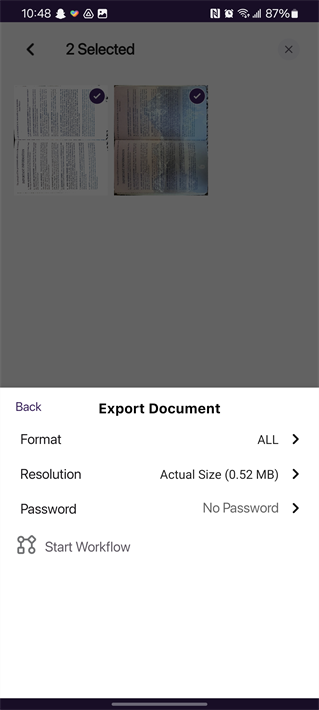
6. Enter object data
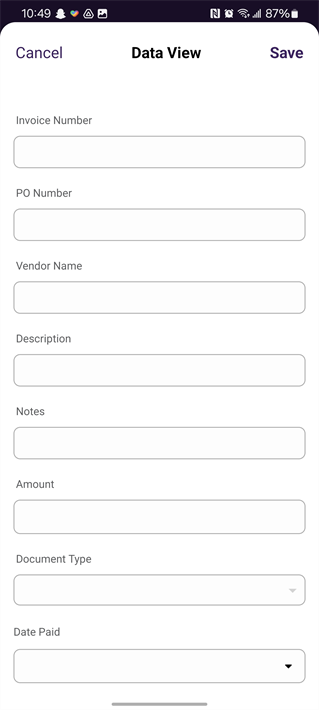
7. Tap Save
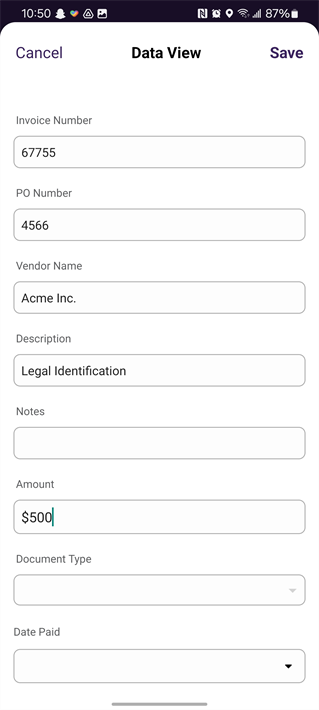
8. Tap OK to dismiss alert
Upload File From Device
1.
2.
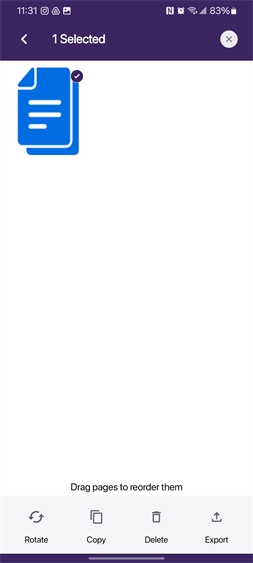
3.
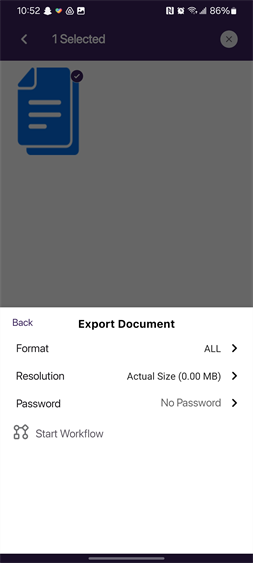
4. Complete object fields and tap Save
 Other Topics
Yes. The app needs access to files, photos, and the device’s camera when uploading or scanning a document for the first time. You will only be able to use these features after allowing the app access.