Scan
Scan documents to workflow or storage right from your mobile device without the need of a local scanner. Intuitively convert any paper document into a scanned image from your device.
Benefits include:
- Scan directly to Storage.
- Scan directly to Workflow.
- Reorder pages before saving.
- Merge multiple documents before saving.
Camera Permissions
To use your device's camera to capture documents you must first allow Vasion permission to access your camera.
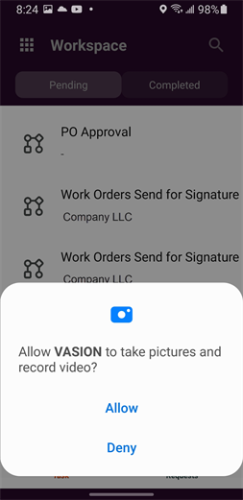
Here's a brief overview of the Scan functionality.
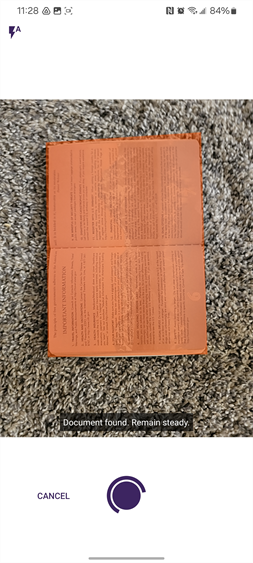
Scan
Automatically detect and capture a document. For best results, place the document against a dark background. Scan defaults to an automatic flash setting but you can adjust it to flash or no flash by tapping the icon  on the top-left of the screen.
From the slide out menu tap Scan to start the capture
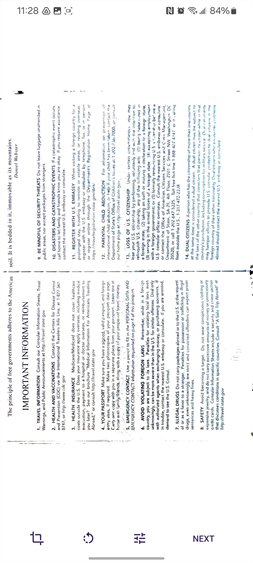
Tap Next to scan another page
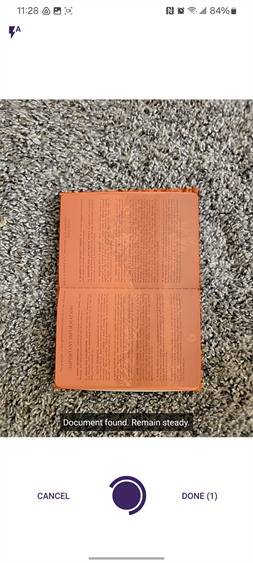
When you are done scanning tap Done
Page Scan Options
As you capture each page, you have the following :
-
 Crop image — tap to crop the image.
 -
 Rotate image — tap to rotate the image 90° at a time.
 -
 Image filter — tap to apply a filter to the document.
Document Options
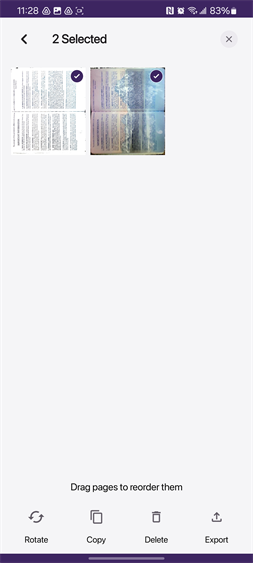
Once you complete capturing the document pages by default, all the pages are selected and display a check mark. If you want to make any adjustments to a page, make sure only that page is selected and tap on the appropriate button.
- Rotate — rotates the selected page 90° at a time.
- Copy — creates a copy of the selected page.
- Delete — deletes the selected page.
- Upload — uploads the selected pages.
To reorder the pages long press on a page and drag it to the desired location.
Upload Options
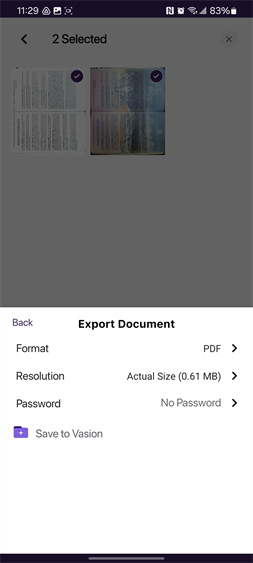
You have additional options available before you upload your document:
- File Name —
- Format — tap to change the file format of the document.
- PDF — upload as a PDF file.
- JPEG — upload as an image.
- Resolution — tap to change the size of the file.
- Actual Size — upload the image with the original resolution.
- Small — upload the image at the smallest resolution.
- Medium — upload the image in a medium resolution.
- Large — upload the image at the largest resolution.
-
Password — tap to encrypt a PDF with additional security to require a password before viewing. The file requires the password regardless of where it is stored or how it is accessed for viewing.
You cannot set a password on an image file.
- Export to — tap on the location where you want to export the file.
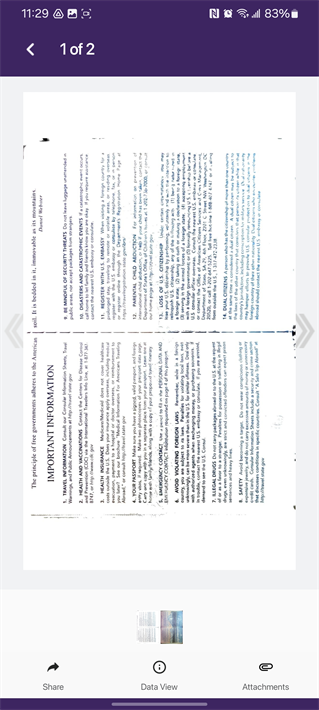
Once the upload is complete, the file opens in Storage. Tap the Back  icon to return to the Export screen.
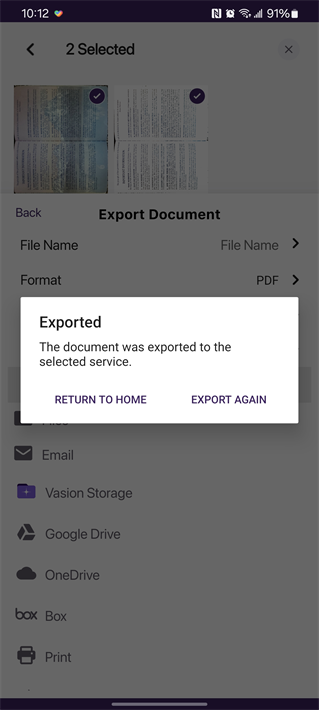
Back in the Export screen, choose from the following options:
- Return to Workspace— this option returns you to the app Workspace
- Export Again — tap share the document to another storage location or other phone app.
 Other Topics
Yes. The app needs access to files, photos, and the device’s camera when uploading or scanning a document for the first time. You will only be able to use these features after allowing the app access.