Last Updated: October 20, 2025
Account Settings
In your account settings you can do the following:
- Reset your own password.
- Set a default app to load upon log in.
- Adjust you privacy settings.
Access Settings
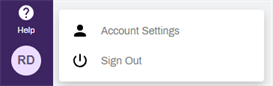
To access your account settings:
- Select your avatar from the bottom-left corner.
-
Select Account Settings.
Reset Your Password
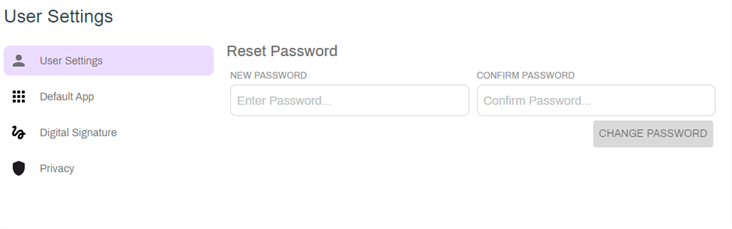
In the Profile Settings tab, do the following:
- Enter your new password in New Password.
- Re-enter the password in Confirm Password.
- Select Change Password.
If your organization uses Single Sign On or LDAP, the Reset Password option is not available.
Default App
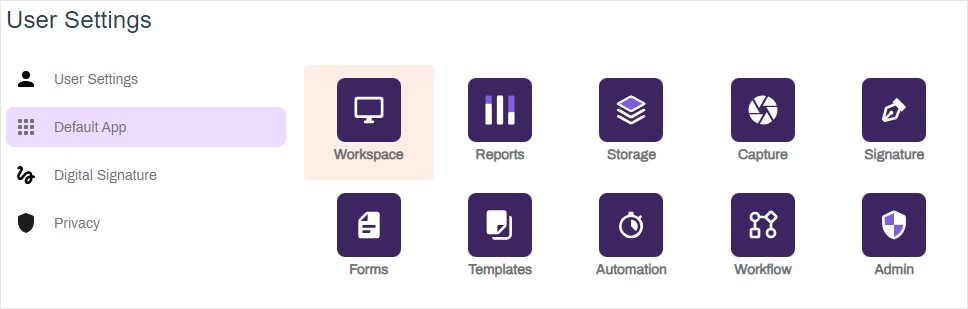
You can configure an app to load by default instead of the Home page when you sign in.
- Select Default App.
- Select the app you want as default.
Digital Signature
Add a digital signature and initials to your profile to quickly sign documents. The Digital Signature role is required to access this option.
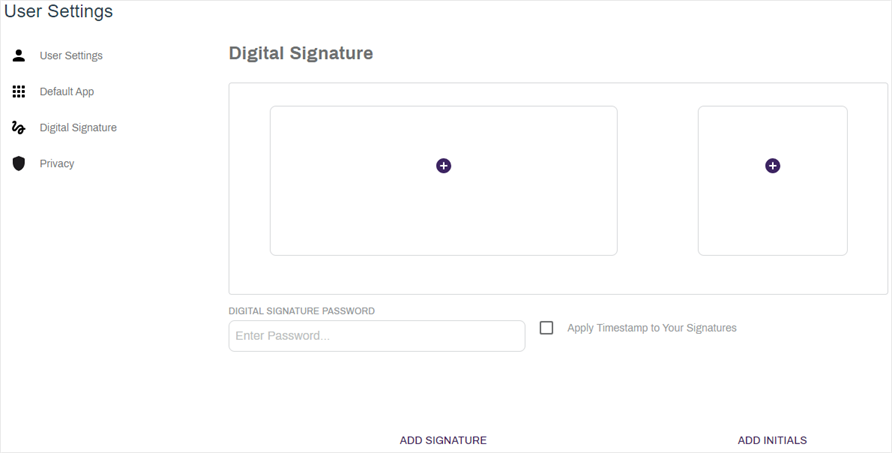
In the Digital Signature tab you can add your signature and initals. If you want to apply a system timestamp to both your signature and initials every time you apply them to a document, select the Apply Timestamp to Your Signature option.
The Enter Password option requires a password every time you add your signature using the Signature app and in the Document viewer. Use this option if you want an additional layer of security.
Add a Signature
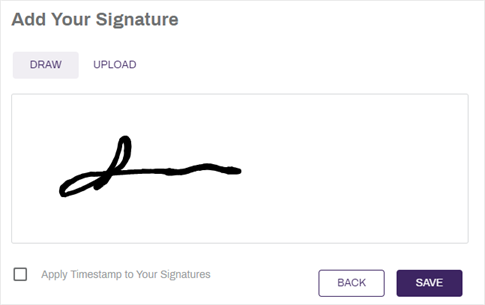
You can add your signature by drawing or uploading an image file. In the Digital Signature modal do the following:
-
Select Add Signature.
- Use your mouse to draw you signature in the box, or
- Select Upload and choose one of the following actions:
- Drag and drop an image file, or
- Select Browse to look in your computer for the image file.
- Check the Apply Timestamp to Your Signatures box if you would like to include a time stamp with your signature each time you add it to a document.
-
Select Save.
-
In the Almost Done modal, select I Agree.

Add Your Initials
- Select Add Initials.
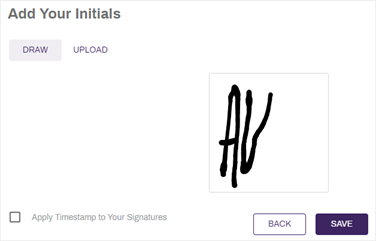
- Use your mouse to draw your initals in the box, or
- Select Upload and choose one of the following actions:
- Drag and drop an image file, or
- Select Browse to look in your computer for the image file.
- Check the Apply Timestamp to Your Signatures box if you would like to include a time stamp with your initials each time you add it to a document.
-
Select Save.
-
In the Almost Done modal, select I Agree.
Privacy
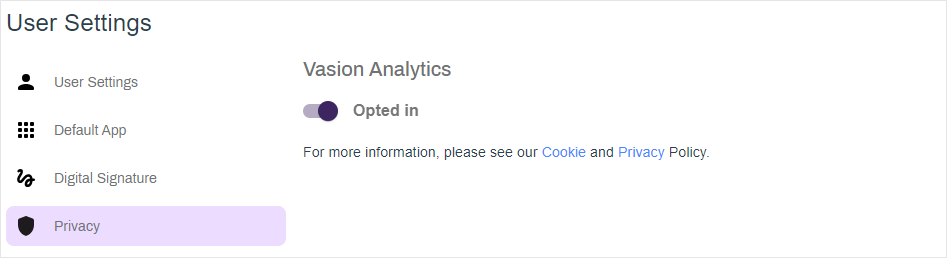
Tracking analytics are integrated throughout Vasion Automate Pro to continuously improve functionality and deliver the best customer experience. By default, Vasion analytics are enabled for all customers. If you wish to know more about our policies, links to our cookies and privacy policies are available. To turn off analytics tracking do the following:
- Select Privacy.
- Toggle Opted In to off.
Select an option from the side navigation to exit the page.