Last Updated: October 20, 2025
Scan to Storage Folder
You can also scan documents into storage directly from the folder where you want to store the document.
You must have a scanner set up to use the Scan option. For details on how to setup a scanner see Install the Send to Vasion App.
-
Select Storage from the side navigation.
- Select the folder where you want to save the scanned file.
- From the toolbar, select the Scan button
 .
. -
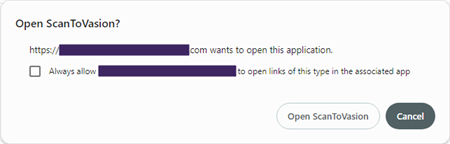
In the Open ScanToVasion? modal, select the Open Scan To Vasion button. Check the box to always allow Vasion to open the Scan to Vasion app.
-
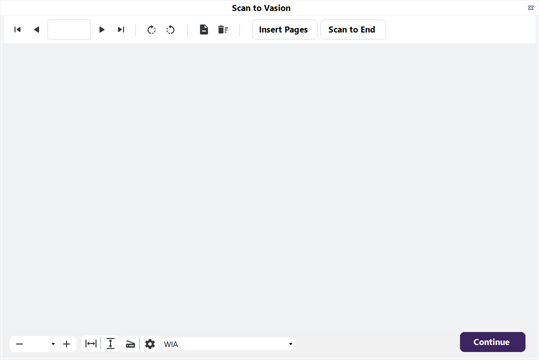
When the Scan to Vasion app opens, load the pages into the scanner and select Insert Pages or Scan to End.
-
During the scan process, a progress bar displays. Once the process is complete, the document displays in Scan to Vasion.
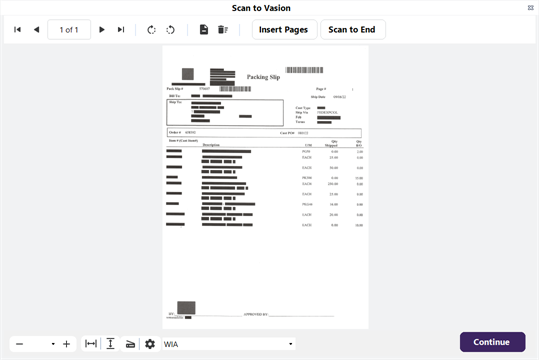
- Use the toolbar buttons for any of the following:
- Navigation — select the arrows to move from page to page, forward or back.
- Rotate — select the rotate buttons to rotate the current page clockwise or counterclockwise.
- Delete Page — select to delete the current page.
- Trash — select to delete all scanned pages.
- Insert Pages — select to scan more pages to the current document.
- Once you're satisfied with the pages, select Continue.
- Document Name — enter the name for the file.
- Add to Folder — select the Browse button to select the file location.
- Object — use the drop-down to select an object to associate to the file. Depending on how your system is set up a folder may already have a default object that is automatically selected, or you may skip this step.
-
Fields and Values — these fields vary depending on the object you selected. Fields listed with an asterisk are required fields.
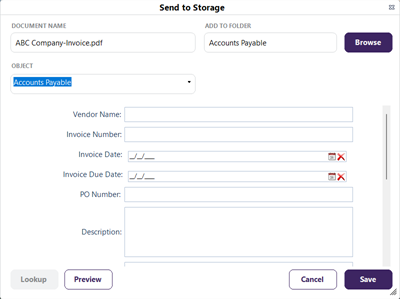
- Select Save.