Last Updated: October 20, 2025
Signature Details
To access Signature select Signature from the side navigation. Access to signature requires the appropriate permissions.
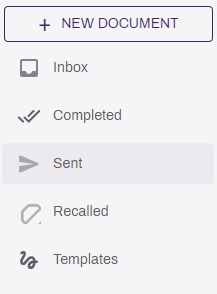
Side Menu
- + New Document — use this button to send a document for signature or to create a document template for multiple use. Requires the appropriate permission.
With the appropriate permissions you can select one of the following options to view a list of corresponding documents displayed on the right of the page.
- Inbox — the default view of the Signature app. Any documents for signature requests sent to you are displayed here.
- Completed — completed documents sent to you for signature are displayed here.
- Sent — documents you have sent for signature requests are displayed here.
- Recalled — documents that you recall before they're signed are displayed here.
- Templates — documents that have been set up as templates are displayed here.
Here is a detailed overview of what you can see when you select one of the options above.
Inbox
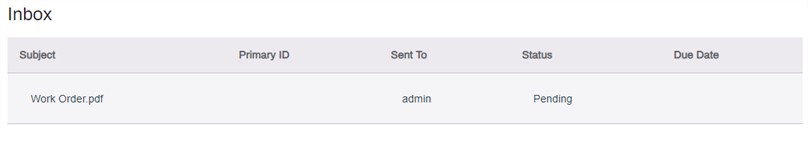
The Inbox shows all the documents that have been sent to you to sign and are pending. The list displays the following information:
- Subject — the name of the document. This is also the subject line in the email notification.
- Primary ID — if the signature document is associated with an object An Object is a group of related fields that can be applied to a document, workflow or form. The object fields are used to capture and index data that can be used to create forms, map to a document, and/or assign to a workflow., this column shows the value of the primary object field, if one is selected.
- Sent To — shows the username of the signer(s) who have signature, initials, or text zones assigned to them.
- Status — shows the status of the signature process.
- Due Date — shows the due date if the signature document is part of a business process workflow, and is one is assigned.
Completed
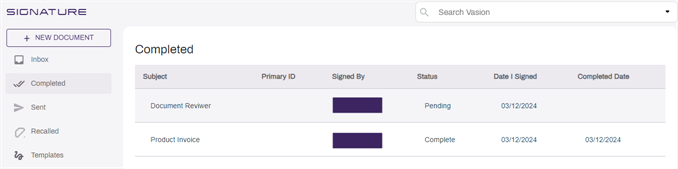
Completed shows all the documents you have signed, and the signature process is complete. The list displays the following information:
- Subject — the name of the document. This is also the subject line in the email notification.
- Primary ID — if the signature document is associated with an object An Object is a group of related fields that can be applied to a document, workflow or form. The object fields are used to capture and index data that can be used to create forms, map to a document, and/or assign to a workflow., this column shows the value of the primary object field, if one is selected.
- Signed By — shows the username of the signer(s), if sent to an internal user, or the email address if sent externally.
- Status — shows the status of the signature process.
- Date I Signed — dhows the date you signed the document.
- Completed Date — shows the date the signature process was complete. The date may be the same as the previous field, or a different date if multiple signers were assigned.
Sent
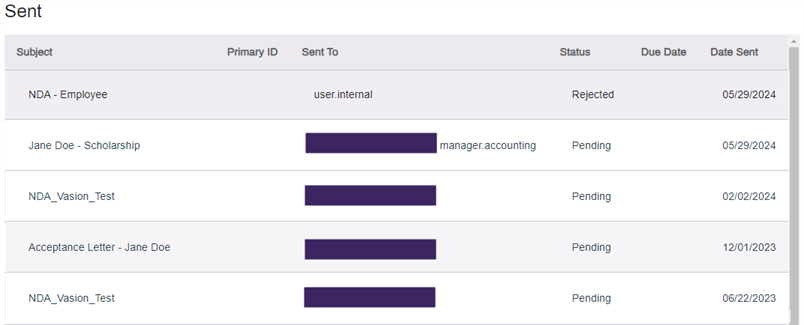
Sent shows all the documents you sent for signature. The list displays the following information:
- Subject — the name of the document. This is also the subject line in the email notification.
- Primary ID — if the signature document is associated with an object An Object is a group of related fields that can be applied to a document, workflow or form. The object fields are used to capture and index data that can be used to create forms, map to a document, and/or assign to a workflow., this column shows the value of the primary object field, if one is selected.
- Sent To — shows the username of the signer(s) if sent to an internal user. Shows the email address if sent externally.
- Status — shows the status of the signature process.
- Due Date — shows the due date if the signature document is part of a business process workflow, and is one is assigned.
- Date Sent — shows the date you sent the document for signature.
Recalled
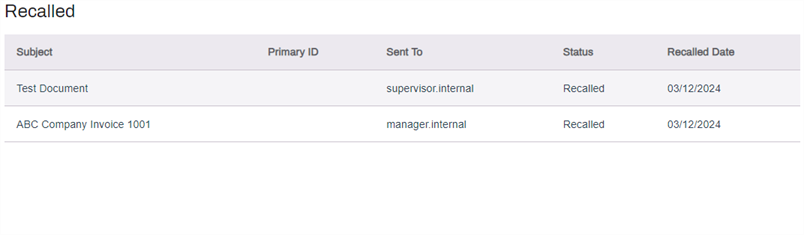
Recalled shows documents you sent for signature, but recalled before the signature process was competed. The list displays the following information:
- Subject — the name of the document. This is also the subject line in the email notification.
- Primary ID — if the signature document is associated with an object An Object is a group of related fields that can be applied to a document, workflow or form. The object fields are used to capture and index data that can be used to create forms, map to a document, and/or assign to a workflow., this column shows the value of the primary object field, if one is selected.
- Sent To — shows the username of the signer(s) if sent to an internal user. Shows the email address if sent to an external user.
- Status — shows the status of the signature process.
- Recalled Date — shows the date you recalled the document.
Templates
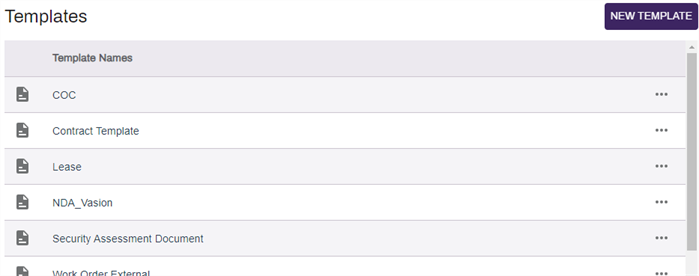
Templates shows signature document templates available for quick re-use.