Manage Users
Last Updated: September 29, 2026
Use the Users page to manage existing user accounts in Vasion Automate. You can update user information, update role assignments, and take actions, such as deactivating and deleting accounts. To manage Print permissions for a user, use the Admin Console in Virtual Appliance.
Requirements
Review the following requirement:
- A Vasion Automate account with the Application Admin role.
Select Admin  Users from the side navigation to access the page.
Update User Information
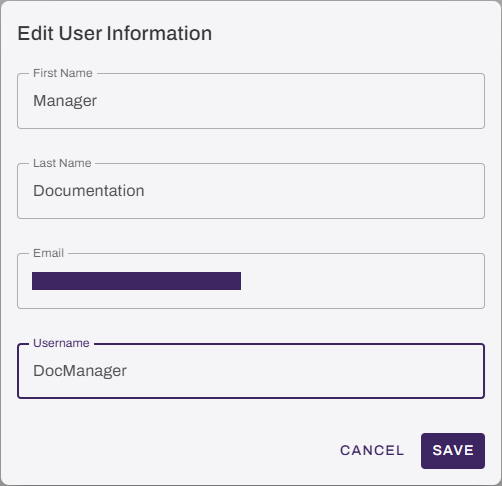
You can update the first name, last name, and email address for an existing account:
- Sign in to the Vasion Platform.
- Open the user profile menu, and then select Account Settings.
- the Edit button
 in the User Information section.
 - Update one or more of the following fields:
- First Name.
- Last Name.
- Email.
- Username.
- Select Save in the upper-right corner.
Update Role Assignments
You can add and remove roles for an existing account.
Do the following to add a role:
- Select the user you want to update.
- In the Roles section, select the Edit button .
- Use the dropdown menu to select the role you want to add.
- Select Save.
Do the following to remove a role:
- Select the user you want to update.
- In the Roles section, select the Edit button .
- Select the X next to the role you want to remove.
- Select Save.
Actions
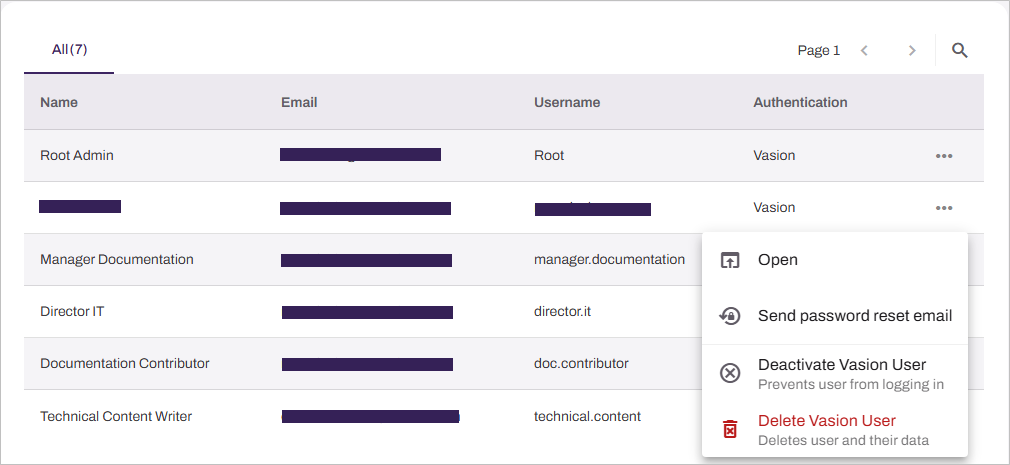
The More menu  on each line item provides quick access to common account actions. The available options depend on the account's authentication method.
Local Accounts
Local accounts have the following options:
- Open: Opens the User Information page.
- Send password reset email: Sends an email to the user's email with a link to reset their password.
- Deactivate Vasion User: Deactivates the user account and removes authentication.
- Delete Vasion User: Deletes the user account.
Single Sign-On (SSO) Accounts
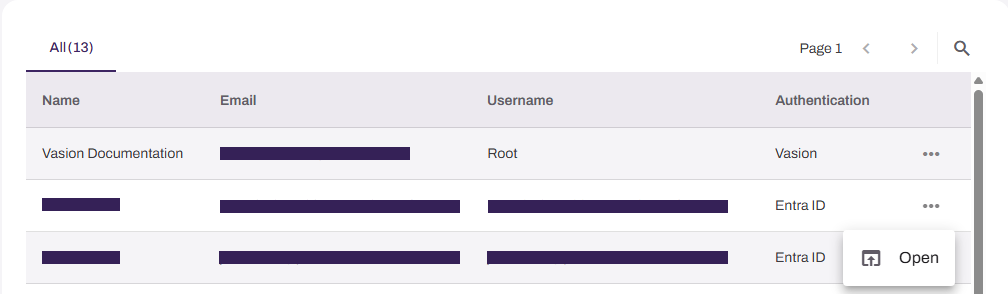
Identity Provider (IdP) and Lightweight Directory Access Protocol (LDAP) accounts have the following options:
- Open: Opens the User Information page.
You must turn off IdP and LDAP accounts in the source directory or the provider admin portal.
Account Settings
Users can update their profile information, signature, and initials by selecting their avatar, selecting Account Settings, and making changes. If a user needs different role assignments, an Application Admin must make those changes. For more details refer to Account Profile Settings.
In this topic: