Secure Configuration Guide
Last Updated: August 06, 2026
This topic outlines the administrative account recommendations for Vasion Automate Fed environments. These recommendations relate to access and security settings for the Admin Console and security features for greater control over end-user access to the Self-service Portal and Release Portal. Security account management and configurations described in this guide are completed in the PrinterLogic Admin Console unless otherwise noted.
Key Points
- Vasion supports Identity providers (IdPs) A system that creates, maintains, and manages identity information for an organization. An IdP provides authentication services to apps in a federation or distributed network., such as Entra ID (Azure AD), Okta, etc.
- Part of the initial instance setup includes creating a root account with administrative permissions to access all features and settings in the Admin Console. The root account must be disabled after configuring your identity provider to stay within FedRAMP compliance.
- When applying roles, use the Principle of Least Privilege (PoLP).
- Regularly audit user access and remove administrator and non-administrator users. For more details refer to Identity Management.
Security Recommendations
Local Users
Local users are accounts that are not tied to an identity provider and are verified through the instance database. Local user accounts are not permitted in FedRAMP environments, and the root account, the primary local account created when spinning up an instance, must be disabled after you configure your identity provider and Admin Console administrators. The following steps guide you through securing your new Vasion Automate Fed instance.
1. Configure Your Identity Provider
Select the supported Identity Provider from the list to configure the integration and provision users.
2. Assign Administrator and Non-Administrator Roles
After provisioning users, assign Role Based Access Control (RBAC) roles for users requiring access to the Admin Console. Limit the number of Administrator roles by applying standard RBAC roles with specific permissions or create your own custom role to fit your organization's security needs. When applying roles, use the Principle of Least Privilege (PoLP), and grant users permission for only the objects (printers, folders, etc.) they need access to. Refer to Role-Based Access Control (RBAC) for a complete list of standard roles and permissions.
- Admin Console Users (Adding Users & Applying Roles)
- Role-Based Access Control (RBAC) (Standard Non-Administrator Roles Overview)
- Create Custom Roles (Steps to Create Custom Roles)
End users do not require access to the Admin Console, and should not be added to the Tools  Users page in PrinterLogic. Vasion Automate Fed roles should be applied only to administrators requiring permissions for features like Output.
3. Disable Local Accounts
Disable the local account after assigning RBAC roles to those requiring access to the Admin Console. To disable local accounts you must be logged into the Admin Console as an non-root account Administrator.
To disable local accounts:
- Go to Tools Settings General.
- In the Login Settings section, select Disable local accounts.
- Select Save in the upper-right corner.
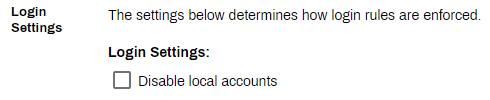
This removes the username and password authentication option from the Admin Console login page. Only users authenticating through the configured identity provider can access the Admin Console.
4. Configure Administrative Security
Administrative Security restricts which folders, objects, and printers an Admin Console Non-Administrator user can view in the Tree Structure. By default, all Administrator users can view and edit objects in the tree structure along with any Non-Administrator roles assigned to the organization, or parent, object at the top of the tree structure. Keep the following in mind when setting up Administrative Security.
- Administrative Security inherits down to objects below the object it was explicitly assigned. Assigning a user to a folder grants them access to any subfolders within that folder.
- Non-Administrator accounts should not be assigned to the organization, or parent, object at the top of the tree structure.
- The role assigned to Non-Administrators on the Tools Users page may be adjusted at the object level they are explicitly assigned, allowing the same user or group different permissions based on the folder or object.
- Use the Principle of Least Privilege approach and assign Non-Administrator accounts to only the folder or object you want them to have access to.
5. Configure portal security & Portal Settings
Portal Security restricts which folders and printers end users have access to in the Self-service Portal. After configuring Administrative Security, configure portal security to define which users and groups have access to specific folders and printers.
There are additional portal settings to customize how the Self-service Portal and Release Portal function and their accessibility. These settings should be thoroughly reviewed when configuring your environment. Including:
- Password protecting the portals, which requires users to enter a global password after authentication to either end user portal.
- Restricting Release Portal access, which requires users to release held print jobs through the mobile app, Control Panel Application (CPA), or other release method.
For more details refer to Portal Settings.
Following the steps and recommendations above helps secure your Vasion Automate Fed environment.
In this topic: