Storage Actions
In Mobile Storage, tap on an existing document to view it and perform the following actions:
- Share — download or print the document.
- Data View — view and edit the data fields.
- Attachments — view any linked documents.
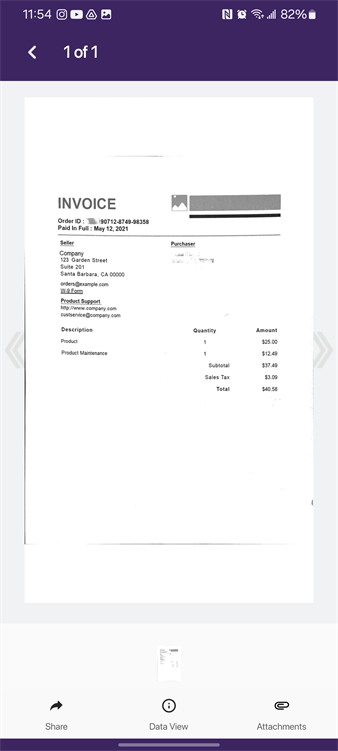
Share
Use the Share option to download or print the document.
Download
1. Tap Share
2. Tap Download
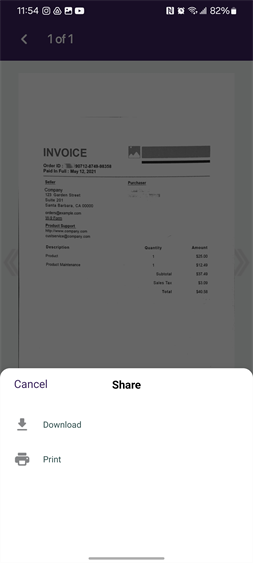
3.
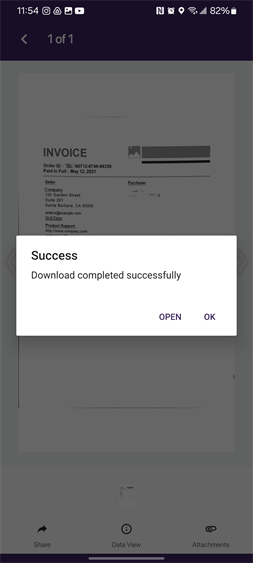
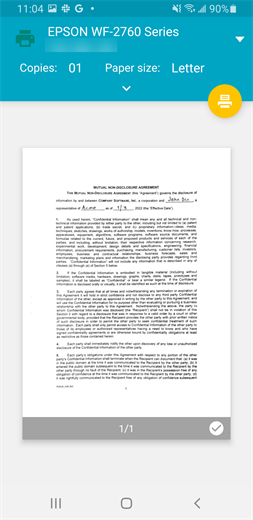
1. Tap Share
2. Tap Print
3.
Data View
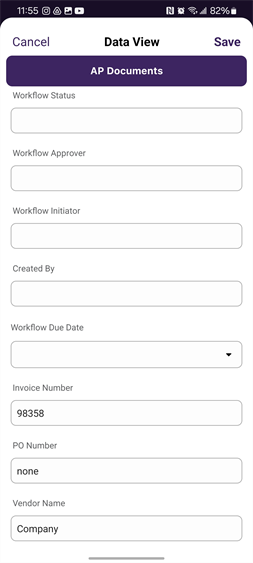
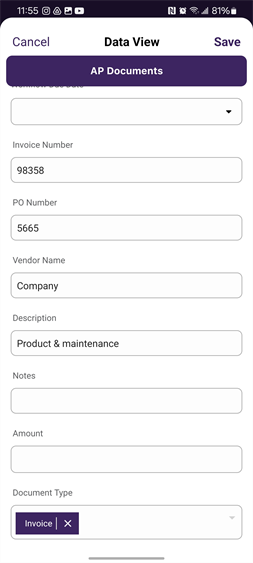
You can edit the object data fields by accessing the Data View and updating the field values.
1. Tap Data View
2. Tap in the fields to update information
3.
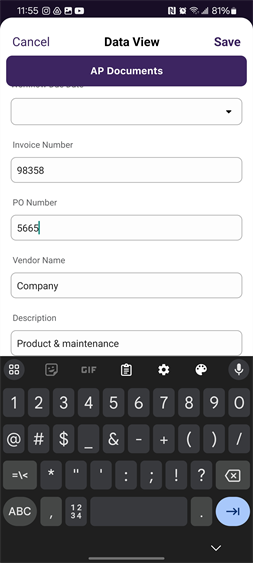
4. Tap Save
Comments
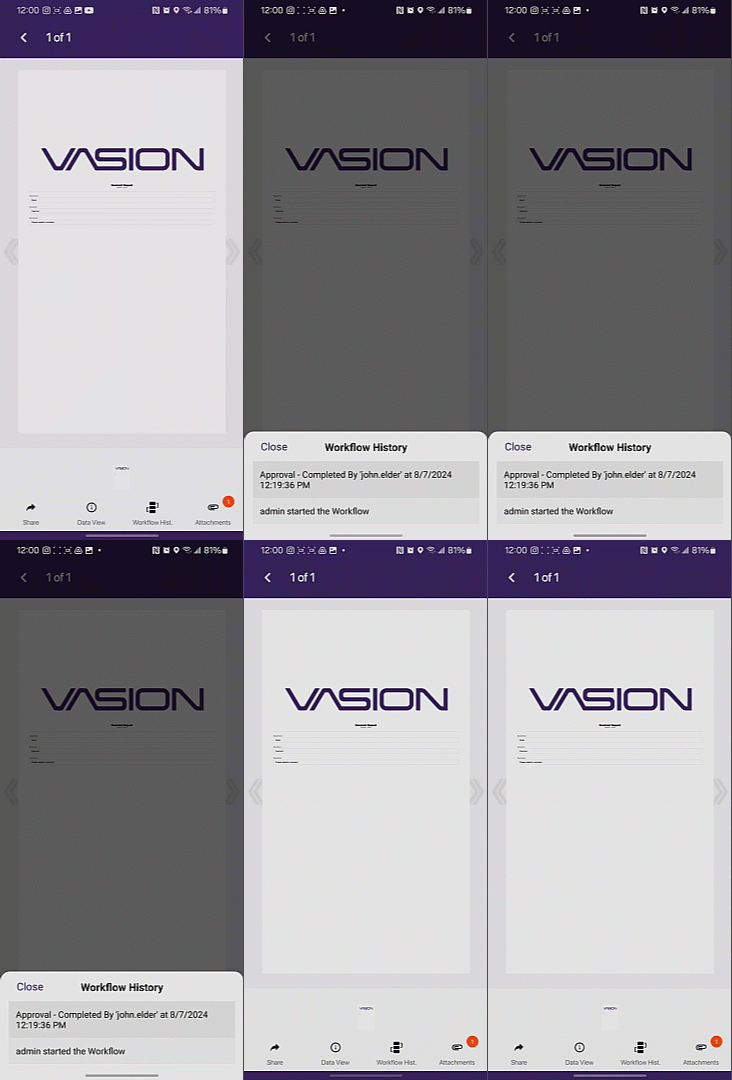
The Workflow History button displays only if there are workflow comments for a document and an indicator shows the number of comments.
Tap the Workflow History button  to view the workflow comments.
Attachments
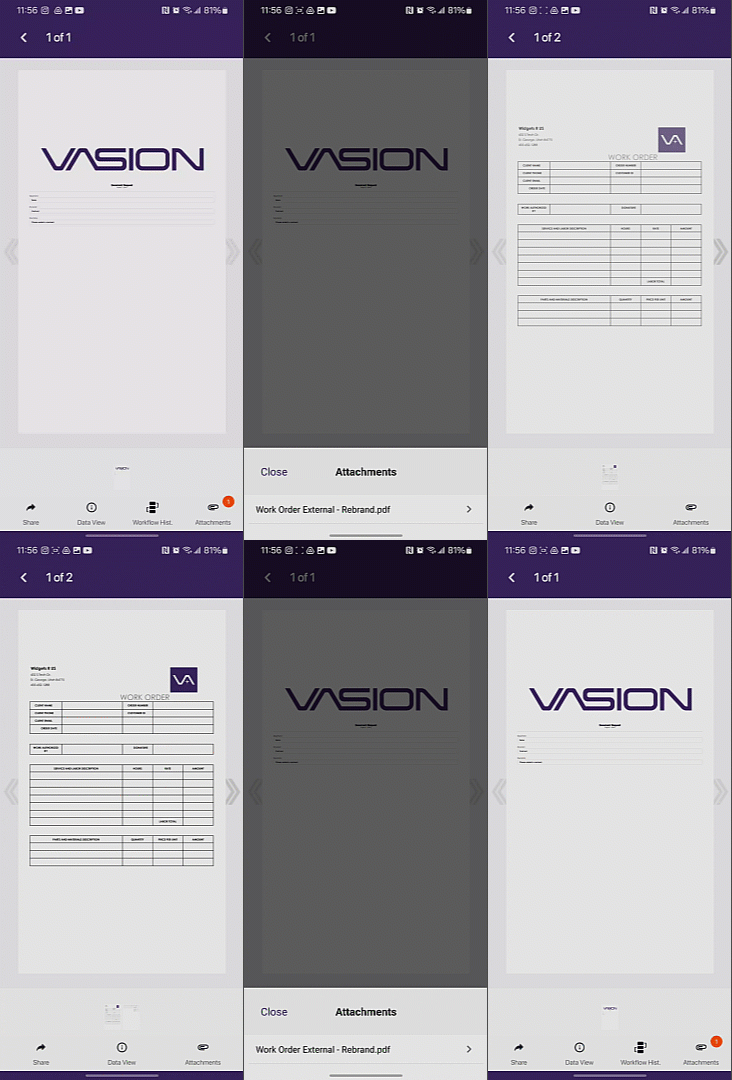
The Attachments button  displays in the tool bar for users who have the Document - Linked Document Access role assigned. The button also displays an indicator to show how many documents are
Tap the Attachments button to view the names of any files
- Tap on the file name to view the
- Tap the Back button
 to return to the attachment list.
 - Tap Close to return to the current
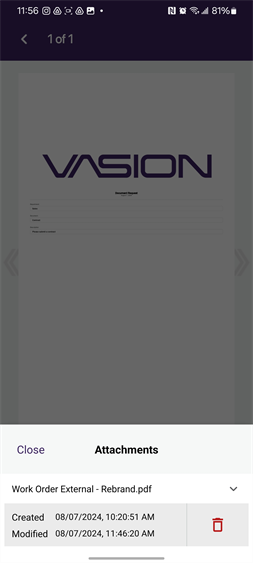
In the Attachments screen, tap the right arrow button  to view the date/time the file was attached and the date/time the file was modified.
You can remove attachments by tapping on the Delete button  . The button only displays if you have the appropriate permission assigned to your role.
 Other Topics