Last Updated: May 22, 2025
Trials
MSP Portal 30-day trials provide the opportunity for prospective customers to explore the features and functionality of Vasion Print before purchasing. MSPs manage the trial from start to finish and can quickly close or convert the account once the trial period has ended.
Key Points
- The trial period is 30 days.
- Existing accounts cannot be changed back to a trial instance.
- Instances do not enforce license allocations till after the trial ends.
- After the trial ends, license allocations in the MSP Portal for customers must match what the instance uses.
- Instances with fewer allocated licenses than printers in use will send weekly automated emails to the MSP Account Manager. To configure alerts, see Notification Settings.
- Turning off the instance or ending the trial does not halt usage accumulation used for billing. To avoid license usage after a trial ends, delete the instance.
Add Trial Instances
- Log into the MSP Portal.
-
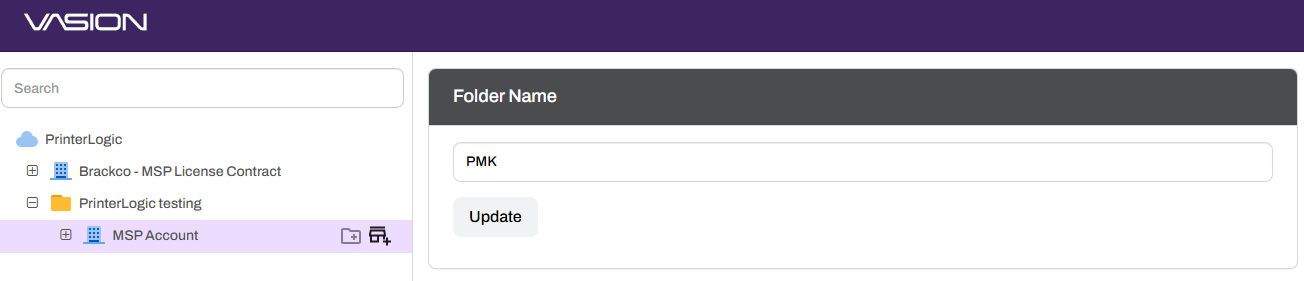
Hover over the MSP or folder name and select the Add Customer icon.
-
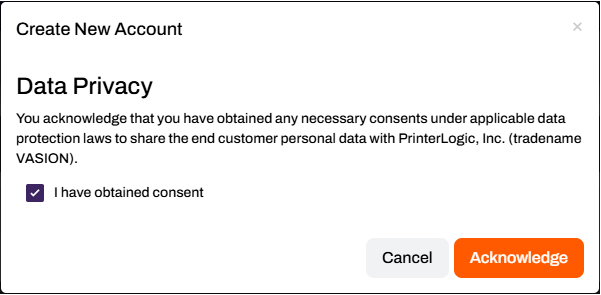
In the Create New Account modal, complete the data privacy consent and select the Acknowledge button.
-
In the Create New Account modal:
- Enter the customer Company Name.
- Enter the City and State / Province.
- Select the Industry vertical from the dropdown.
- Enter the MSP / Account Manager First and Last Name.
-
Enter their Email.
The MSP Portal will send automated emails about the upcoming trial end dates to this email address.
- Enter their Phone number.
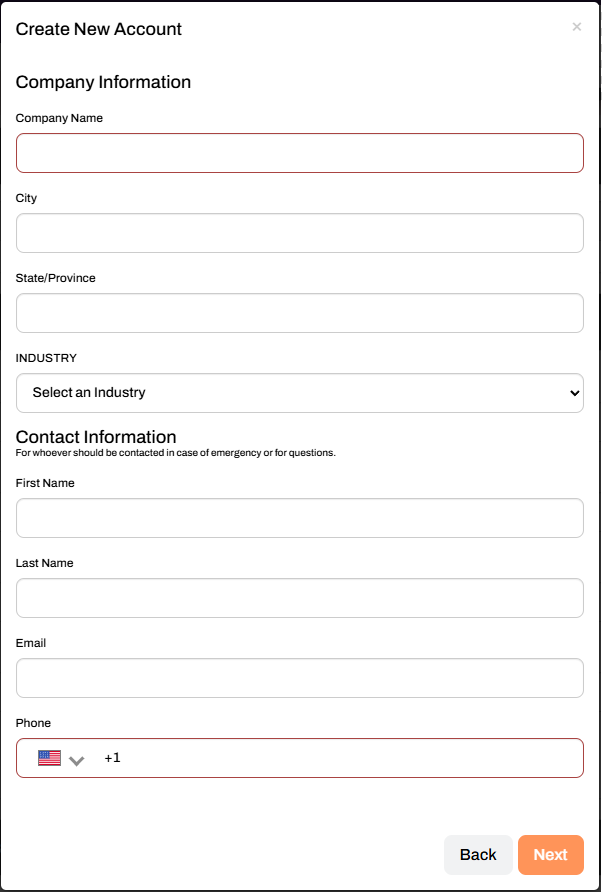
- Select Next.
-
In the Create New Account modal:
- Enter the number of Printers (approximate).
- Enter the number of Users (approximate).
- Enter a Vanity URL (friendly name) that the customer will use to access the Admin Console, Self-service Portal, and the Release Portal.
-
Set the Monthly License Limit (optional).
Set a license limit if needed. If set, you will be notified when this Customer exceeds their monthly license limit.
- If this is a trial account, select the box for Enable trial period for this customer.
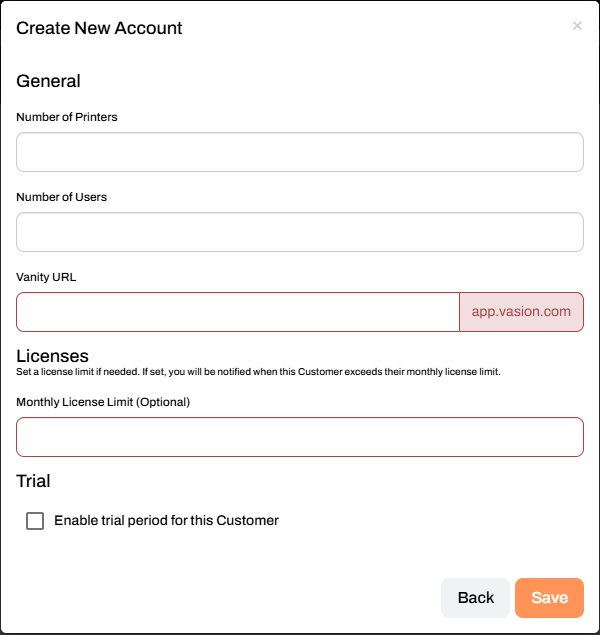
- Select Save.
Allow a moment for the instance to finish creating. Once complete, the customer shows in the tree structure. To initialize the instance, log in using the Login button to create the root account and complete the first sign-in. For steps, see Access Customer Instances.
End a Trial
Once the 30 days are complete, the Trial Status, in the Instance Information section, automatically switches to Ended. Printers existing in the customer instance apply to the next MSP billing cycle.
To end a trial instance early:
- Navigate to the customer's Instance Information section in the MSP Portal.
- Select the Trial Status dropdown.
- Change the value to Ended.
The account will now be considered non-trial and usage begins accumulating for billing purposes.
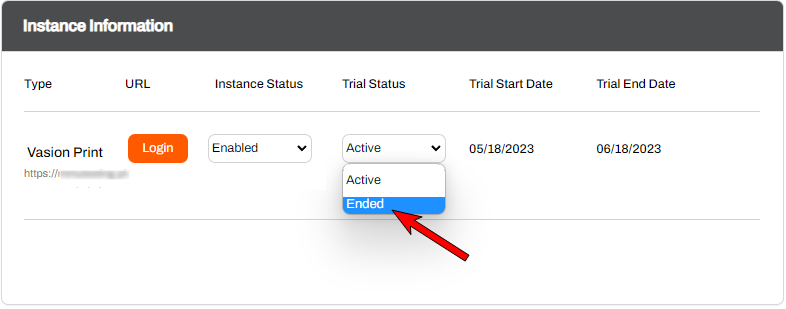
Disabling the instance or ending the trial does not halt usage accumulation used for billing. The instance must be deleted at the end of the trial using the Delete Customer button at the bottom of the customer account page, or the license usage after the trial ends is charged to the MSP.
Extend a Trial
If the customer reaches the end of the trial and needs more time to evaluate the product, the MSP may contact their Channel Account Manager to extend the trial once for another 30 days.
Billing
When a trial ends, usage for billing begins accumulating and applies to the next MSP billing cycle. Usage for all end-user instances in the MSP Portal is collected daily and then averaged at the end of the billing period for the average daily usage. That amount is then applied to all days within the period and added to monthly usage.
Disabled instances still charge for any usage during the billing period after the trial ends. If there is zero usage, there will be no charges for the disabled instance. If printers exist within a disabled instance, usage accumulates. To avoid being billed for a customer account that decided not to purchase Vasion Print during the trial, delete the customer instance from your MSP Portal or remove all printer objects within the instance's Admin Console.
For more information on billing, see Administrative Tasks.
Notifications
Trial end date notifications are sent automatically to the email associated with the customer's MSP Account Manager defined during the account creation modal. Reminder emails send:
- 20, 10, 5, and 1 day before the end of the trial.
FAQs
No. Vasion is not charging for this functionality. It is provided free of cost to all MSPs.
The MSP will be able to set up a new customer instance in the MSP Portal that will have full access to Vasion Print by Vasion products without being charged. The MSP will also not be charged for the licenses that their customer uses during the 30-day period.
Yes. Each instance has access to one free trial of 30 days, with the possibility of one 30-day extension at the discretion of the Channel Account Manager (CAM).
There is no limit to the number of free trial instances an MSP can have in their portal. These trials can run concurrently.
Within the Instance Information box the Trial Start Date and Trial End Date fields are visible.
Yes. During a free trial a customer can use as many Core and Bundle licenses as they need for their print queues.
No usage during free trials is counted toward your minimum commit. As soon as the trial ends, any usage in the instance will then be counted toward the minimum commit and the MSP will be billed for it at the end of the next billing period.
No. A trial instance can only be established at the time the instance is created.
The Trial Status drop-down in the MSP Portal will automatically change from ‘active’ to ‘ended’, and the Instance Status drop-down will remain as ‘enabled’. The instance will continue to function, and the MSP will be billed for any usage. The customer will be billed according to the MSP’s billing procedure.
A trial cannot be deleted without deleting the instance. If a customer or the MSP no longer wants the trial to continue, they can change the status to ‘ended’. Billing will begin immediately thereafter if the instance is not deleted.
No. Once an instance is created, it cannot be changed to a free trial. But an MSP can end the trial early by changing the Trial Status drop-down from ‘active’ to ‘ended’. Further, a trial cannot be edited, other than to end it or extend it (via the Channel Account Manager).
An MSP may reach out to their Channel Account Manager to request an additional 30 days. The CAM will determine if that extension is justified, and will have the ability to extend the trial.
The ability to pause a trial will not be available when the feature is launched, but will be built in a later version. If a customer needs more time, the MSP can contact their Channel Account Manager to extend the trial.
The MSP is responsible for charging the MSP customer. Vasion will begin billing the MSP for their customer’s usage at the end of the trial regardless of whether or not the MSP is billing that customer.
Usage for all customer instances in the MSP Portal is collected daily, then averaged at the end of the billing period for the average daily usage. That amount is then applied to all days within the period and added up for the total monthly usage. If an instance has been disabled, it will still be charged for any usage that occurred during the billing period using the method described. If there is zero usage, there will be no charges for the disabled instance.
The MSP receives the notifications. They will be sent to the contact listed as the MSP account contact in the MSP Portal.
If the MSP wants to change who receives the notifications within their own organization, they must update the MSP contact email. In the future, we will also provide the ability for the MSP to enable their end users to receive these notifications.
Not at this time.
ArchivoBlack-Regular Archivo-Light Archivo-Medium ArchivoNarrow-Regular Archivo-Regular RobotoMono-Italic-VariableFont_wght RobotoMono-VariableFont_wght Search-Results.htm