Last Updated: June 04, 2025
Access Customer Instances
After creating a customer instance, MSP Admins can log in to the Vasion Print instance from the MSP Portal. This allows quick access for the MSP Admin to set up, update, and troubleshoot a customer's environment.
Key Points
- Initialization of an instance requires the MSP to log in, create the root account, and accept the Master Software Agreement (MSA) and License Agreement.
- When creating the root account, use an email different from the one associated with your MSP Portal account. Using the same email can impact password reset emails.
- An MSP can only log into one customer instance at a time in a single browser session.
Initialize the Instance & Create Root Account
These steps are to initialize and log in to a new customer instance. For steps about logging into existing instances, see MSP Logins.
- Log in to the MSP Portal.
-
Expand the tree structure or use the search bar to find and select the customer instance.
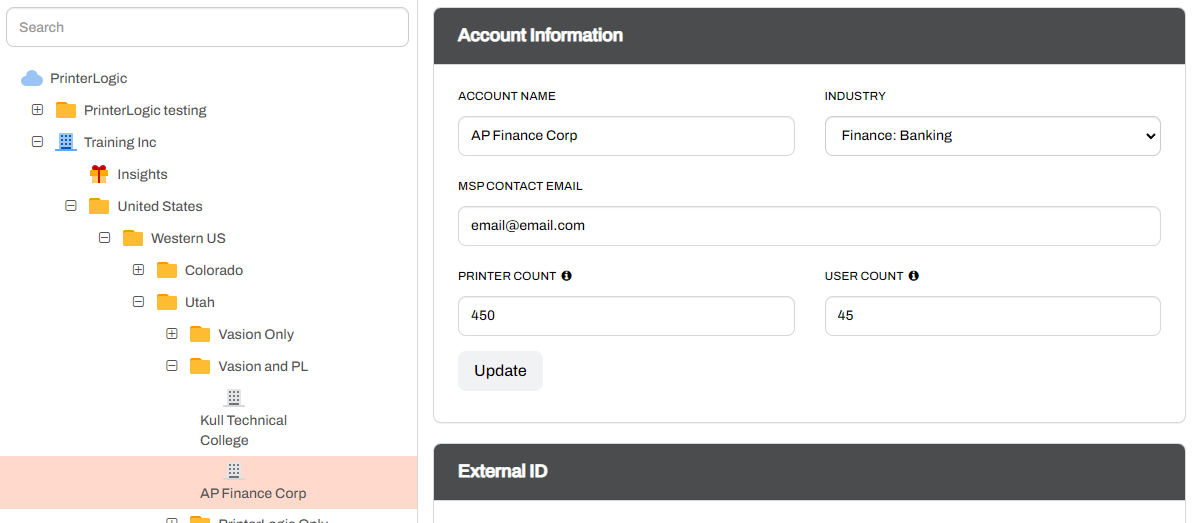
-
In the Instance Information section, select the Login button.
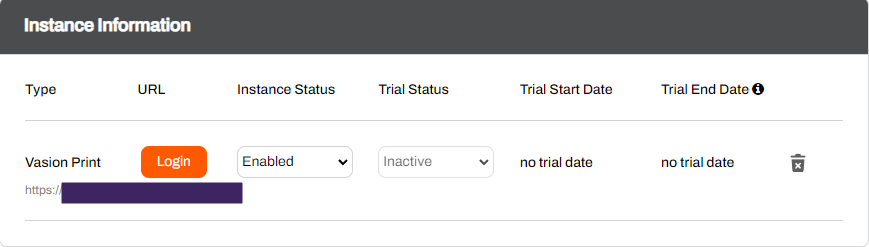
The following steps initialize the instance and set up the root account. Do not close the window until you have completely logged in to the Admin Console.
-
Allow up to a minute for the database to be created.
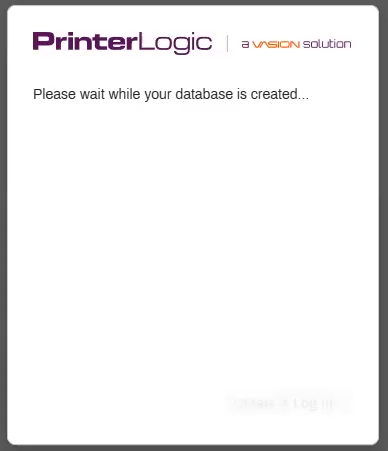
-
Complete the root account information fields when prompted.
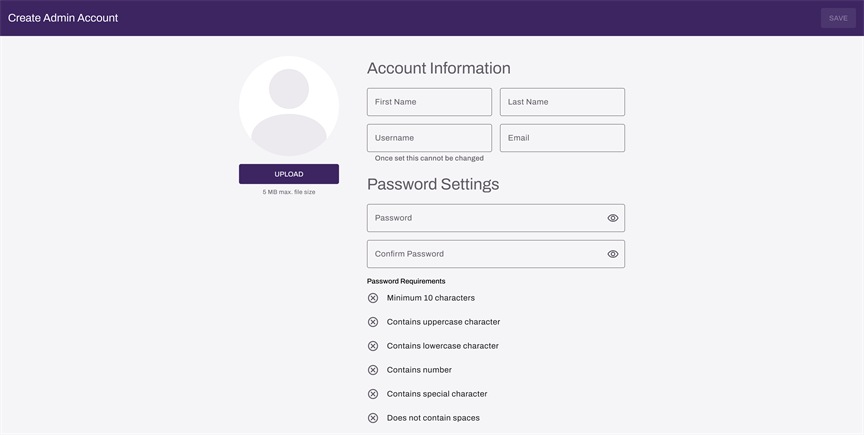
- Select Create & Log in.
-
When presented with the Master Software Agreement select the link to view.
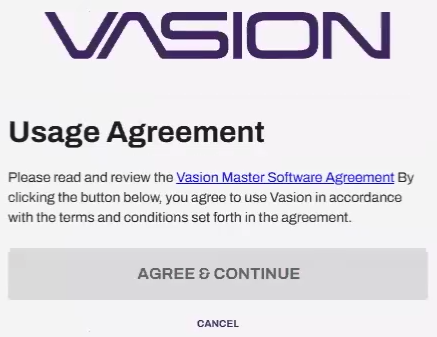
- Select Agree and Continue on the page with the MSA link.
You are now logged into the Vasion Print instance. For information on creating additional admin or RBAC user accounts within the Vasion Print instance, see User Management.
MSP Logins
To log in to an existing instance:
-
Expand the tree structure or use the search bar to find and select the customer instance.
-
In the Instance Information section, select the Login button.
- The instance opens to the Vasion Print Admin Console.
ArchivoBlack-Regular Archivo-Light Archivo-Medium ArchivoNarrow-Regular Archivo-Regular RobotoMono-Italic-VariableFont_wght RobotoMono-VariableFont_wght Search-Results.htm