Sign In
Last Updated: August 27, 2026
To sign in, you need your company's instance A collection of services and service groups associated with a customer, created from an app template and deployed to a cloud or virtual server. URL. If you don't already have it, you may obtain it from your System Administrator. Depending on how your system is set up you can use a username and password or using an identity provider.
Product Instance URL
The URL format for your instance's Admin Console is your fully qualified domain name (FQDN) The complete domain name for a specific device or host on a network, consisting of the hostname, the domain name, and the top-level domain. with "/admin" appended to the name. For example,mycompany.printercloud-fed.us/admin.Identity Provider
If Vasion is connected with an identity provider (IdP) A system that creates, maintains, and manages identity information for an organization. An IdP provides authentication services to apps in a federation or distributed network., the sign in page displays the button you need to use to connect with the provider to enter your login credentials. The sign in experience varies depending on the provider.
- Go to the URL link provided to you or paste the link on your web browser.
Select Sign In With [Provider].
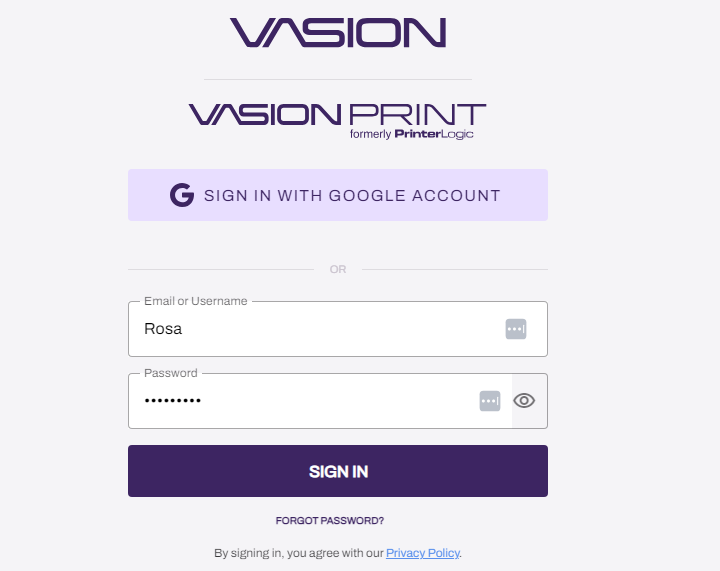
Follow your provider's sign in instructions.
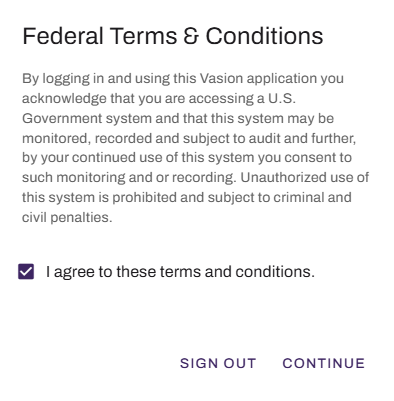
Federal Terms & Conditions Disclaimer
When you sign into the Vasion Automate Fed Admin Console, read and accept the Federal Terms & Conditions to continue. You must accept the terms and conditions every time you sign in to Vasion Automate Fed.
Users are assigned roles that grant or limit access. Depending on your role, or features implemented, you may not see or have access to all the available functions.
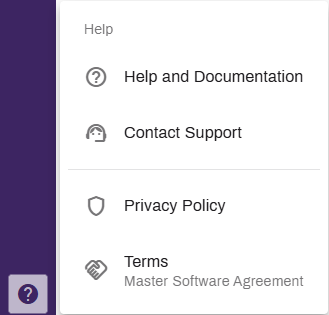
Help
Select Help to see the help and support options . You can also select links to learn more about new features, terms and policies.
Disabled Accounts
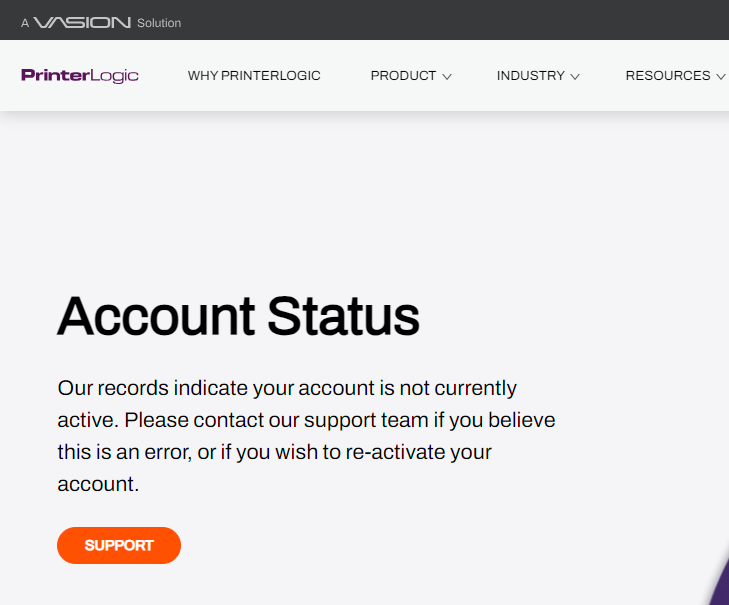
When an account is disabled, anyone signing in to the Admin Console, Self-service Portal, or Release Portal is directed to an Account Status page with a link to contact support for assistance.
If the account is managed by an MSP, contact the MSP representative.
Sign Out
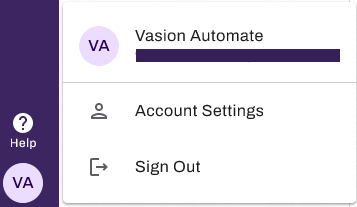
Select your avatar and select Sign Out.
In this topic: