Account Profile Settings
Last Updated: October 22, 2026
Personalize and update your information in Account Settings.
Manage Account Settings
Follow these steps:
- Sign in to the Vasion Platform.
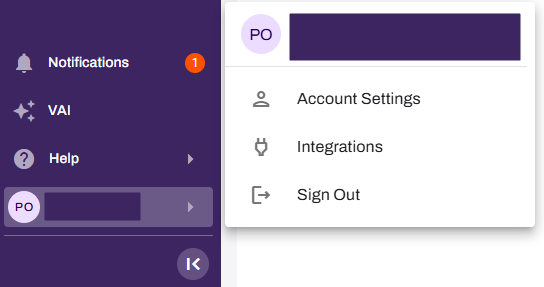
- Open the user profile menu, and then select Account Settings.
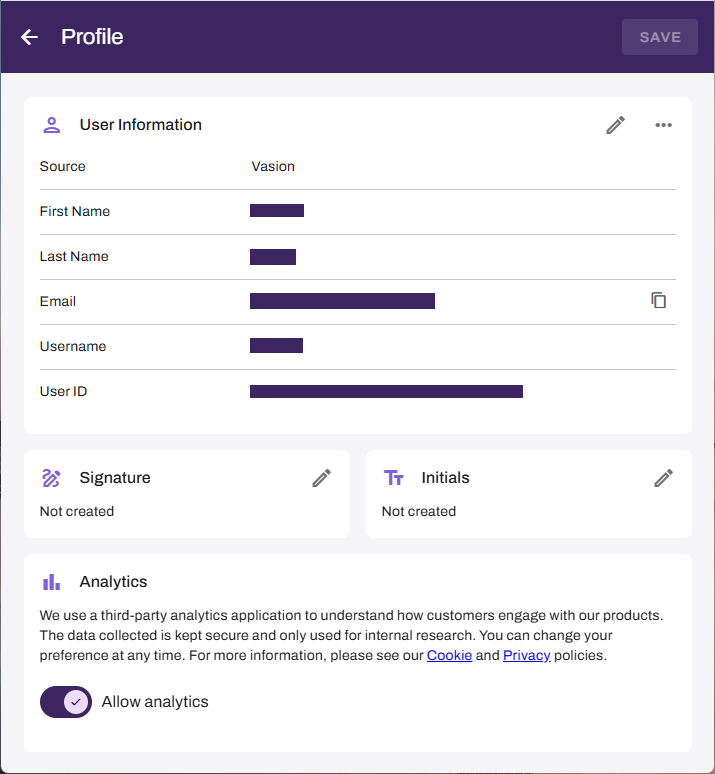
In the Profile page, you can:
- Update your user information.
- Add or update your signature and initials.
- Opt in to allow Vasion to collect app usage data for product improvements.
Update User Information
Follow these steps:
- Sign in to the Vasion Platform.
- Open the user profile menu, and then select Account Settings.
-
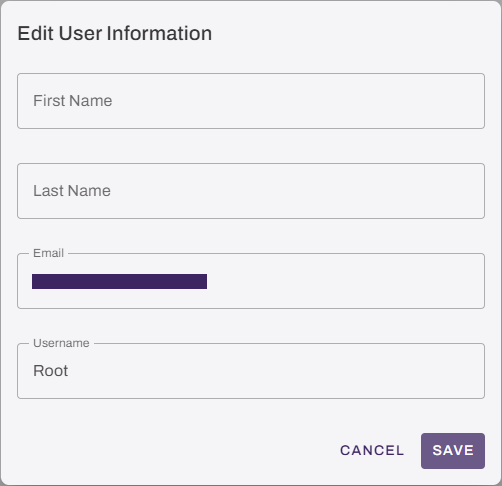
 in the User Information section.
 - Update one or more of the following fields:
- First Name.
- Last Name.
- Email.
- Username.
- Select Save in the upper-right corner.
Manage Your Signature and Initials
In the Signature and Initials sections, you can add or update your signature and initials. These settings let you quickly sign and initial documents or forms when completing a workflow step.

Manage Your Signature
Follow these steps:
- Sign in to the Vasion Platform.
- Open the user profile menu, and then select Account Settings.
- Select the Edit button in the Signature section.
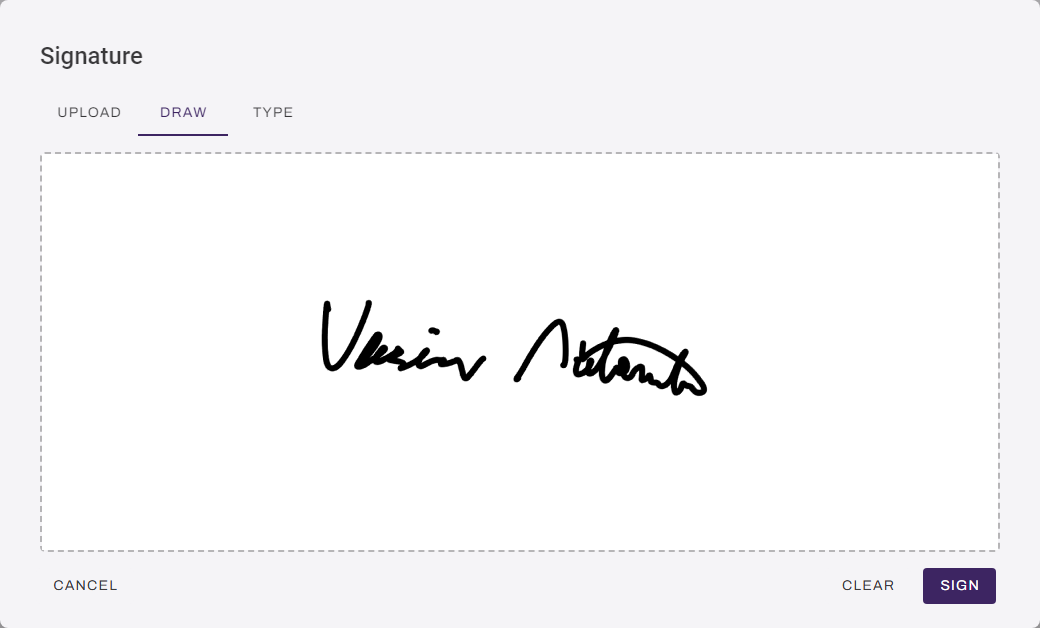
- In the Signature modal, do one of the following:
Upload tab: Drag and drop an image file into the gray area or click to navigate to the file location.
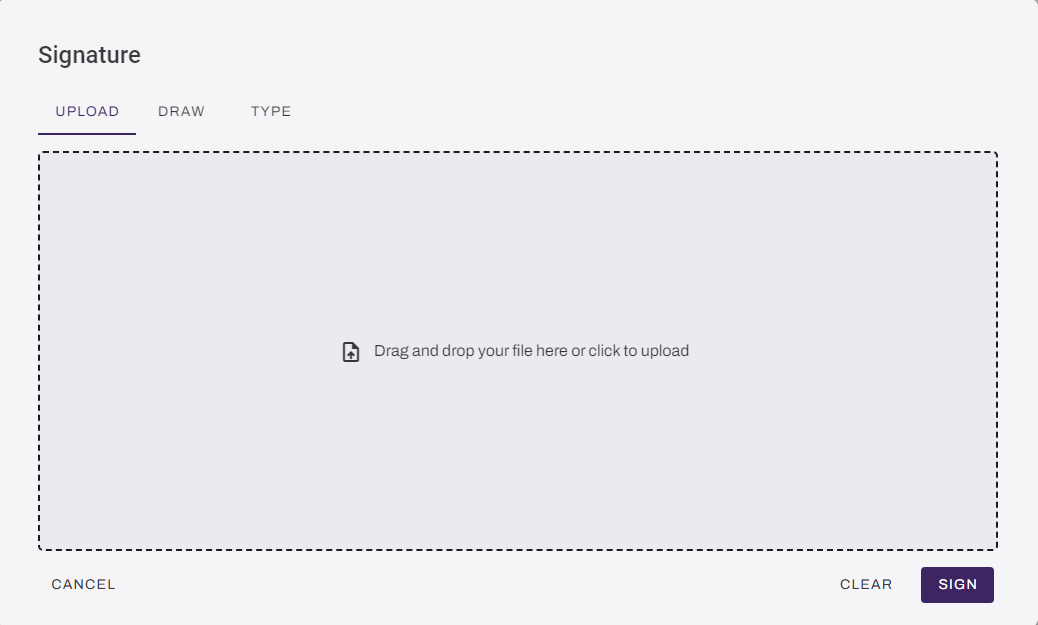
Draw tab: Use your mouse or track pad to draw your signature.
Type tab: Use the keyboard to type your signature.
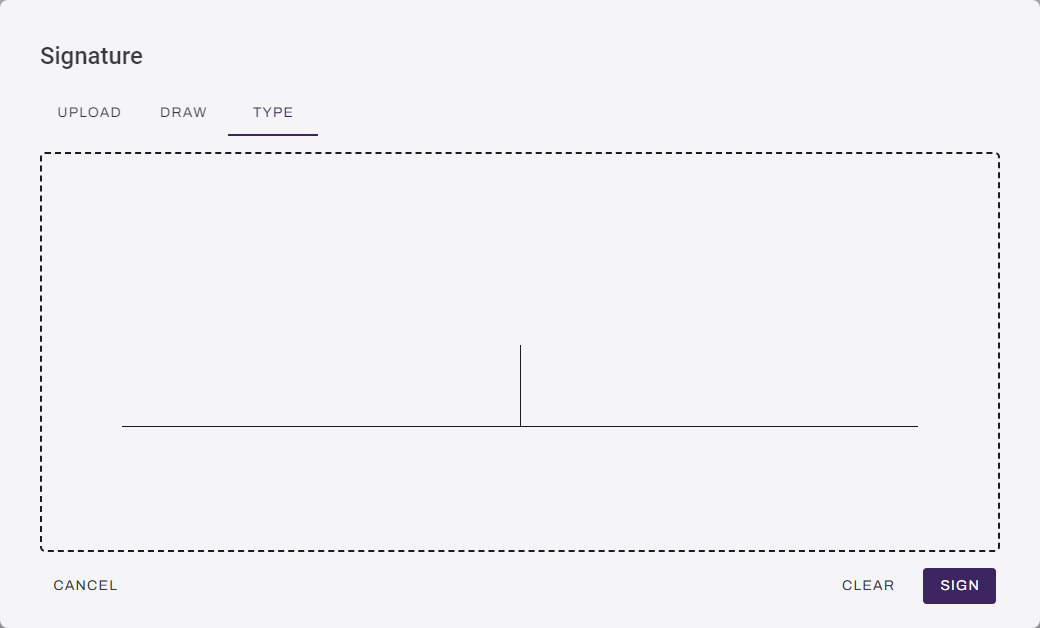
- Select Sign to save your signature.
- Select Save in the upper-right corner.
Manage Your Initials
Follow these steps:
- Sign in to the Vasion Platform.
- Open the user profile menu, and then select Account Settings.
- Select the Edit button in the Initials section.
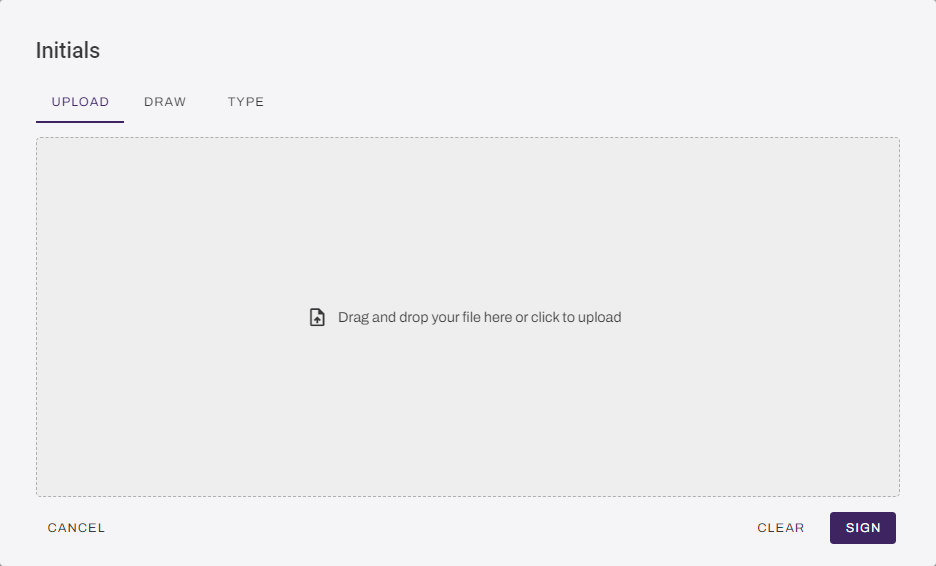
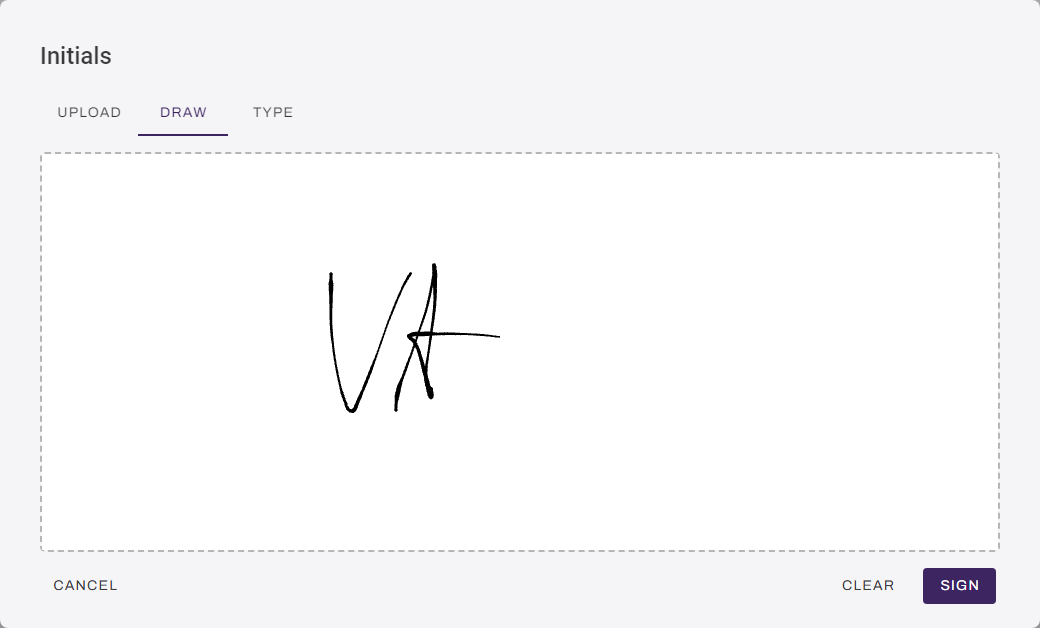
- In the Initials modal, do one of the following:
Upload tab: Drag and drop an image file into the gray area or click to navigate to the file location.
Draw tab: Use your mouse to draw your initials.
Type tab: Use the keyboard to type your initials.
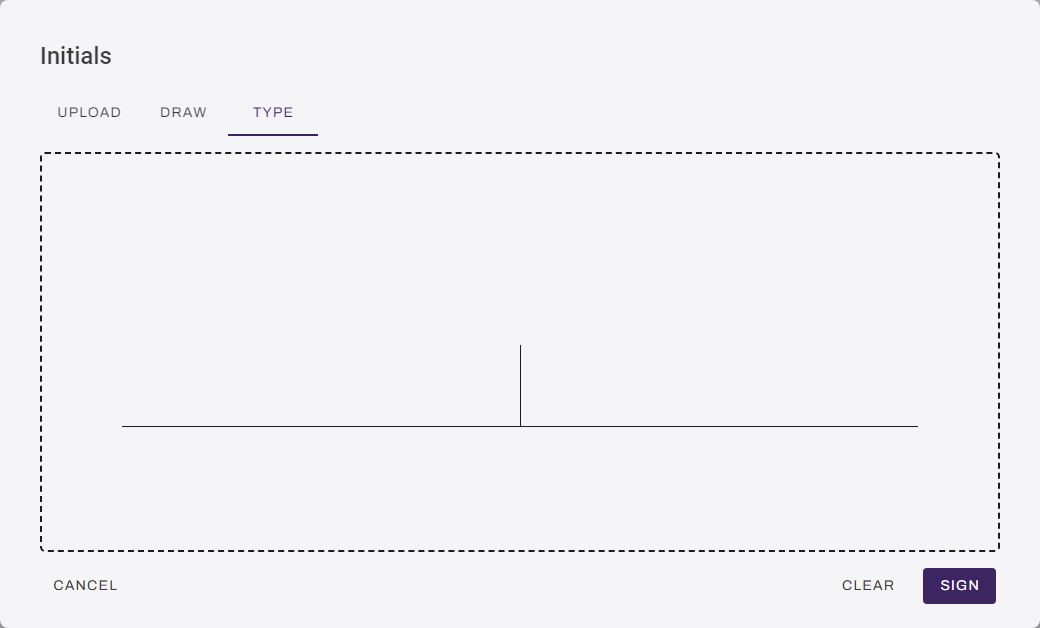
- Select Sign to save your initials.
- Select Save in the upper-right corner.
Manage Analytics Settings
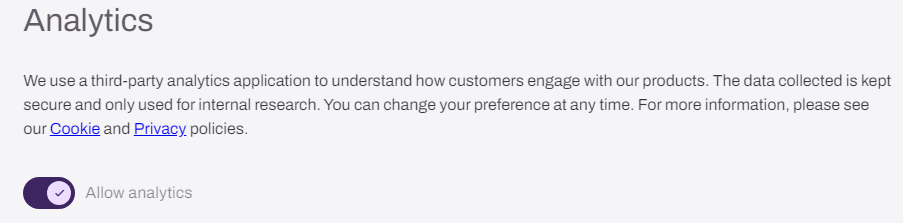
Vasion Automate Fed uses third-party applications to capture data about the use of the product and features to improve performance and features. Links to our Cookie and Privacy policies are available in this section and you can opt out of data tracking.
Follow these steps:
- Sign in to the Vasion Platform.
- Open the user profile menu, and then select Account Settings.
-
In the Analytics section, select the Allow analytics, Light, Dark, or High Contrast.
- Select Save in the upper-right corner.
In this topic: