Search
Easily find data captured in forms and search across storage systems from anywhere. There are two different types of searches you can use to find documents: field-based object search and full-text search.
Tap on the Search icon  located on the header to view all the available searches.

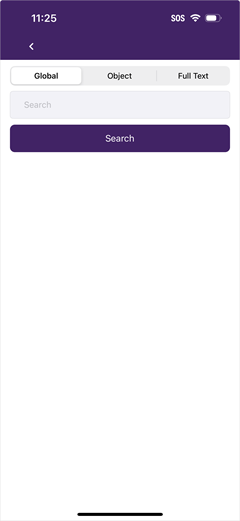
Object Search
Object fields refer to data fields applied to forms or documents. An object field search requires specific field values for the search.
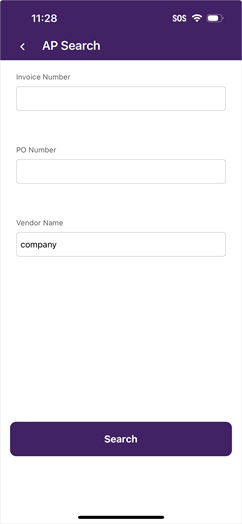
1. In the Search screen tap Object.
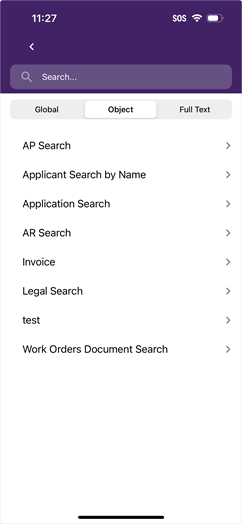
2. Tap on the search you want.
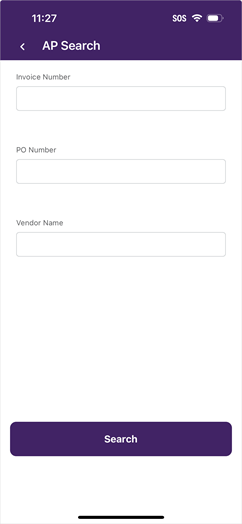
3. Enter the value to search and tap Done.
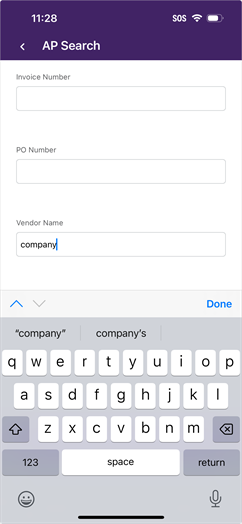
4. Tap Search.
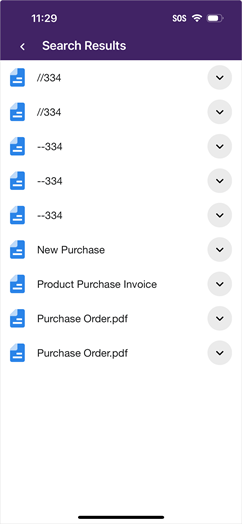
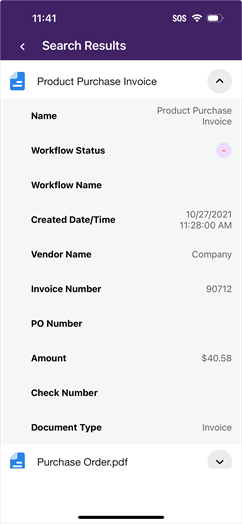
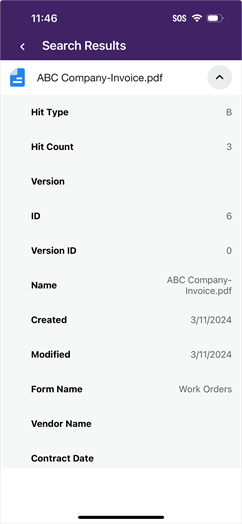
By default the Search Results screen displays the list or files that match the search parameters. To view details about the document select the Expand button  . The information details shown is the same as the web client and it depends on whether there is a custom folder view assigned.
Full Text Search
A Full Text Search allows users to locate documents by typing a word or phrase that exists in one or more documents. Full-Text searches in metadata, document notes and line items, workflow comments and objects. If documents are not presented using Full Text Search, see your Vasion administrator.
1. In the Search screen tap Full Text.
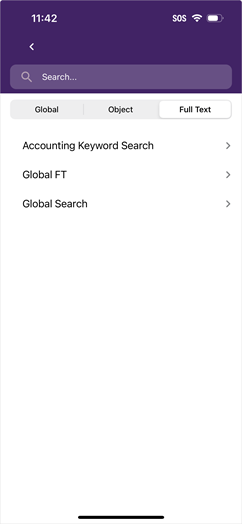
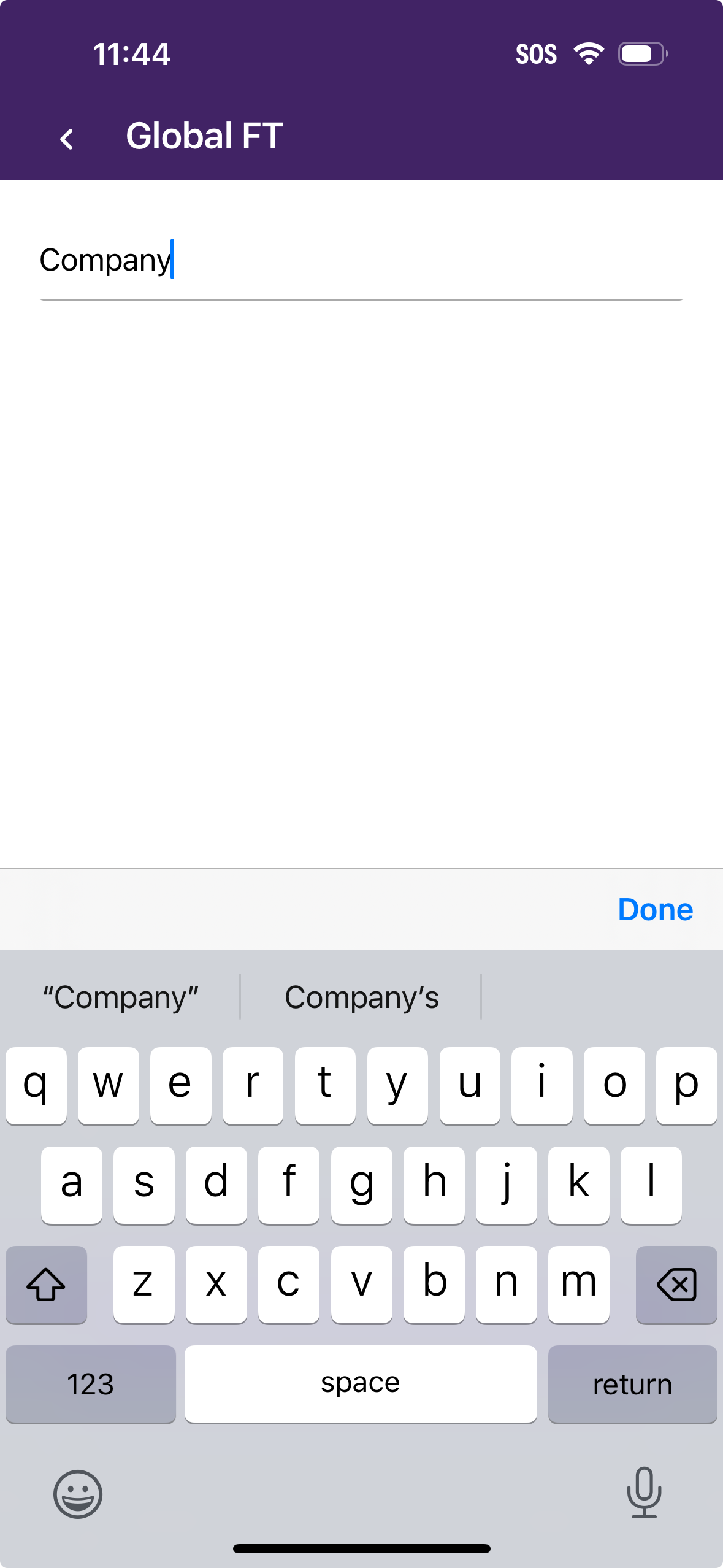
2. Tap on the search you want and enter the search value.
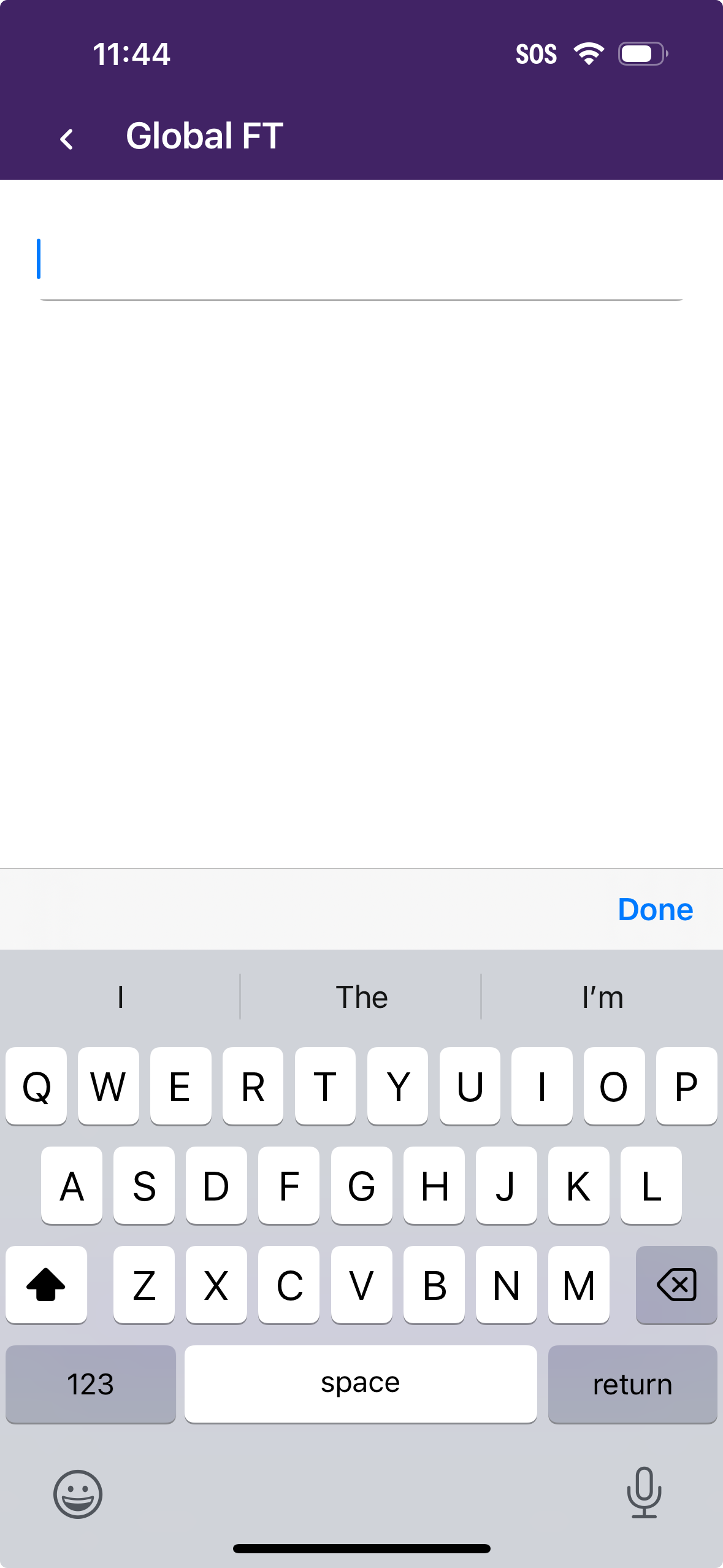
3. Tap
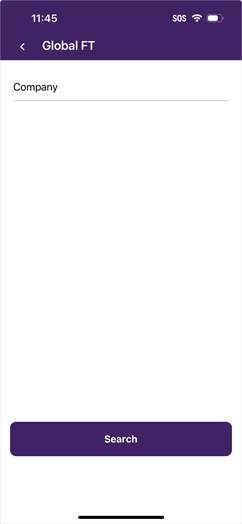
4. Tap Search.
5 Tap on any search results to view the document
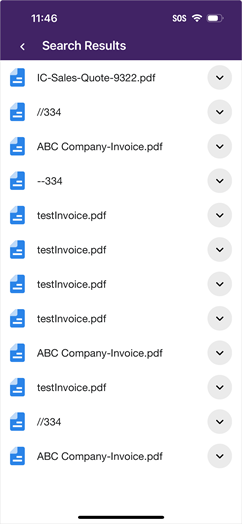
By default the Search Results screen displays the list or files that match the search parameters. To view details about the document select the Expand button . The information details shown is the same as the web client and it depends on whether there is a custom folder view assigned.
 Other Topics