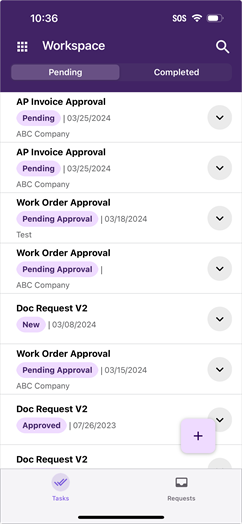
Workspace bottom navigation to switch views.
App Header
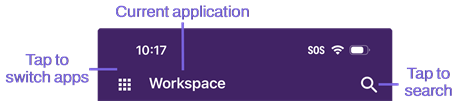
The app header shows the following:
- App icon — tap the icon to return to the Home screen and switch Vasion Automate Pro applications.
- Current application.
- Search icon— used to activate the search functionality.
App Settings
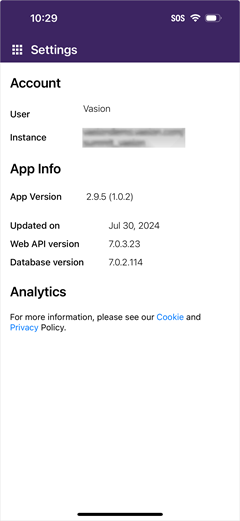
Tap on the Settings button  to see the following information:
- Account:
- User — the current user's name.
- Instance — The URL of the current instance.
- App Info:
- App Version currently installed.
- Updated on — the date the app was updated.
- Web API version — the version your organization's Vasion Automate Pro instance
- Database version — the version of the database currently running for your organization's Vasion Automate Pro instance.
- Analytics:
- Links to the Cookie and Privacy policies.
Bottom Navigation
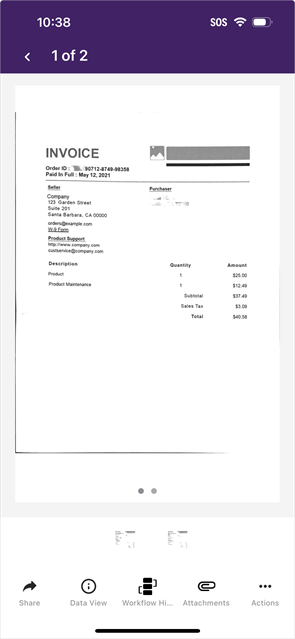
Some of the screens also have additional navigation at the bottom. Here are two examples.
Document View tool bar.
 Other Topics
FAQs
Is Vasion Signature available on the app?
eSignature functionality is available through the Forms application today. Users can create an eSignature on an eForm and submit it. For more details see Add a Signature. The Signature application is coming soon in a future Vasion Mobile app release.
../_Resources/FAQ.htm#microcontent7