Workspace
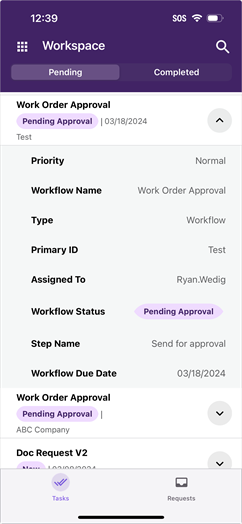
In Workspace you can do the following:
- Review and approve workflows.
- Start workflows.
- Update fields.
- Download documents.
Workspace consists of two views, Tasks and Requests and each view has two tabs where you can quickly see and take action on your workflows.
Workflows that use multiple page forms only display the first page of the form and can be completed by logging in to Vasion Automate Pro with your device's web browser. Support for multiple page forms is coming in a future app release.
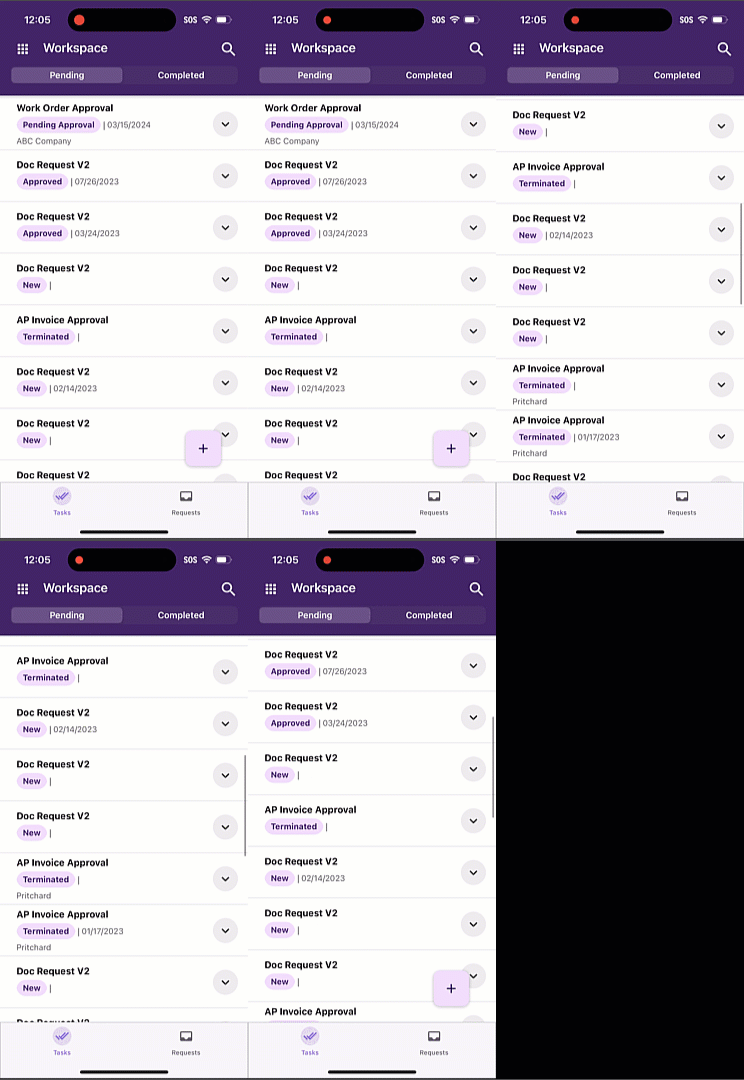
When you scroll up, the Add button  fades out of view so you can use the Expand button
  . To view the button again, scroll down.
About Workspace
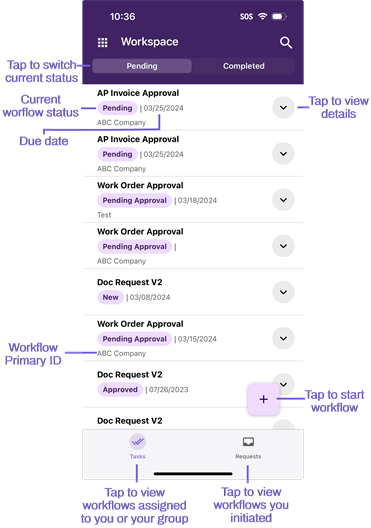
When you log in, the default screen is Workspace Tasks Pending. From here you can view tasks assigned to you or to a group in which you are a member, or start a new workflow.
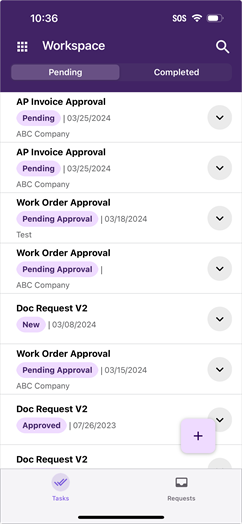
- Tasks — workflows assigned to you or a group in which you are member are shown as tasks.
- Pending — workflows awaiting your review or approval.
- Completed Tasks — completed workflows in which you participated at any point.
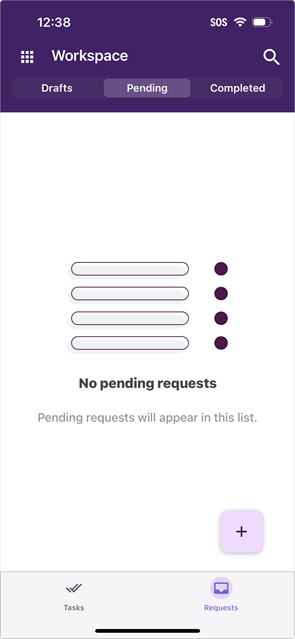
- Requests — workflows you have initiated are shown as tasks when you tap on the requests button.
- Drafts — form workflows you started but did not complete or submit the form. See Form Drafts.
- Pending Requests — tasks you created and are awaiting review or approval by another user.
- Completed Requests — tasks you created and were completed.
Use the bottom navigation to switch between the two views.
Workspace Tasks
Workspace Requests
To view details about the document select the Expand button . The information details shown is the same as the web client and it depends on whether there is a custom folder view assigned.
Learn how to start a new workflow or about workflow views and actions.
 Other Topics