Last Updated: June 08, 2026
License Usage
The License Information section shows license usage at three levels within the MSP Portal.
Key Points
- Select the MSP account in the tree structure to show a cumulative usage count for all customers under that MSP.
- Select a folder to show a cumulative usage count for all customers within that folder and subfolders.
- Select a customer instance to view usage for that customer.
- License usage reports by the date the licenses are utilized rather than from the month's first to the last date. If you start using licenses on May 5, the License Information table will report from May 5 to June 4.
- You can only update license allocations at the customer level. For more details, see Manage Customer Instances.
- Configure email alerts to notify you when a customer exceeds their licensing. For more details, see Notification Settings.
License Information Table
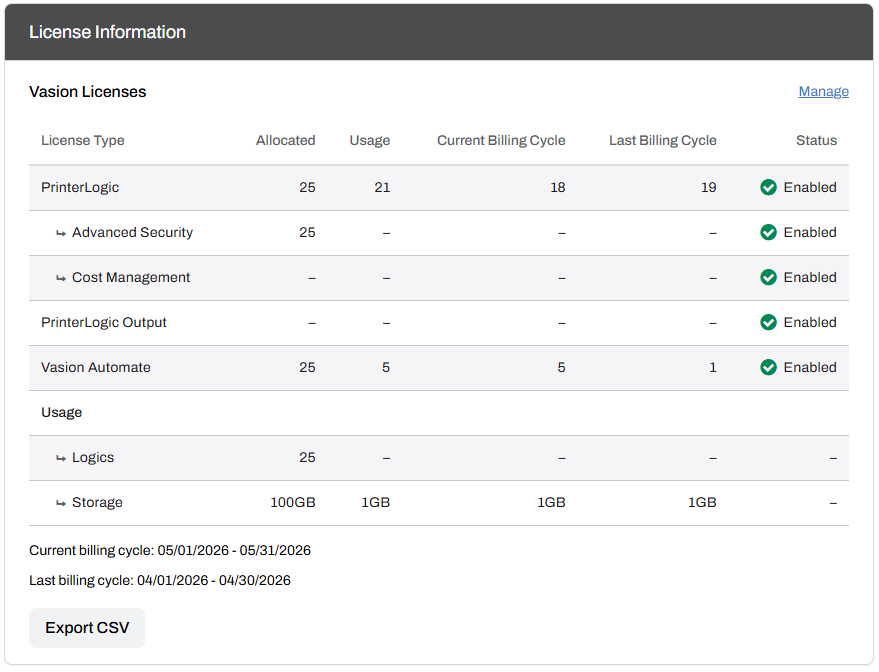
The License Information section displays license allocation and usage data for the PrinterLogic, PrinterLogic Output, and Vasion Automate features. This section appears at the tenant level, below the Account Contact section. The License Information section at the folder and MSP level show the combined usage for sub-tenants.
Products or add-ons that have exceeded their limit are highlighted in red.
License Usage
For each product and add-on, the License Information section displays the following:
- Total licenses allocated.
- Licenses currently in use.
- License status (Usage Cap or Usage Alert).
- Current and Last Billing Cycle.
- Status of the feature(s).
Advanced Security Add-on (ASA) license usage is calculated per print queue. If any ASA feature is enabled on a print queue, one ASA license is counted for that queue, regardless of how many ASA features are enabled on that queue.
The following Advanced Security features are tracked for ASA license usage:
- Concurrent IdP Support.
- Mobile App Print Release.
- Off-Network Printing.
- Offline Secure Release.
- Secure Release Printing.
- Web Print.
Cost Management includes Quota Management (Print / Copy). When enabled, license quantity for this feature matches your active PrinterLogic licenses.
Managing License Allocations
To manage license allocations for a tenant:
-
In the License Information section, select Manage.

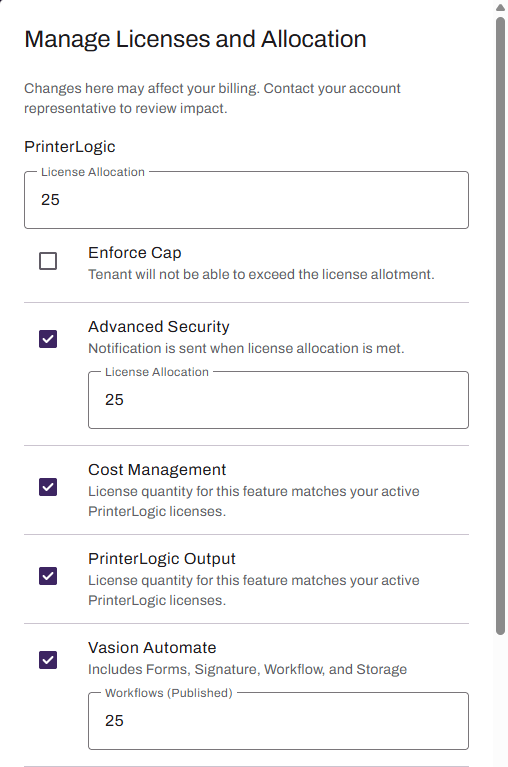
- In the Manage Licenses and Allocation modal, configure the following settings:
- PrinterLogic License Allocation: Enter the number of Print licenses allocated for this tenant.
- Enforce Cap: When selected, enforces the print license limit on the backend of the print instance. When cleared, users can add additional licenses beyond the allocation in the Admin Console.
- Advanced Security: When selected, enables Advanced Security Add-on (ASA) licensing for this tenant.
- ASA Allocation: Enter the number of ASA licenses allocated for this tenant. Available when Advanced Security is enabled.
- Cost Management: When selected, enables Cost Management on the backend of the print instance.
- PrinterLogic Output: When selected, enables PrinterLogic Output on the backend of the print instance.
- Vasion Automate: Includes Forms, Signature, Workflow, and Storage.
- Workflows (Published): Enter the amount of allowed published workflows.
Usage.
- Logics: Enter the allocated Logics used for Intelligent Data Processing actions in workflows.
- Storage (GB): Enter the Storage allocation in gigabytes.
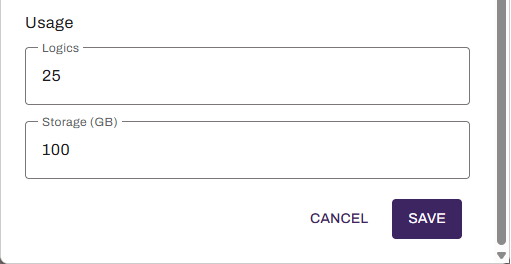
- Select Save to apply the changes.
Notifications
License usage notifications are configured at the MSP level and apply to all instances under that MSP. Notifications are enabled by default and can be disabled.
Notifications are sent when usage reaches 100% of a Usage Cap, or when usage exceeds the configured threshold for a Usage Alert. After the initial notification, a weekly follow-up notification is sent until the threshold or cap setting is updated. For more details, see Notification Settings.
Current Billing Cycle
The current billing cycle records the highest number of daily printer licenses an instance uses and creates an average based on the number of days in a billing cycle.
Example: After four days into the billing cycle, Day 1 records a usage of 9. Day 2 records a usage of 10. Day 3 records a usage of 14. Day 4 records a usage of 7. Usage counts combined equal 40, divided by 4 (number of days), and display the current billing cycle average of 10.
Last Billing Cycle
The last billing cycle value is the average number of licenses used in the previous billing cycle.
Example: If your billing cycle runs between the 15th and 14th of each month, the current date is June 25. The data in this section will be from May 15 to June 14.
Current Usage
Current usage is a snapshot of the current number of licenses under management. This number is not an average.
Overages
When a customer exceeds their allocated licenses, it's considered an overage. If a customer has 20 core printer licenses and creates 22 printers, the additional licensing applies automatically to their account. The email account added to the Allocation Notification section receives a weekly overage email directing the MSP to the appropriate account(s). For more details, see Notification Settings.
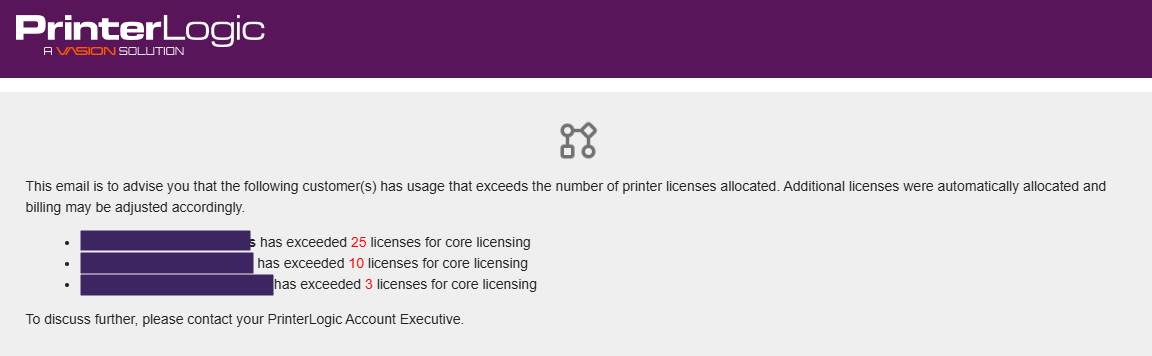
You can manually view overages in the License Information section of the customer account. Overages show a higher number in the Usage column than in the Allocated column.
ArchivoBlack-Regular Archivo-Light Archivo-Medium ArchivoNarrow-Regular Archivo-Regular RobotoMono-Italic-VariableFont_wght RobotoMono-VariableFont_wght Search-Results.htm