Sign In to the CPA
Last Updated: October 08, 2026
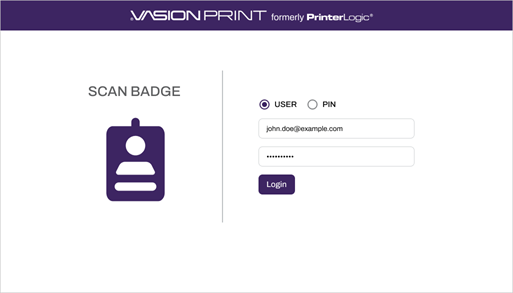
Here are basic instructions on how to sign in to the Control Panel Application (CPA) An app installed on a compatible multifunction device (MFD) that aids in the release of held print jobs, supports authentication for secure printing, and provides simple scanning functionality.. The method you use depends on how it is set up by your administrator.
User Credentials
1. From the Sign In screen, select the Username field.
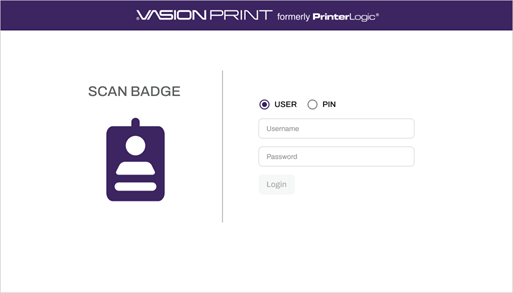
2. Use the on-screen keyboard to enter your username and select the Hide Keyboard key.
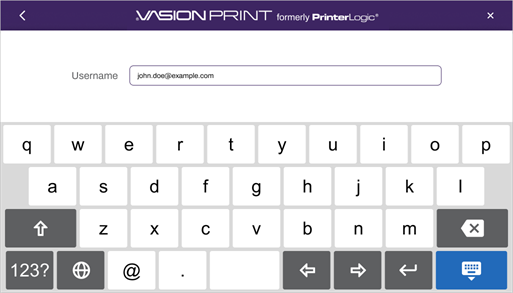
3. Select the Password field.
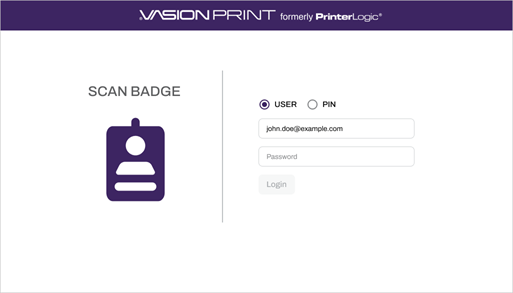
4. Use the on-screen keyboard to enter your password and select the Hide Keyboard key.
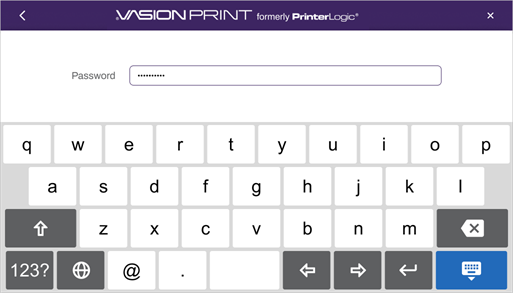
5. Select Login.
PIN
1. From the Sign In screen, select the User ID field.
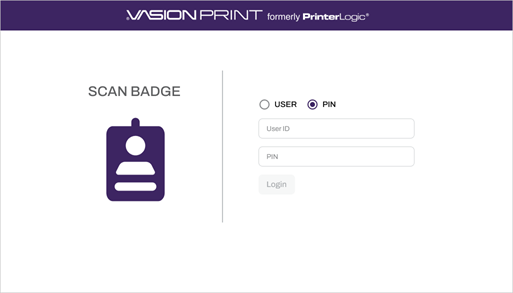
2. Use the on-screen keyboard to enter your User ID and select the Hide Keyboard key.
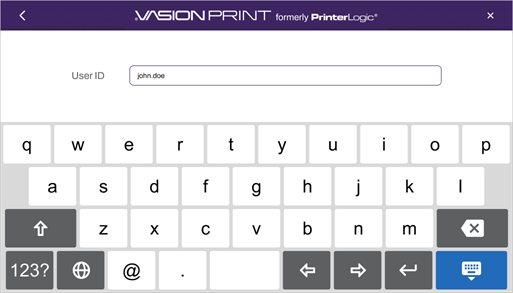
3. Select the PIN field.
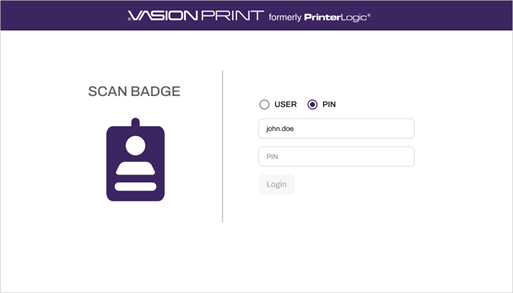
4. Use the on-screen keyboard to enter your PIN and select the Hide Keyboard key.
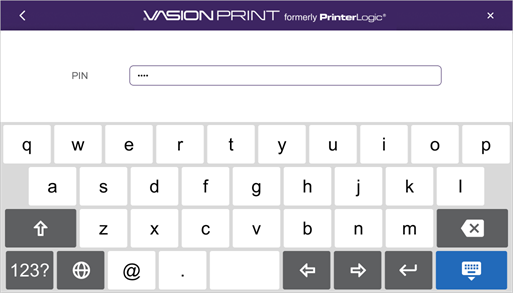
5. Select Login.
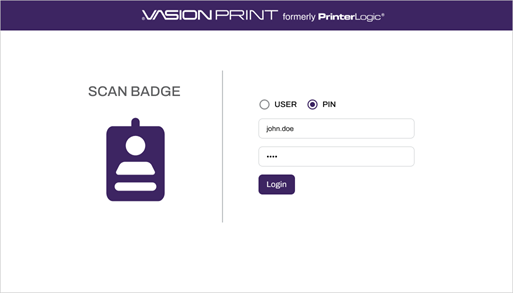
Depending on how the CPA is implemented, you may see the following:
Printer Home screen
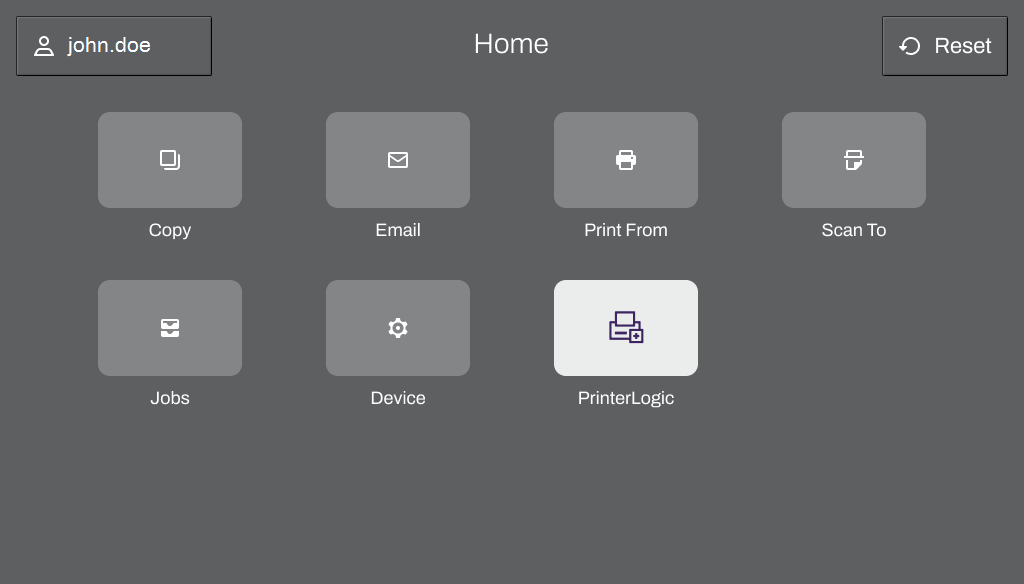
Select PrinterLogic to access the available options.
CPA functions turned on.
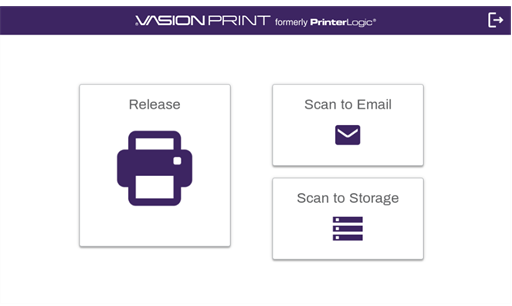
The options you see depend on what features were implemented.
In this topic:

CPA Guide