IPP Drivers
Last Updated: October 15, 2026
Internet Printing Protocol (IPP) printing is a driverless printing method that allows the PrinterLogic Agent to send print jobs directly to a printer over the network without requiring a manufacturer-supplied printer driver. This topic guides you through configuring your printers for IPP printing.
Requirements
Review the Requirements before setting up printers for IPP printing.
- Printers require the Internet Printing Protocol (IPP) driver assigned.
- Assigning an IPP driver only applies to the selected operating system.
- IPP drivers may not support all the driver options of a manufacturer specific driver.
Set the Default Protocol
- In the Admin Console, go to Tools
 Settings Printing.
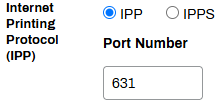
 - In the Internet Printing Protocol (IPP) section, select IPP or IPPS.
-
Adjust the default port as needed.
The IPP default port is 631. The IPPS default port is 443.
- Select Save in the upper-right corner.
Assign IPP Drivers
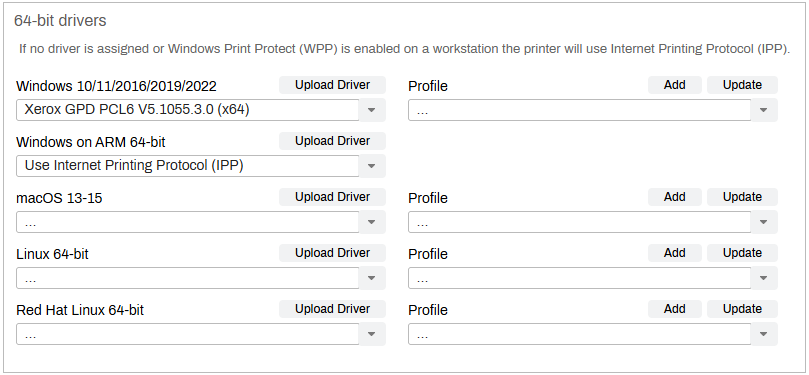
Apply the Internet Printing Protocol (IPP) driver to printer objects during creation or from the Drivers / Profiles tab of existing printer objects. The steps below show the process from the Drivers / Profiles tab.
- In the Admin Console, select the desired printer object.
- Select the Drivers / Profiles tab.
- Use the dropdowns next to the operating system option(s) to assign the Internet Printing Protocol (IPP) driver.
- Select Save in the upper-right corner.
- Repeat as needed for each printer object.
Printer-Specific IPP Settings
Custom URI paths identify the specific printer or print queue a Agent targets on a print server. When a server hosts multiple printers, the URI path, such as /ipp/print/finance-queue, directs the job to the correct destination. This is especially useful in multi-queue environments or when integrating with third-party systems that do not use a default IPP path.
PrinterLogic also provides a default file format setting that controls how print jobs are transmitted over IPP. Options include Auto-detect, PDF, PWG-Raster, and Octet String, allowing administrators to match the format to their environment or client compatibility requirements.
The PrinterLogic Agent configures these settings automatically. Only modify them if a printer is not functioning correctly with the default configuration.
To adjust these settings at the printer level:
- In the Admin Console, select the desired printer object.
- Select the Port tab.
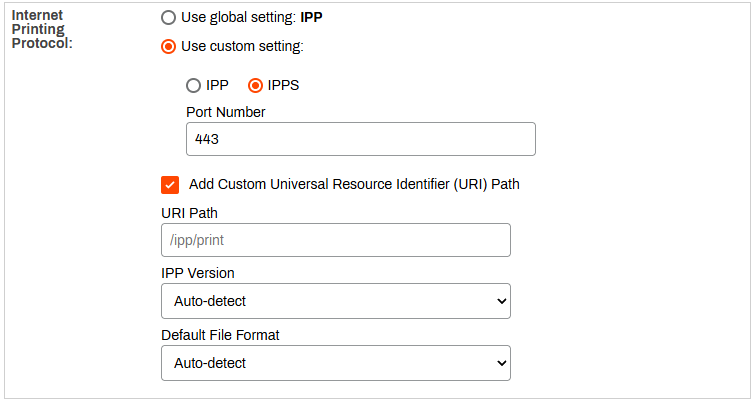
- In the Internet Printing Protocol section, select Use custom setting.
- Select IPP or IPPS.
-
Adjust the default port as needed.
The IPP default port is 631. The IPPS default port is 443.
- (Optional) Select the checkbox for Add Custom Universal Resource Identifier (URI) Path.
- Enter the custom URI Path for the print queue on the server.
- In the IPP Version dropdown, select Auto-detect or the appropriate version number, depending on what the printer supports.
- In the Default File Format dropdown, select Auto-detect, PDF, PostScript, PCL, or XPS.
- Select Save in the upper-right corner.
- Repeat as needed for other printers.
In this topic: