Unified Login Experience
Last Updated: October 08, 2026
To fully take advantage of new core features, a new unified login experience is now available. Below are some guidelines and instructions to optimize the new experience.
Important Things to Know
The unified login experience is rolling out to customers. To turn on the Unified Login experience, we require the following:
- The latest version of the IdP configuration settings.
- Sign in using an administrator account.
For instances that have very complex LDAP configurations, such as nested groups, multiple domains, etc., please wait to turn on the Unified Login until invited to do so.
Curious whether you are eligible to fast-track your access? Select the link to fill out the form to request your update now. Fast-Track Me.
Sign Out
After you opt in, must sign out of the instance. Use the Log Out option from the header menu.

You are automatically redirected to the new Vasion Sign In page.
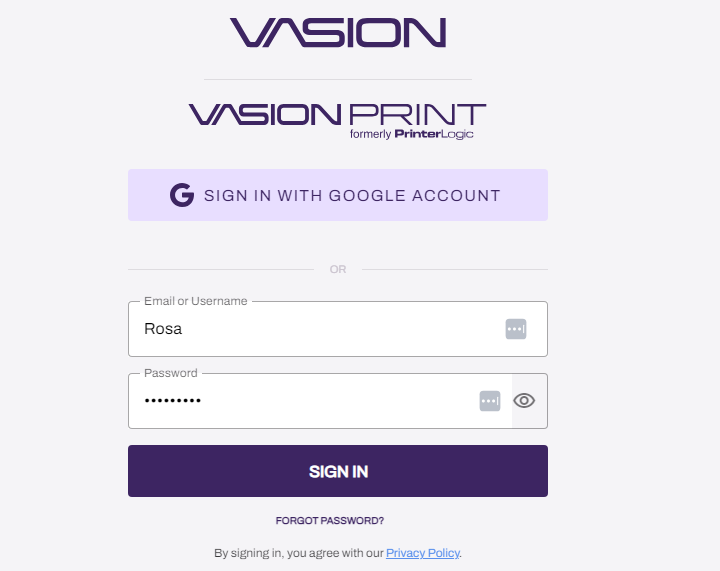
Accept the Usage Agreement
When you sign in again, accept the Vasion Terms of Service (ToS):
- Select the Vasion Terms of Service link to open the agreement in a new web page.
- Review the agreement.
- Return to the Usage Agreement page, and select Agree & Login.
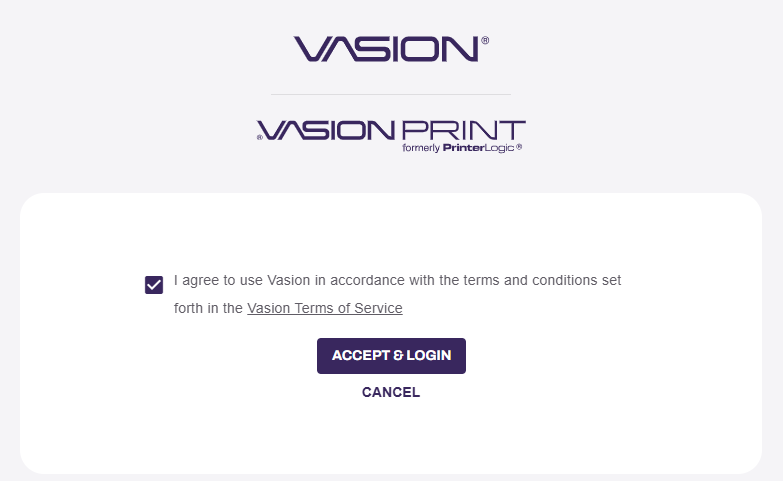
Acceptance of the ToS is required to fully experience the Vasion Automate Fed core functionality and new interface.
After Unified Login is turned on for an instance, all users are directed to the new Sign In page. The experience might vary based on the account type. Review the details below.
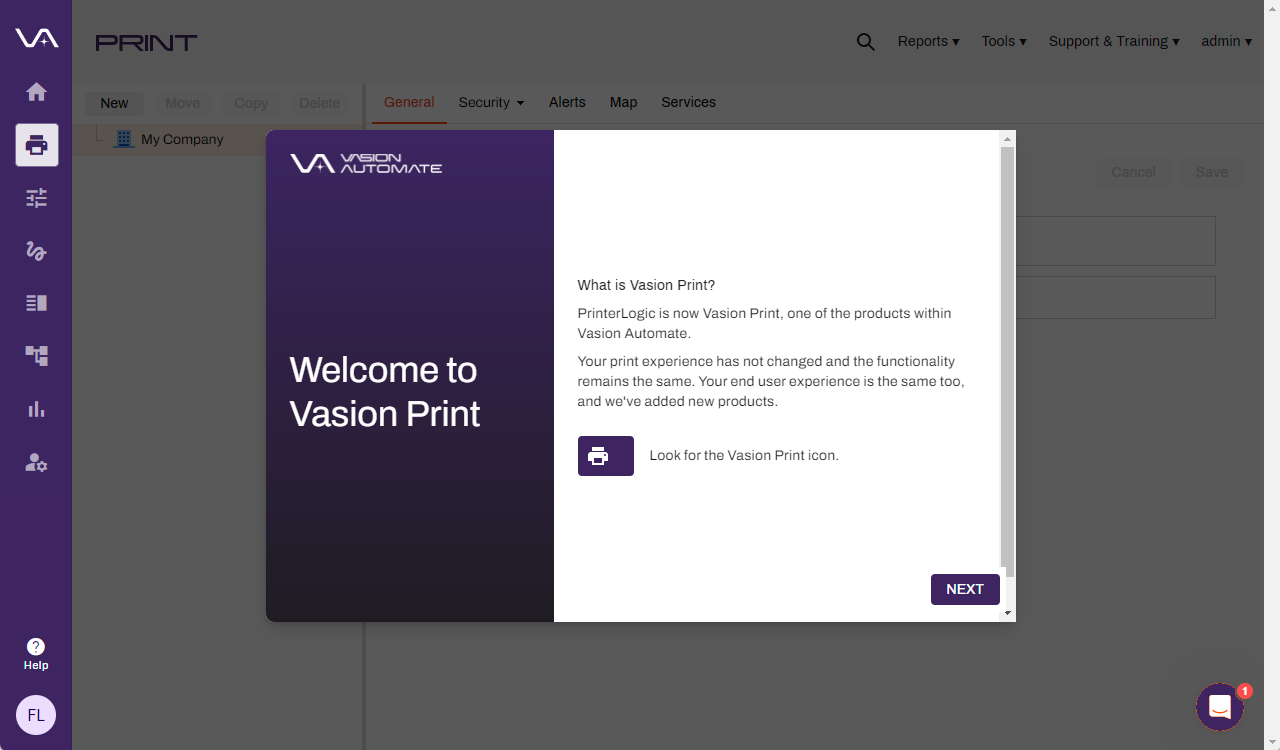
Non-Administrator Accounts
The Opt In modal does not display for any users who sign in with a Non-Administrator account. They will continue to access the Admin Console as normal. However, once the Unified Login is turned on by an Administrator, all users will be directed to the new Sign In screen, and everyone will have access to the new PrinterLogic experience.
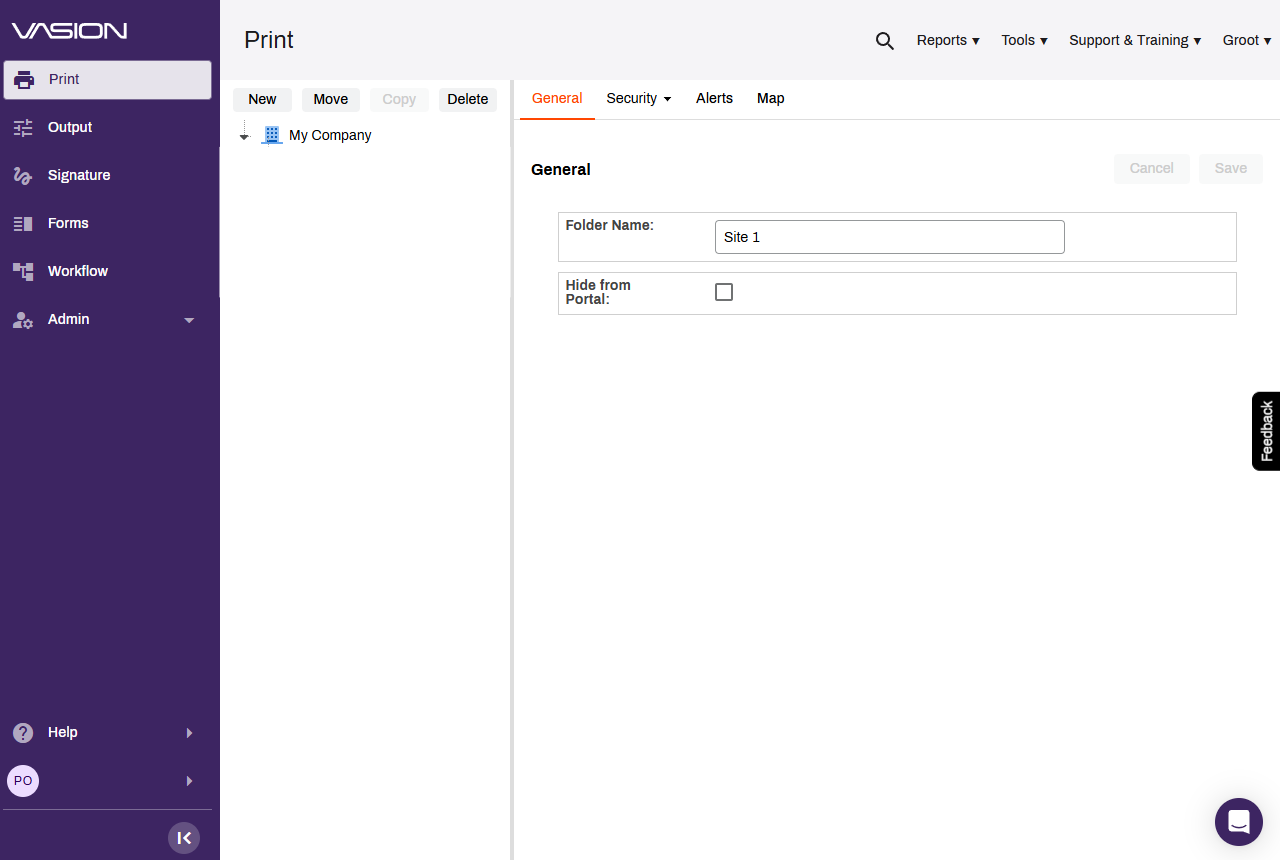
Vasion Automate Fed Access
All the users have access to the Print Admin Console, but to access any other areas, like Forms, Sign, Workflow, and Admin, the appropriate roles are required.
To manage access to the Vasion Automate Fed features, do the following:
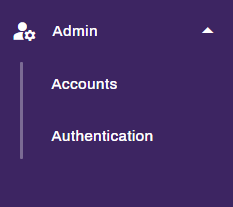
- Select Admin from the side navigation.
-
Select Accounts from the sub-menu.
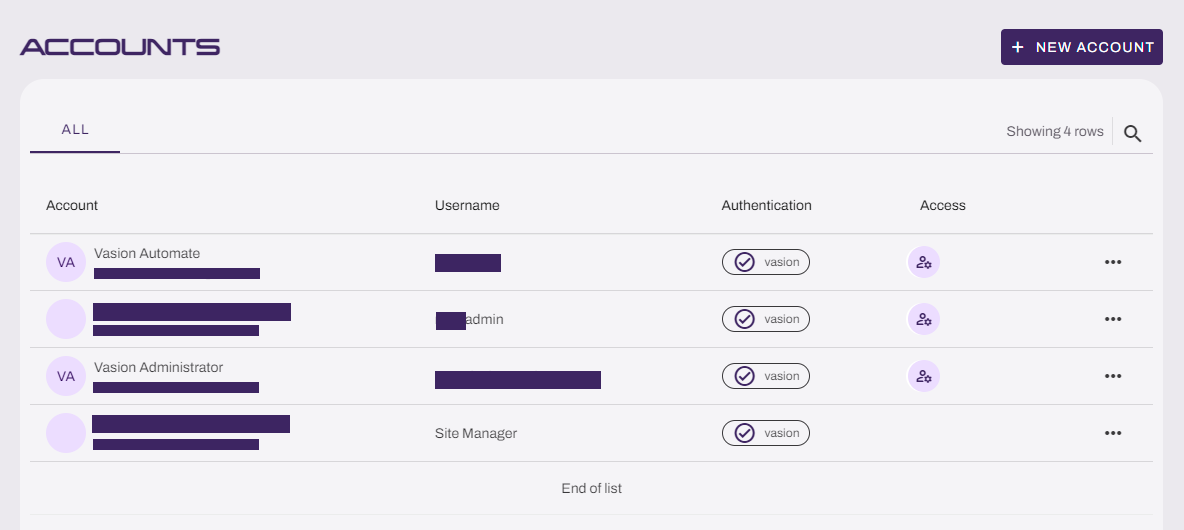
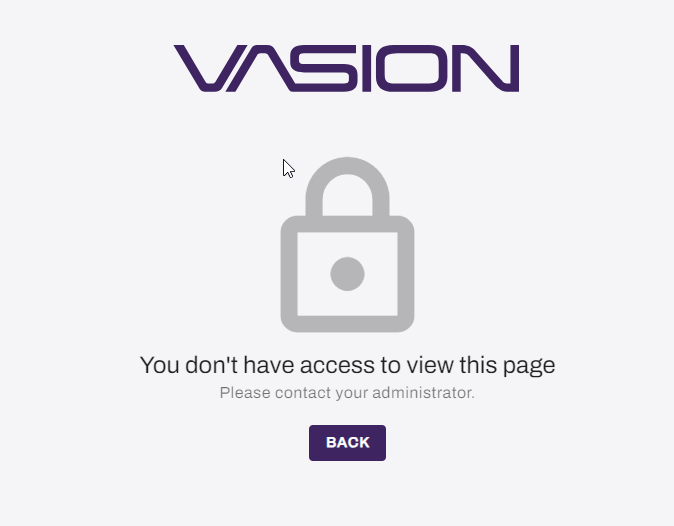
Administrator accounts will display the Admin icon under the Access column. Until an account is assigned a role in the Vasion Automate Fed Admin section, they will receive a message letting them know they do not have access. For more details refer to Roles and Manage Users.
In this topic: