Form Drafts
When you save a form draft, any field data input and file attachments are saved so you can come back to complete inputting data and submit the form. Select the Drafts option to view any drafts you've saved.
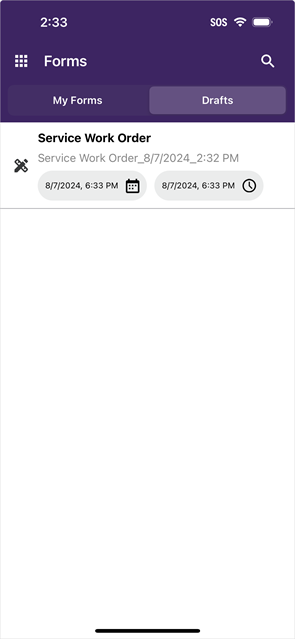
The Drafts screen shows the following:
- The name of the form.
- The name of the draft.
- The date the draft was created.
- The date the draft was modified.
The draft displays on this screen until you submit the form or delete the draft.
Pull down to refresh the screen.
Open a Draft
Select a draft to open the form and continue to enter field data. You can save any additional progress on the draft, or complete and submit the form.
Delete a Draft
If you no longer need to submit the draft of the form, you can delete the draft by doing the following:
- Swipe left on the row of the draft you want to delete.
- In the Delete Form modal tap Delete.