Last Updated: May 22, 2025
Manage Users
Administrators can create user accounts and allow the new users to manage other users.
Key Points
- These steps are for providing accounts for additional Managed Service Provider (MSP) Administrators. These steps are not for setting up Vasion Print user accounts.
- For information on creating additional admin or RBAC user accounts within the Vasion Print instance, see User Management.
Add MSP User Accounts
- Log in to the MSP Portal.
-
Select the Users icon.

- In the User List window, click the add new user Icon.

- In the New User form, fill in all fields.
- Select the Authentication Method for multi-factor authentication.
- Select Add User.
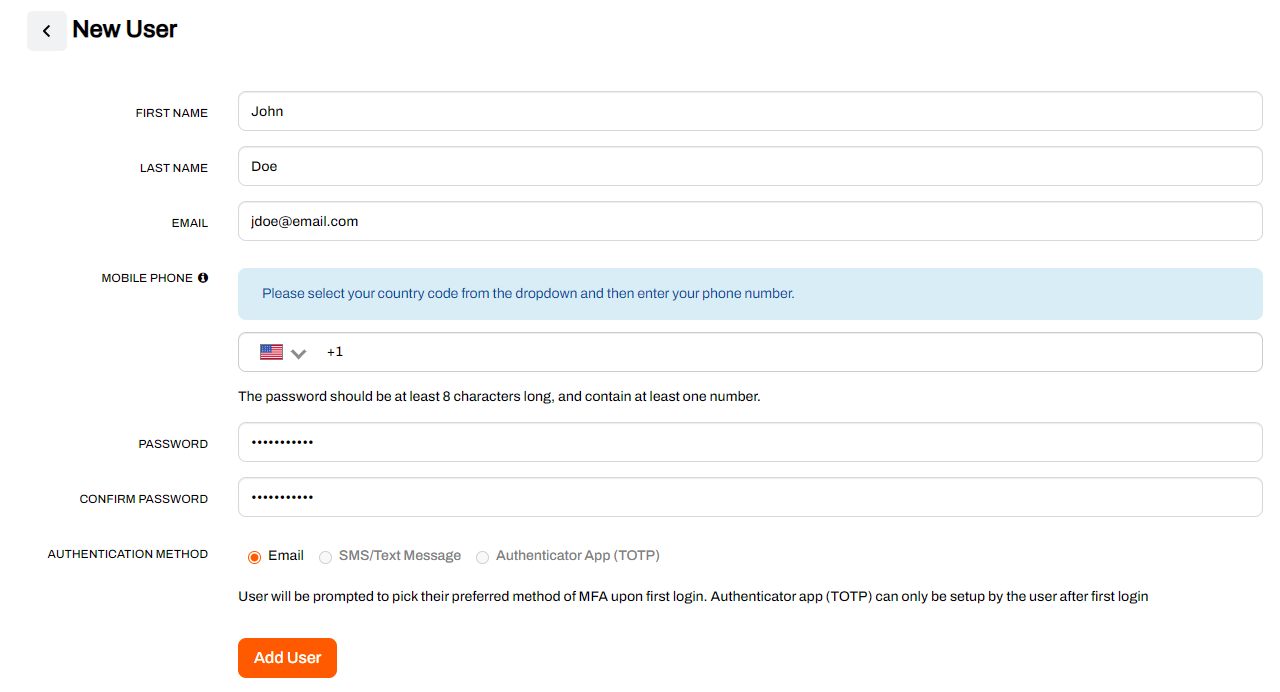
The new user will appear in the list of users, and you can click the user to edit it at any time. The user can use the credentials to log in to the MSP Portal.
Configure User Permissions
User privileges can be set very broad to access all user instances, and all functions or very granular to only access specific folders, or instances and have limited access to functions.
- Log into the MSP Portal
-
Select the Users icon.
- Select the user account you would like to configure rights for.
-
Select Edit User Rights in the upper-left.
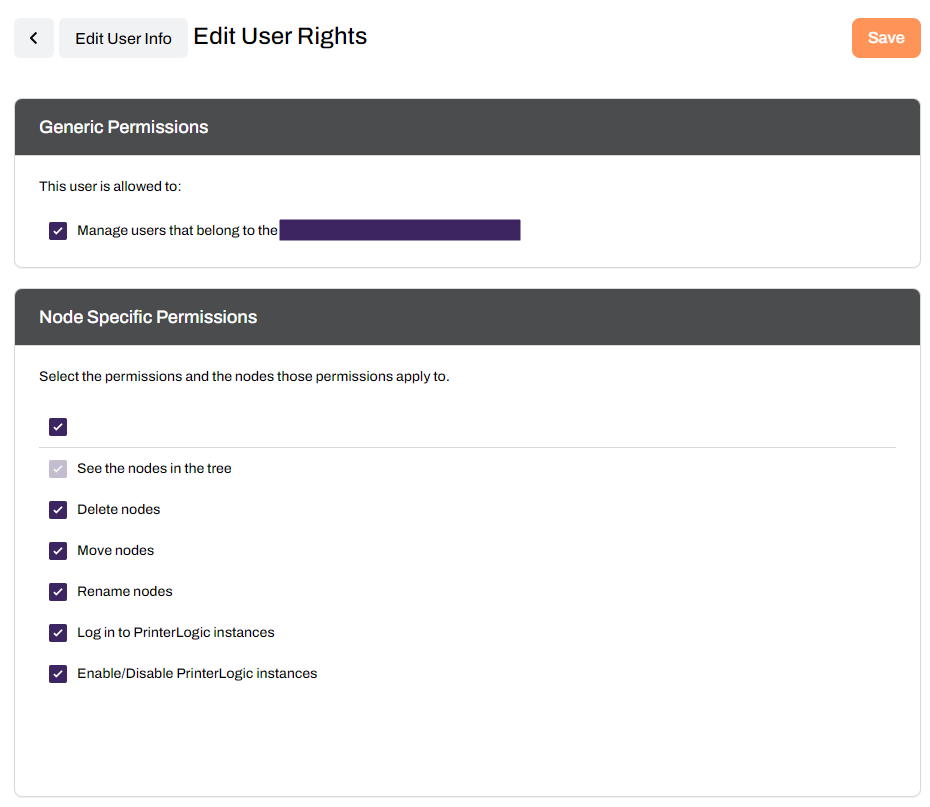
- Select the Generic Permission option of Manage users that belong to the <MSP_Name > MSP.
- In the Node Specific Permissions section, enable the functions and folders or customer instances to provide access to.
- See Nodes in the Tree — all folders and customer instances users can access will be visible in the tree structure.
- Delete Nodes — allows users to delete customer instances and folders they can access.
- Move Nodes — allows users to move an instance or folder they can access to another location in the tree structure.
- Rename Nodes — users can modify customer and account information on all folders and instances they can access.
- Log in to Vasion Print Instances — users can log into customer Vasion Print instances.
- Enable/Disable Vasion Print Instances — users can enable or disable customer accounts as needed.
- Select the folders or individual customer accounts that this user will be able to perform the selected functions for.
- Select Save.
Lead Partner Permissions
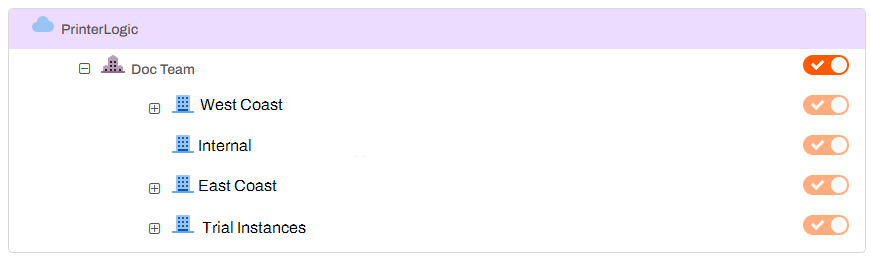
Lead Partners adjusting MSP user permissions see an additional section in the Node Specific Permissions section. Use the toggles to allow or remove permissions to view and manage MSPs and sub-partner folders and customer instances.
ArchivoBlack-Regular Archivo-Light Archivo-Medium ArchivoNarrow-Regular Archivo-Regular RobotoMono-Italic-VariableFont_wght RobotoMono-VariableFont_wght Search-Results.htm