Last Updated: May 22, 2025
Driver Catalog
When setting up a new Vasion Print instance, acquiring and uploading drivers for different printers in a customer's environment can be time-consuming. The Driver Catalog improves this process by cataloging all drivers uploaded to instances under a specific Managed Service Provider (MSP) and making them available in other managed instances.
Key Points
To add to the Driver Catalog, log in to the customer instance from the MSP Portal. If you log in from the instance login page, not the MSP Portal, uploaded drivers aren't added to the Driver Catalog.
- The Driver Catalog only impacts instances under a single MSP and cannot be shared with customers under a different MSP.
- You can only share drivers between instances with the Driver Catalog feature flag enabled.
- The Driver Catalog doesn't add drivers retroactively and only pertains to drivers uploaded after enabling the feature.
- Updating / deleting a driver added from the Driver Catalog to a customer instance only updates / removes it in that instance and not from the Driver Catalog or other instances using the same driver.
- To remove a driver from the Driver Catalog, reach out to your Vasion Print representative.
Enable the Driver Catalog
Enable the Driver Catalog for all your customer instances, or only enable it for specific customers. The steps below guide you through each method.
All Customers
- Log in to the MSP Portal.
-
Select your MSP account at the top of the tree structure.

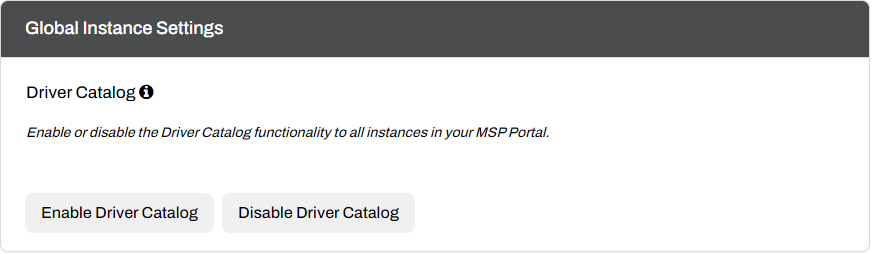
- In the Global Instance Settings section, select the Enable Driver Catalog button.
- To disable the Driver Catalog for all customers, select the Disable Driver Catalog button.
Specific Customers
- Log in to the MSP Portal.
- Select the desired customer account from your tree structure.
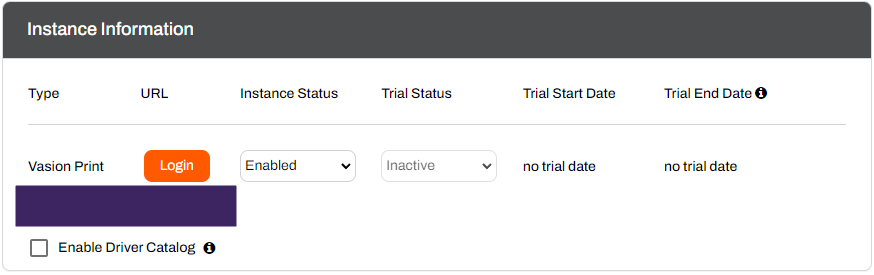
- In the Instance Information section, select the box for Enable Driver Catalog.
- To disable the Driver Catalog for a specific customer, uncheck the Enable Driver Catalog box.
Add Drivers
You can only add drivers to the Driver Catalog through instances with the feature flag enabled. To add drivers:
- Navigate to a customer account that has the Driver Catalog flag enabled.
- In the Instance Information section, select the Login button.
- Once inside the instance Admin Console, navigate to Tools
 Driver Profile Repository.
 - Select the Upload New Driver button in the upper-right.
- In the Choose a driver... modal, navigate to and select the driver or .inf file you want to upload.
- Select the model if more than one option shows.
- Modify the Annotation String with a unique identifier.
- Select Upload when finished.
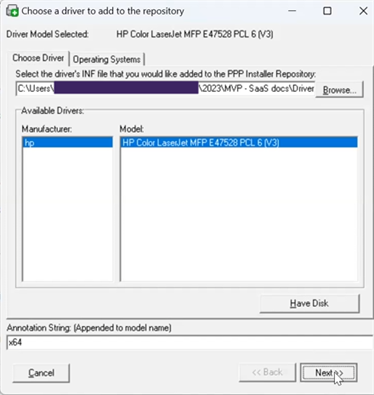
The newly uploaded driver displays in the Driver / Profile Repository list for that instance and displays as a driver option in others with the feature enabled.
For more information, see Driver Management.
Apply Drivers From the Catalog
In other customer instances with the feature flag enabled, you can attach drivers from the catalog during the initial printer creation or from the Drivers / Profiles tab of a printer object.
New Printer Objects
- Navigate to a customer account that has the Driver Catalog flag enabled.
- In the Instance Information section, select the Login button.
- In the Admin Console, select the folder where you want to add a printer.
- Select the New button in the tree structure.
- Select TCP/IP Printer.
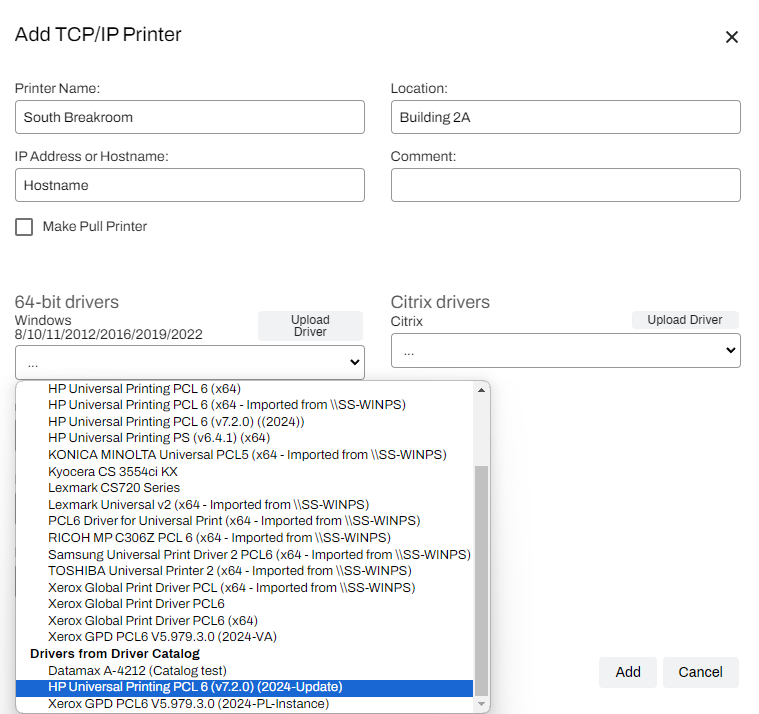
- In the Add TCP/IP Printer modal, give your printer a name and IP Address or Hostname.
- Optional: Location and Comment fields.
- In the corresponding operating system field, select the dropdown to expand it.
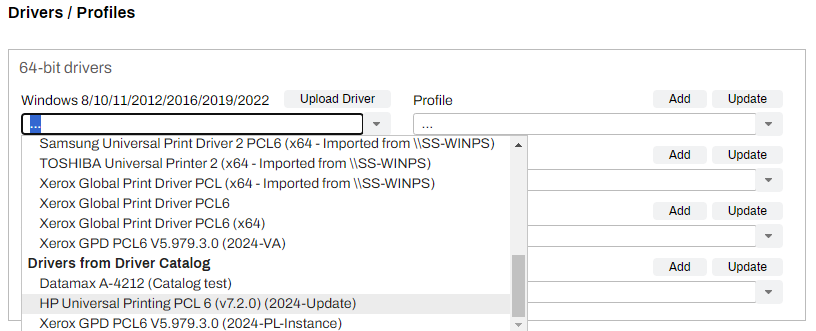
- In the dropdown, scroll down to the Drivers from Driver Catalog section.
- Local drivers list in the Driver from Local Repository section.
- Select the catalog driver from the list.
- Select Add.
Printer Objects
- Navigate to a customer account that has the Driver Catalog flag enabled.
- In the Instance Information section, select the Login button.
- In the Admin Console, navigate to the desired printer object.
- Select the printer's Drivers / Profiles tab.
- In the corresponding operating system field, select the drop-down to expand it.
- In the dropdown, scroll down to the Drivers from Driver Catalog section.
- Local drivers list in the Driver from Local Repository section.
- Select the catalog driver from the list.
- Select Save in the upper-right.
ArchivoBlack-Regular Archivo-Light Archivo-Medium ArchivoNarrow-Regular Archivo-Regular RobotoMono-Italic-VariableFont_wght RobotoMono-VariableFont_wght Search-Results.htm